Get Paid Faster with Online Invoice Payments
Collecting customer payments efficiently is essential for maintaining healthy cash flow. Traditional payment methods often require customers to manually transfer funds, enter invoice references correctly, and notify the supplier once payment has been made. These additional steps can lead to delayed payments, administrative overhead, and increased follow-up efforts.
CURQ simplifies the payment process by allowing customers to pay invoices directly online through the Customer Portal. By integrating with trusted payment providers such as Mollie, customers can securely settle outstanding invoices using their preferred payment method. Once a payment is completed, CURQ automatically updates the invoice status and records the payment in the accounting system.
This functionality helps organizations reduce manual administration, improve payment collection, and provide a better customer experience.
Enable Online Invoice Payments
To activate online invoice payments, navigate to:
Accounting → Configuration → Settings → Customer Payments
Enable the Pay Invoices Online option and click Save.
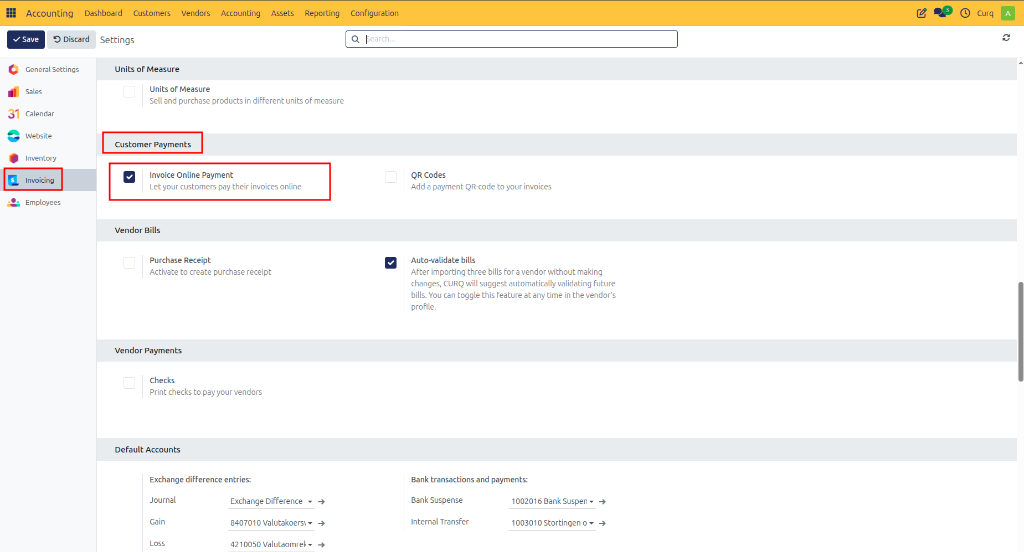
Once enabled, customers will be able to access and pay invoices directly from the customer portal.
Payment Providers
CURQ supports multiple online payment providers. One of the most commonly used integrations is Mollie, which allows customers to pay invoices using payment methods such as:
iDEAL
Credit Card
Bancontact
PayPal (if enabled in Mollie)
Other payment methods supported by your Mollie account
Navigation:
Accounting → Configuration → Payment Providers
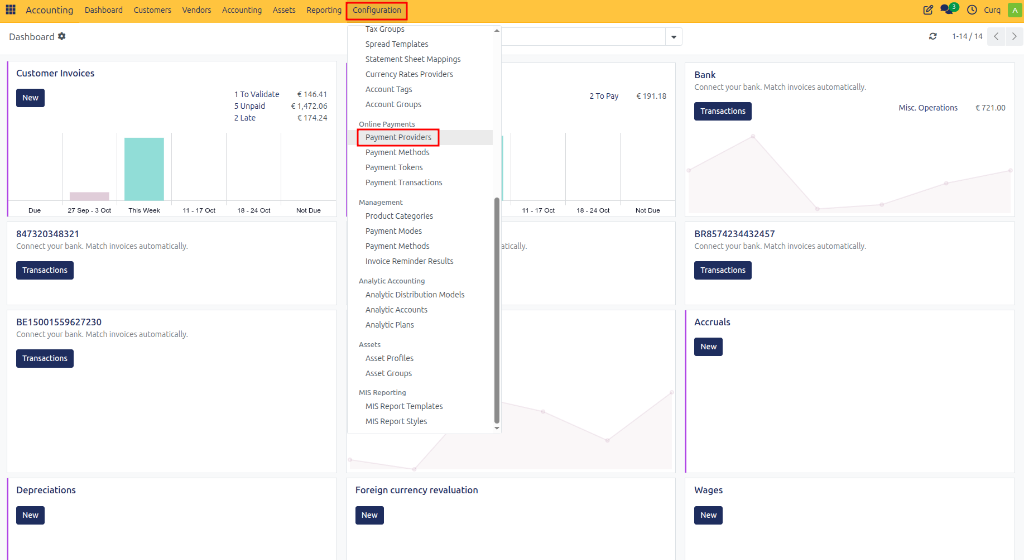
From this menu, you can activate and configure payment providers that will be available in the customer portal.
Configure Mollie Integration
Mollie can be used as the payment provider for online invoice payments.
Step 1: Activate Mollie
Navigate to:
Accounting → Configuration → Payment Providers
Select Mollie from the list of available providers.
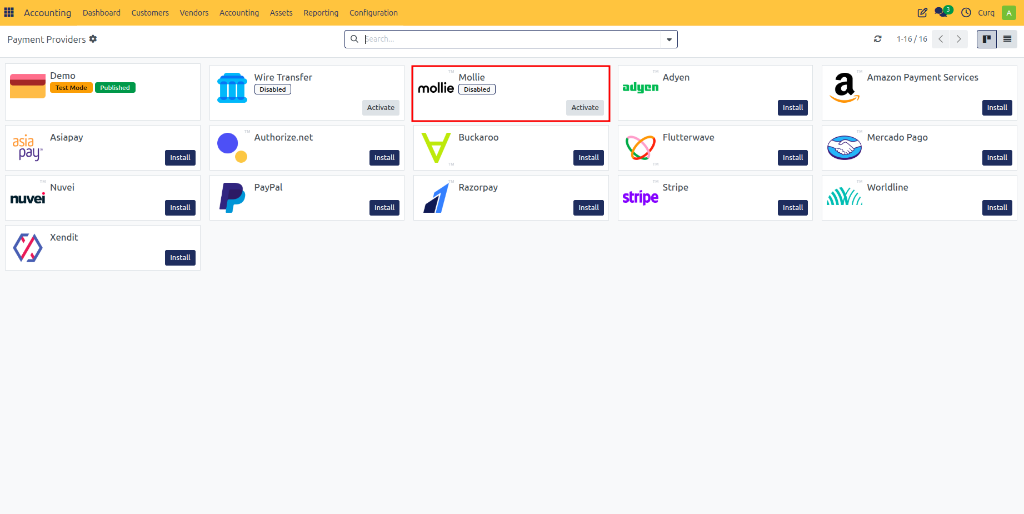
Step 2: Enter API Credentials
Open the Mollie provider configuration and enter the required:
API Key
Authentication Credentials
Other configuration details provided by Mollie
These credentials can be obtained from your Mollie Dashboard.
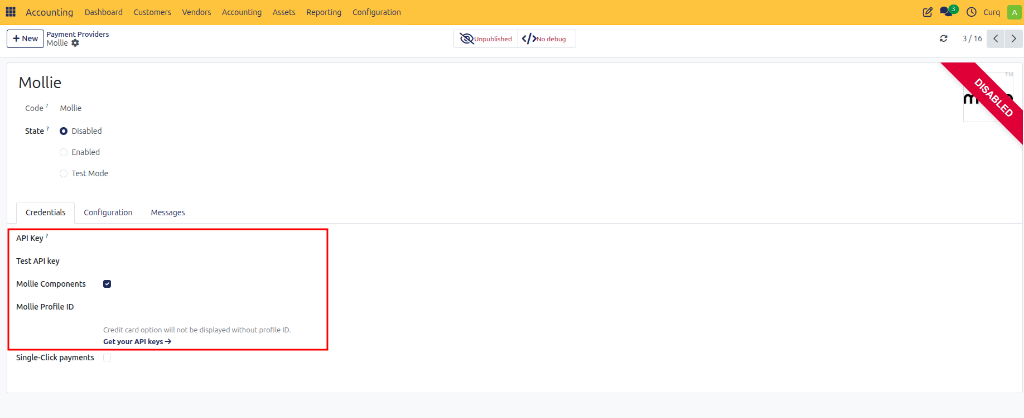
Save the configuration once all details have been entered.
Step 3: Synchronize Payment Methods
After configuring Mollie, open the Mollie Payment Methods tab.
Click: Sync Payment Methods
CURQ will retrieve all available payment methods from your Mollie account.
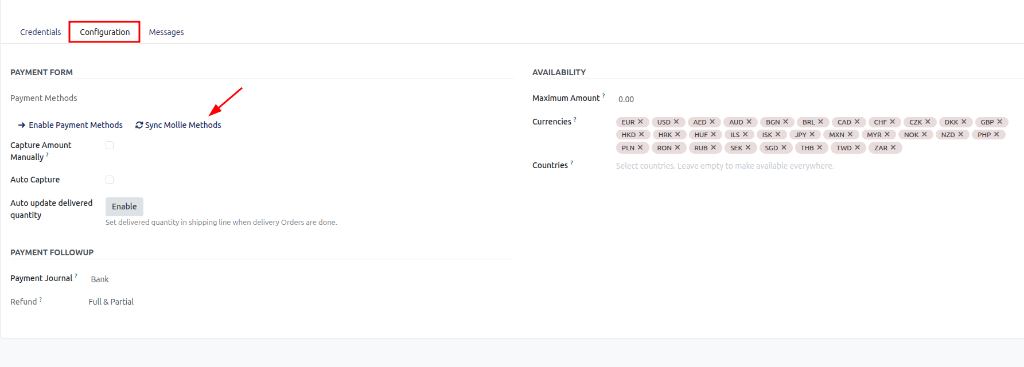
After synchronization, supported methods such as iDEAL will become available for use within the customer portal.
Step 4: Configure the Payment Provider
Open the Configuration tab of the Mollie payment provider.
Link the appropriate Mollie Journal that will be used to register incoming payments.
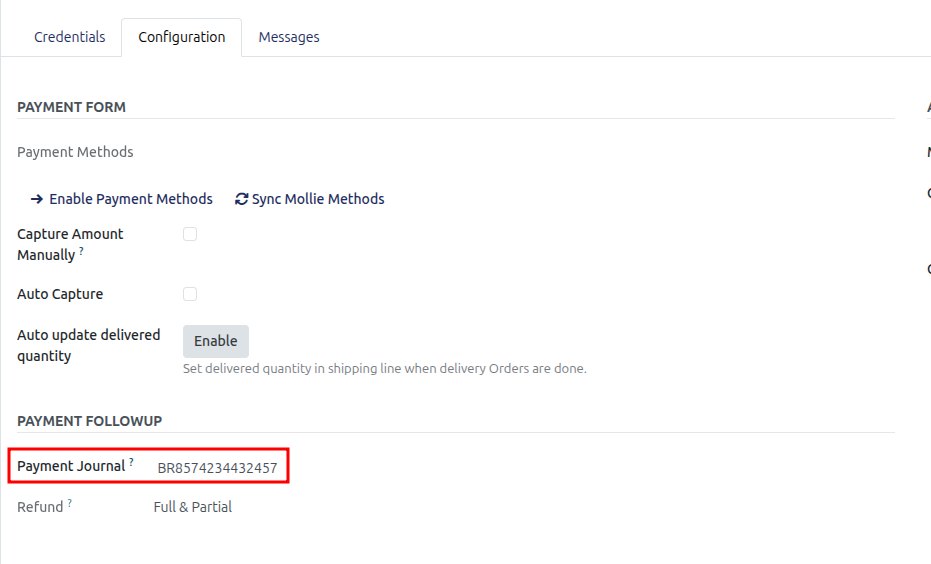
You can also configure:
Countries: Specify the countries where the payment method is available.
Payment Icons: Select which payment method icons should be displayed in the customer portal.
Maximum Amount: Define a maximum invoice amount for which this payment provider can be used. Leave this field empty if no maximum limit is required.
Customer Payment Workflow
After configuration is complete, customers can pay invoices directly through the CURQ Customer Portal.
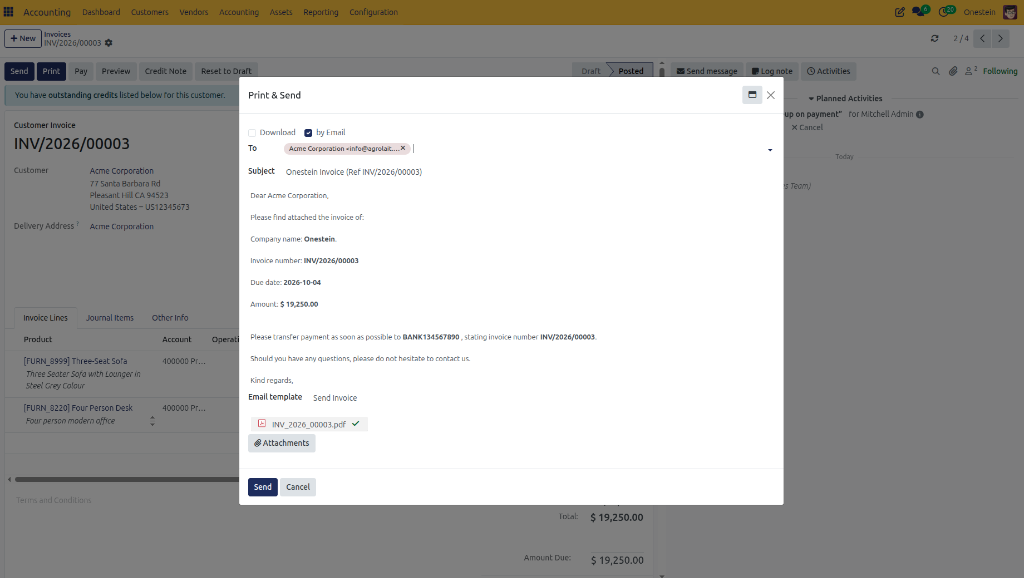
Step 1: Send the Invoice
Create and send an invoice from CURQ. When an invoice email is sent, CURQ automatically includes a link to the customer portal.
Step 2: Customer Opens the Portal
The customer clicks the link contained in the email.
This link provides direct access to the customer portal and the corresponding invoice.
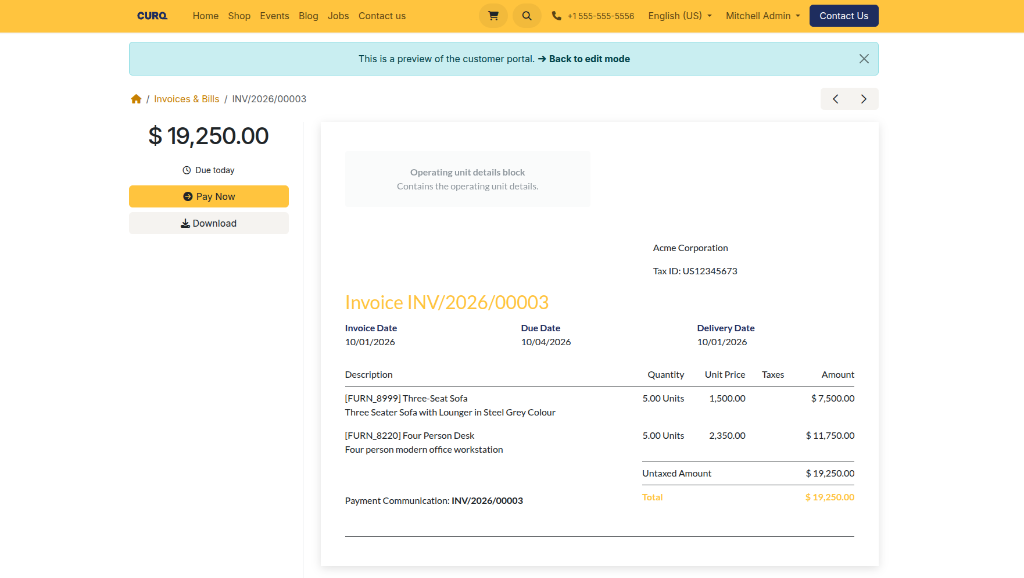
Step 3: Customer Reviews the Invoice
Inside the portal, the customer can:
View invoice details
Check outstanding balances
Review payment information
Access the Pay Now button
Step 4: Customer Pays the Invoice
The customer clicks Pay Now and selects one of the available payment methods.
For example, when using Mollie with iDEAL enabled, the customer can choose their bank and complete the payment securely.
Step 5: Payment Confirmation
Once the payment has been completed successfully:
The invoice is immediately marked as Paid in the customer portal.
The customer receives instant confirmation.
The outstanding balance becomes zero.
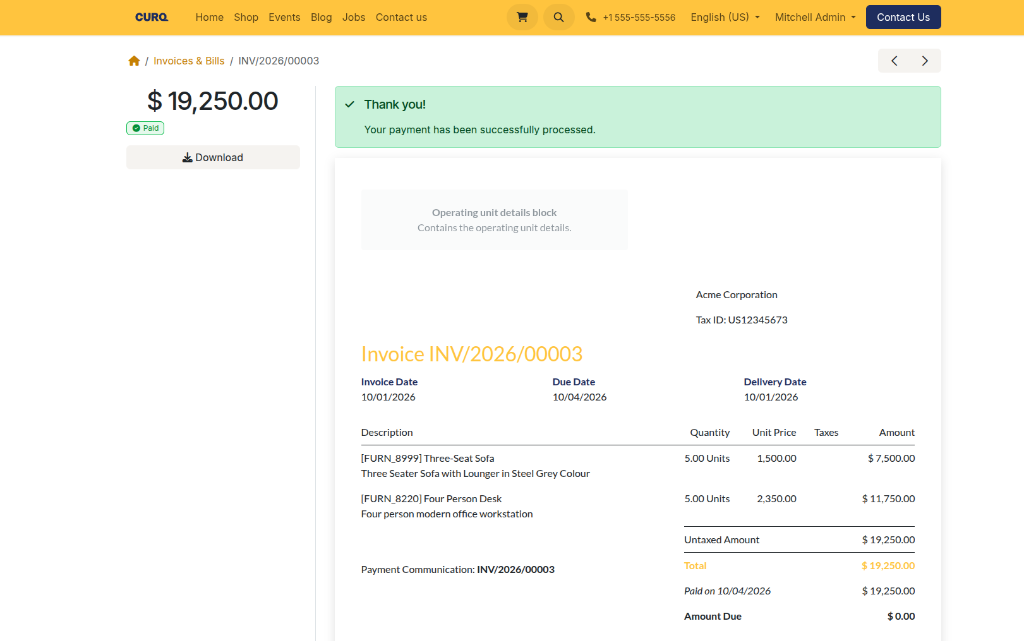
Invoice Status in CURQ
After successful payment processing:
CURQ automatically updates the invoice status to Paid.
A payment transaction is created.
The payment transaction is linked to the invoice.
The payment is recorded in the configured journal.
The customer balance is updated automatically.
This eliminates manual payment registration and ensures that customer and accounting records remain synchronized.
Benefits of Online Invoice Payments
Using online invoice payments in CURQ provides several advantages:
Faster invoice payments
Improved customer experience
Reduced manual payment processing
Automatic payment registration
Real-time invoice status updates
Secure payment processing through trusted providers such as Mollie
Direct integration with the Customer Portal
Complete Online Payment Process
Enable Pay Invoices Online in Accounting Settings.
Configure a payment provider such as Mollie.
Enter API credentials and synchronize payment methods.
Link the appropriate payment journal.
Create and send a sales invoice.
The customer receives an email containing a portal link.
The customer opens the invoice and clicks Pay Now.
The payment is processed through the selected provider.
CURQ automatically marks the invoice as Paid.
The payment transaction is linked to the invoice and recorded in the accounting system.
This functionality allows customers to pay invoices quickly and securely while ensuring that all payment information is automatically processed and tracked within CURQ.