Setting Up Products and Invoicing Policies
Configure product records, define pricing and sales tax rules, select inventory tracking, and assign invoicing policies in CURQ 18.
1. Creating a Product Record
Every quotation and sales order line in CURQ requires a product record. To create a new product:
Navigate to Products > Products.
Click New at the top left of the screen.
Enter the product title in the Product Name field.
Set the commercial availability options below the name:
Sales: Check this box to make the product selectable on sales quotations, customer invoices, and pricelists.
Purchase: Check this box if you also buy this item from suppliers or vendors.
The product record saves automatically as you complete each field.
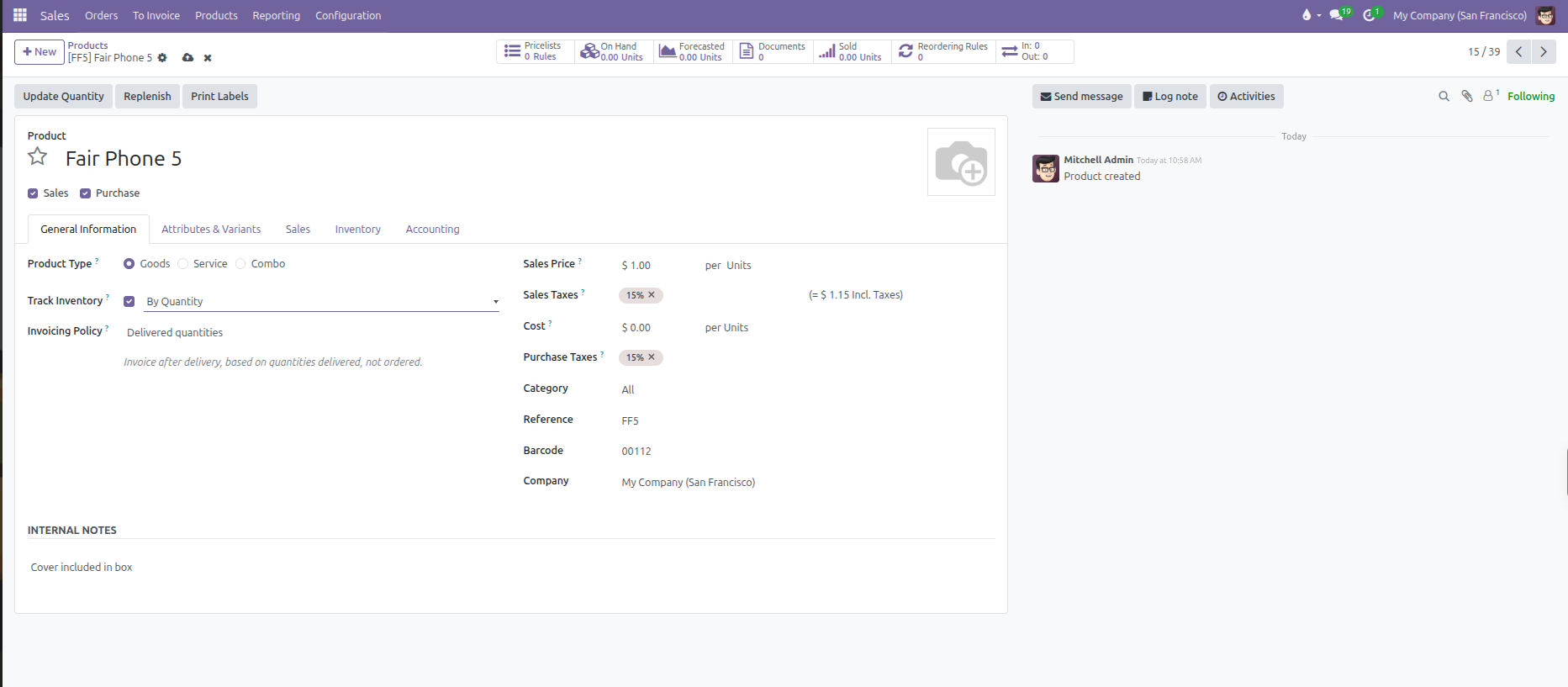
2. Choosing the Product Type
Under the General Information tab, the Product Type determines how CURQ tracks stock, schedules fulfillments, and calculates costs:
Product Type |
Practical Application |
Inventory and Delivery Behavior |
|---|---|---|
Goods |
Physical merchandise, raw materials, components, and supplies. |
Displays a Track Inventory checkbox (set to By Quantity). When checked, CURQ tracks stock on hand, generates warehouse delivery slips upon sales confirmation, and enables replenishment rules. When unchecked, the item behaves as a consumable with no stock accounting. |
Service |
Consulting, labor, delivery fees, design work, and maintenance contracts. |
Generates no warehouse moves or delivery slips. Can be configured to create tasks, projects, or timesheet trackers upon order confirmation. |
Combo |
Bundled offerings (such as meal packages or starter kits). |
Allows customers to select individual components from preconfigured choice lists directly on orders. |
3. General Information and Pricing
Configure core commercial values on the right-hand side of the General Information tab:
Field |
Purpose in Sales |
Practical Effect |
|---|---|---|
Sales Price |
Base selling price per unit. |
Automatically populates the unit price on new quotation lines before any pricelist discount rules apply. |
Sales Taxes |
Default tax rate applied to customer sales. |
Automatically calculates tax amounts on quotation and invoice lines unless overridden by a customer fiscal position. |
Cost |
Internal unit acquisition or production expense. |
Used across sales orders and sales reports to calculate gross margin and profitability percentages. |
Purchase Taxes |
Default tax rate applied when purchasing this item. |
Visible when Purchase is checked. Automatically calculates input tax on supplier purchase orders and bills. |
Category |
Classification grouping for products. |
Applies default income accounts, expense accounts, and inventory valuation methods inherited by all items in this category. |
Reference |
Internal SKU or part number. |
Allows sales staff to search for and select products quickly on quotation lines by typing the reference code. |
Barcode |
International barcode (EAN, UPC) or internal barcode. |
Enables optical scanner input when adding items to orders or scanning packages in the warehouse. |
Company |
Restricts item visibility to a single branch. |
When blank, displays placeholder Visible to all to share the item across all companies in multi-company environments. |
Internal Notes
Located at the bottom of the General Information tab:
Use this text area for staff instructions, handling guidelines, supplier specifications, or internal product knowledge.
Information entered here remains strictly internal. It is never printed on customer quotation PDFs, delivery slips, or invoices.
4. Selecting the Invoicing Policy
The Invoicing Policy controls the exact moment a product becomes eligible for billing on a confirmed sales order:
Invoicing Policy |
When Billing Unlocks |
Best Used For |
|---|---|---|
Ordered quantities |
Immediately upon confirming the quotation into a sales order. |
Services, subscriptions, custom manufactured goods requiring prepayments, or businesses using upfront billing. |
Delivered quantities |
Only after warehouse staff validate the outgoing delivery slip or confirm service fulfillment. |
Physical inventory shipped from stock, preventing customer billing disputes if items are delayed, backordered, or partially delivered. |
When a sales order contains products with mixed invoicing policies, CURQ bills each line according to its individual policy:
Lines set to Ordered quantities appear on the invoice immediately.
Lines set to Delivered quantities remain unbilled until delivery validation occurs.
5. Sales Descriptions and Warnings
Open the Sales tab to configure customer-facing documentation details and salesperson alerts:
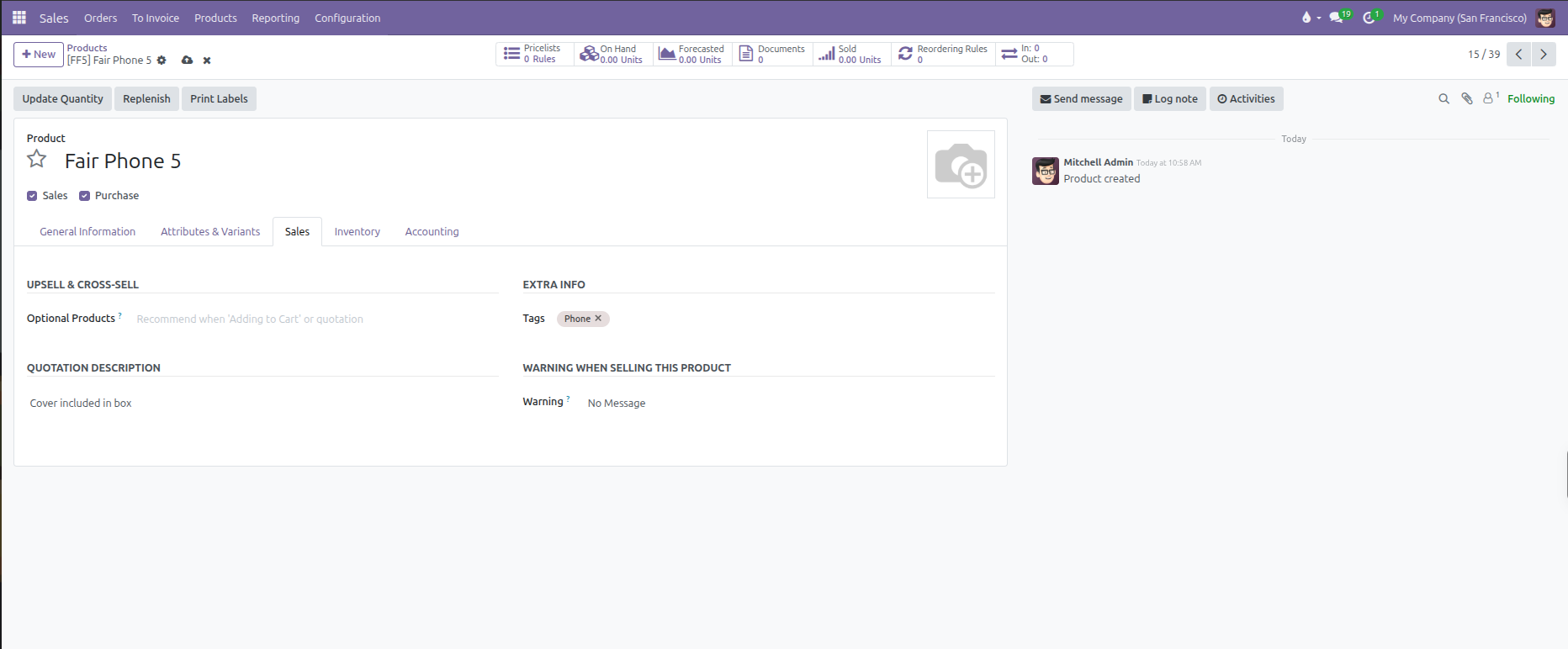
Upsell and Cross-Sell
Use the Optional Products field to recommend complementary items:
Suggested products appear automatically on customer portal quotation views.
Clients can add these optional products to their offer with a single click before digitally signing the agreement.
Extra Info
Assign custom labels to your items using the Tags field:
Add tags to group, filter, and search products quickly in the catalog.
Type a new tag name to create it on the spot, or select existing tags from the list.
Tags are internal to your team and do not appear on customer documents.
Quotation Description
The Quotation Description box shows extra details to your customers:
Anything you type here prints right under the product name on quotation PDFs, the customer portal, and customer invoices.
Use this box for customer details like technical specifications, warranty terms, included accessories, or service conditions.
For private staff notes, use the Internal Notes box under the General Information tab instead so customers never see them.
Warning when Selling this Product
(You need to enable Sale Warnings from Sales > Configuration > Settings)
You can configure automatic notifications that pop up when staff select this product on quotation lines:
No Message: Default state with no alert.
Warning: Displays an informative pop up alert on screen, but allows the salesperson to proceed with the line.
Blocking Message: Displays a pop up error and completely prevents adding or selling this product on quotations.