Configure Document Layout
Overview
Configuring your company branding, such as logos, colors, and document layouts, ensures that every invoice and business document is aligned with your corporate identity. A clear and professional layout reflects your company’s identity and helps reduce payment issues by providing customers with complete and well-structured information.
If your branding was not configured during the initial setup, you can update it at any time.
Customize Corporate Identity
Navigate to:
Settings → General Settings → Companies
Select Configure Document Layout.
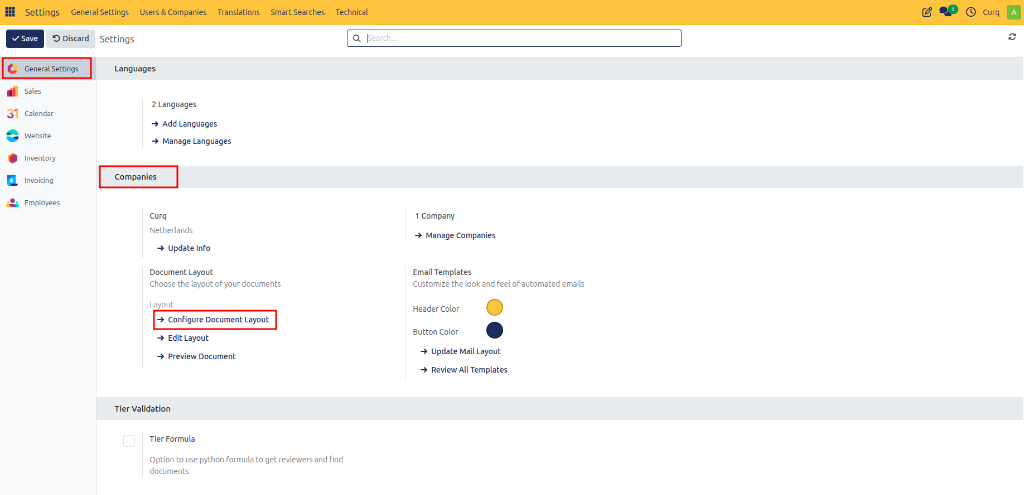
This screen allows you to customize how invoices and other business documents appear.
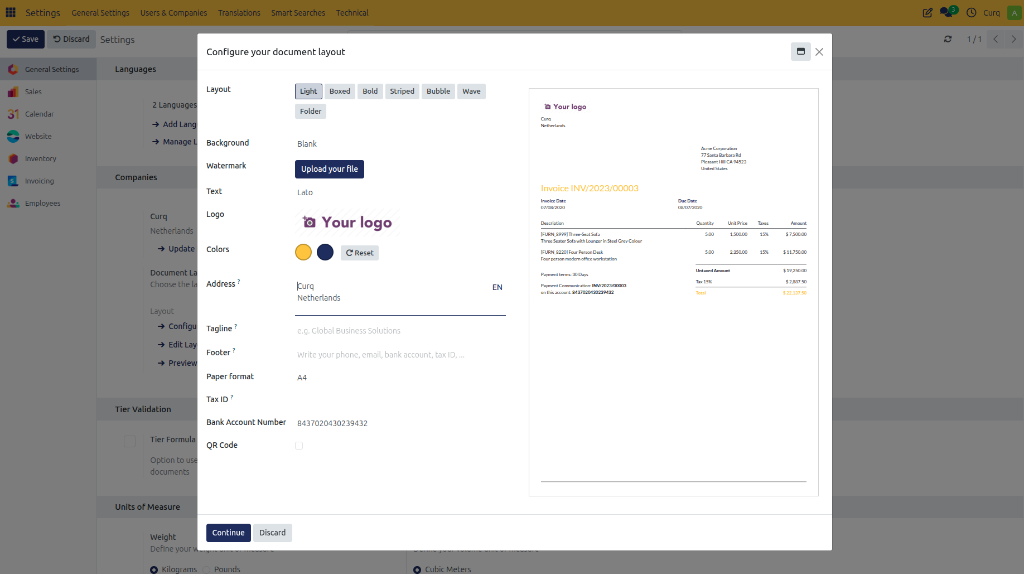
Document Layout Options
Field |
Description |
|---|---|
Layout |
Select the overall document design template. |
Background Layout |
Choose a predefined background or upload your own. |
Font |
Select the font used throughout the document. |
Company Logo |
Upload your company logo. |
Colors |
CURQ automatically suggests colors based on your logo, but they can be adjusted manually. |
Company Address |
Displays the company address on documents. |
Company Slogan / Tagline |
Enter an optional slogan displayed near the logo. |
Footer |
Add information such as Phone number, Website, Email address, Chamber of Commerce number, VAT number, and Bank account number. |
Tax ID |
Displays the company tax identification number. |
Bank Account Number |
Defines the account displayed on invoices. |
Paper Format |
Select the paper size used for printing. |
QR Code |
If enabled, a payment QR code is printed on invoices. |
A live preview is displayed on the right side of the screen. You can also download a sample PDF to see exactly how customers will receive your documents.