Canned Responses Setup
Create pre-written message templates, assign shortcut triggers, and share standard responses across teams in CURQ 18.
1. Overview of Canned Responses
Canned responses allow employees to insert standardized message templates into any chat conversation or document chatter simply by typing a colon followed by a shortcut (such as :hello or :pricing).
Using canned responses speeds up customer communication, ensures brand consistency across customer service and sales teams, and removes the need to type identical messages multiple times.
2. Access Canned Responses Configuration
To manage existing templates or create new ones:
Open the Discuss app from the main application menu.
In the top navigation bar, click Configuration and select Canned Responses.

The system displays the list of active canned responses. The default search filter displays My canned responses, showing templates you created. You can clear this filter or select Shared canned responses to view team-wide templates.

3. Create a New Canned Response
To add a reusable template:
From the Canned Responses list view, click New (or click the top row of the editable table).
Fill in the template details:
Shortcut: Enter the keyword that will trigger the template. You do not need to type the colon here (for example, enter
quote-followupto trigger with:quote-followup).Substitution: Type the complete text that will automatically fill into the message box when the shortcut is selected.
Description: Enter a brief summary explaining the purpose of this template (for example,
Standard follow-up for pending quotation approvals).Authorized Groups:
Leave Blank: Keeps the template personal to your user account. Other coworkers will not see or use it.
Select Groups: Add specific user groups (such as
Sales / UserorInventory / User) to share the template with all members of that department.
Click the cloud icon (or click outside the row) to Save.
4. Insert Canned Responses in Messages
Canned responses function in every composer across CURQ, including public channels, private direct chats, and record chatter feeds on Sales Orders, Invoices, and Helpdesk tickets:
Click inside any message box.
Type a colon (
:) followed by the first few letters of the shortcut (such as:hello).A popup suggestions list appears displaying all matching canned responses along with their preview text.
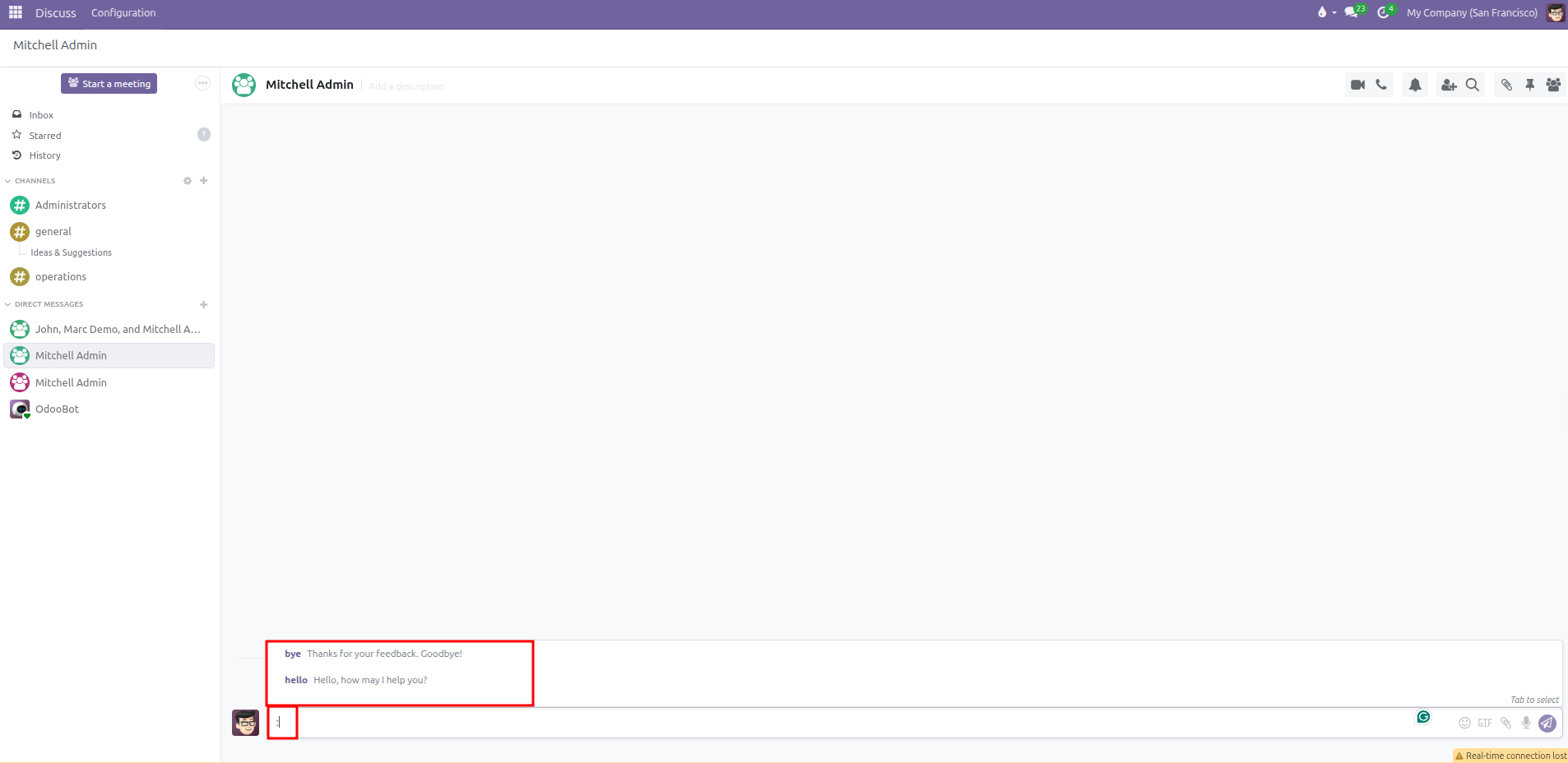
Select the desired template using your mouse, press Tab, or press Enter.
CURQ immediately swaps the shortcut with the full substitution text.
You can edit the text, insert names, or adjust details before clicking Send.