Invoicing Sales Orders and Down Payments
Generate customer invoices, collect down payment deposits, and track billing progress from sales orders in CURQ 18.
1. Creating an Invoice
When you are ready to bill a customer for a confirmed sales order:
Open the confirmed order from Orders > Orders.
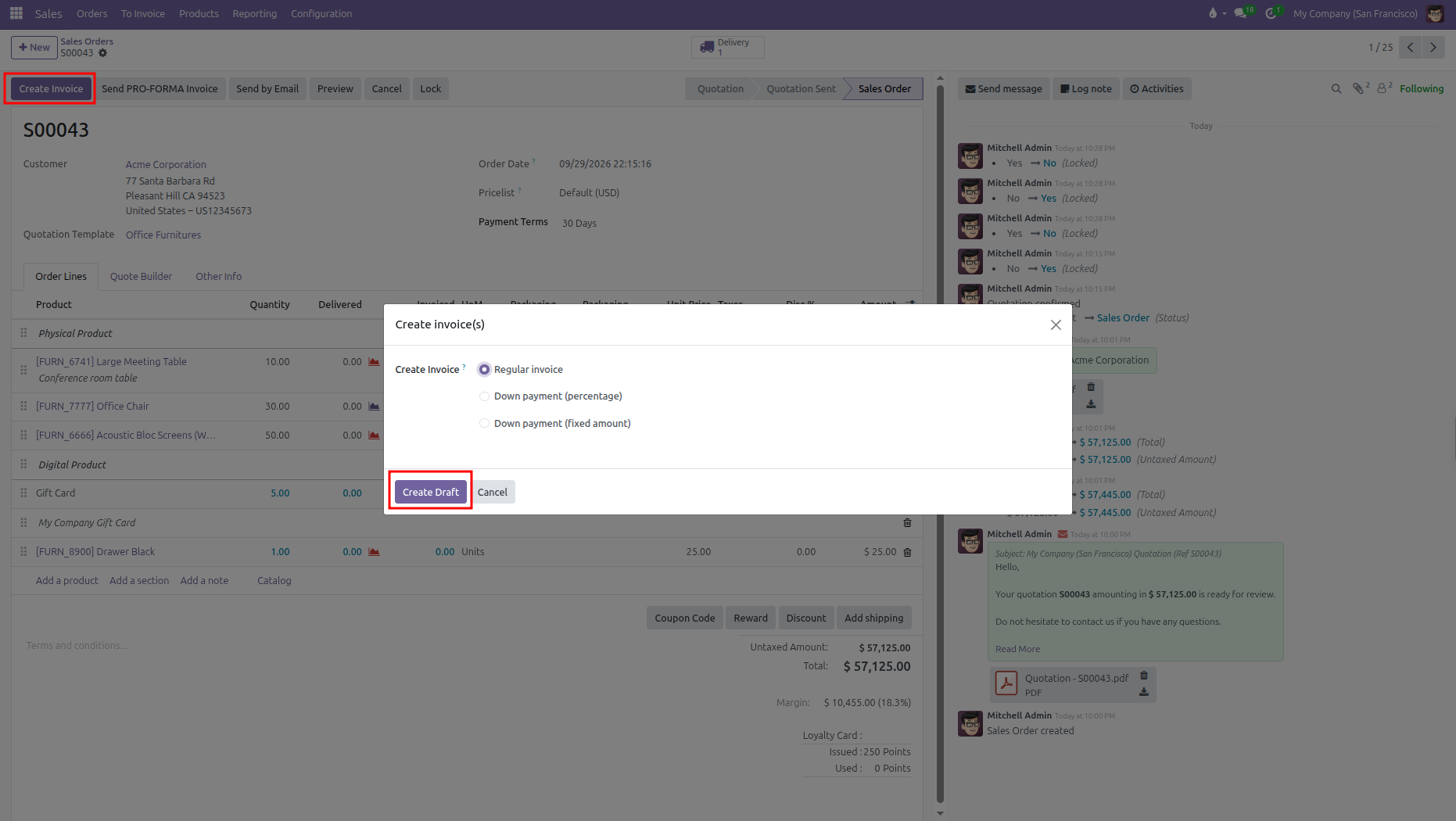
Click Create Invoice at the top left of the form.
In the pop up window, choose your invoice type:
Invoicing Option |
When to Use |
|---|---|
Regular invoice |
Invoices all order lines ready for billing based on their invoicing policy. Automatically deducts any earlier down payments. |
Down payment (percentage) |
Bills an advance deposit as a percentage of the total order amount. |
Down payment (fixed amount) |
Bills a specific fixed currency amount as a deposit. |
Click Create Draft. CURQ generates a draft customer invoice linked to this sales order and opens the invoice form on your screen.
Review the invoice lines and totals, then click Confirm at the top left of the form to officially post the invoice to accounting.
Deliver the invoice to your customer using the top buttons:
Click Send to open the email composer with the invoice PDF attached, then click Send in the pop up to email it to the customer.
Click Print to download a copy of the invoice PDF directly to your computer.
2. Invoicing Policies: Ordered vs Delivered Quantities
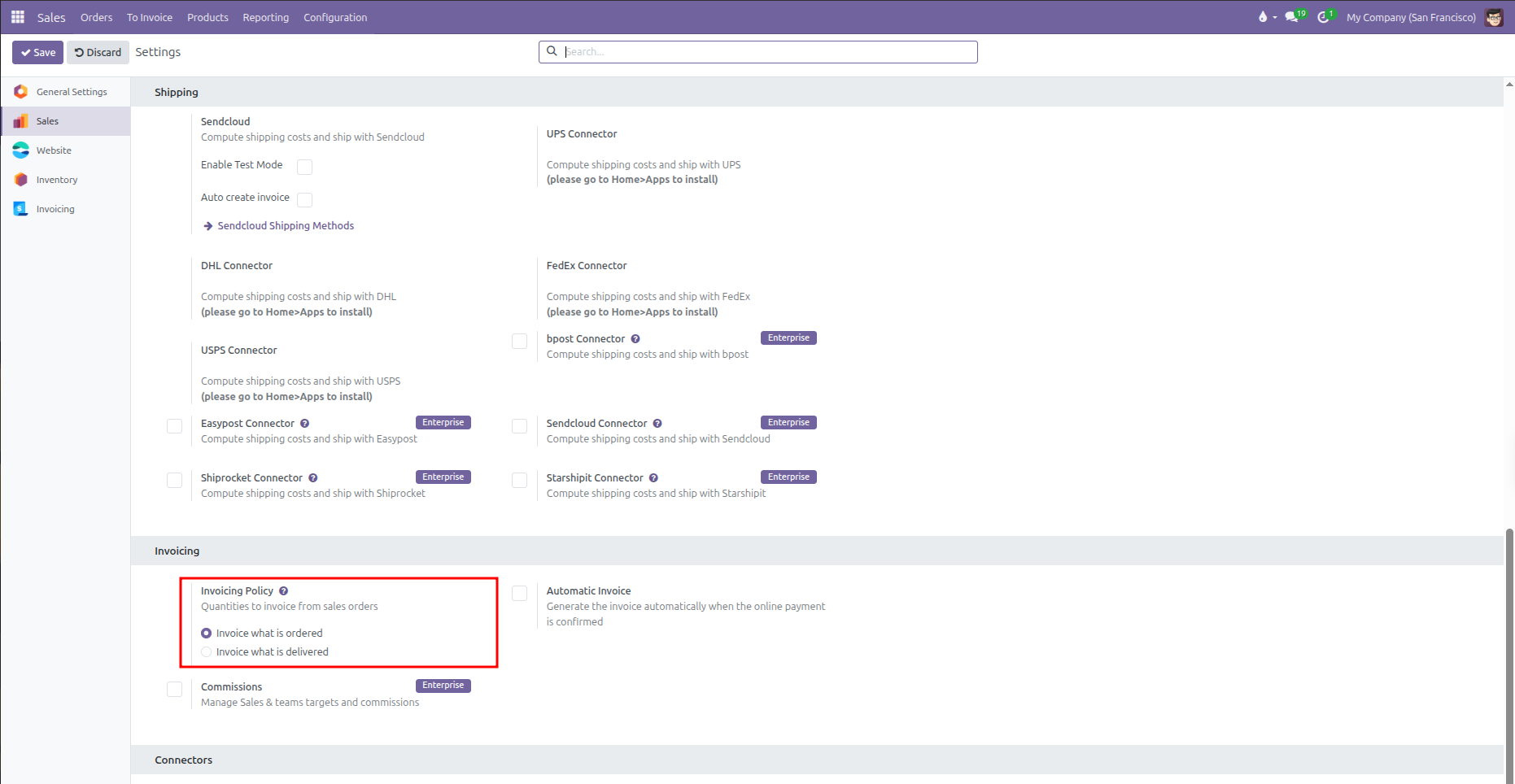
(You can configure the default Invoicing Policy from Sales > Configuration > Settings)
Each product in CURQ follows one of two billing rules set on its product card:
Invoicing Policy |
Billing Rule |
|---|---|
Ordered quantities |
Available to invoice as soon as the sales order is confirmed. Ideal for services or prepaid orders. |
Delivered quantities |
Only available to invoice after the warehouse validates the shipment. Protects customers from being billed for items that have not shipped yet. |
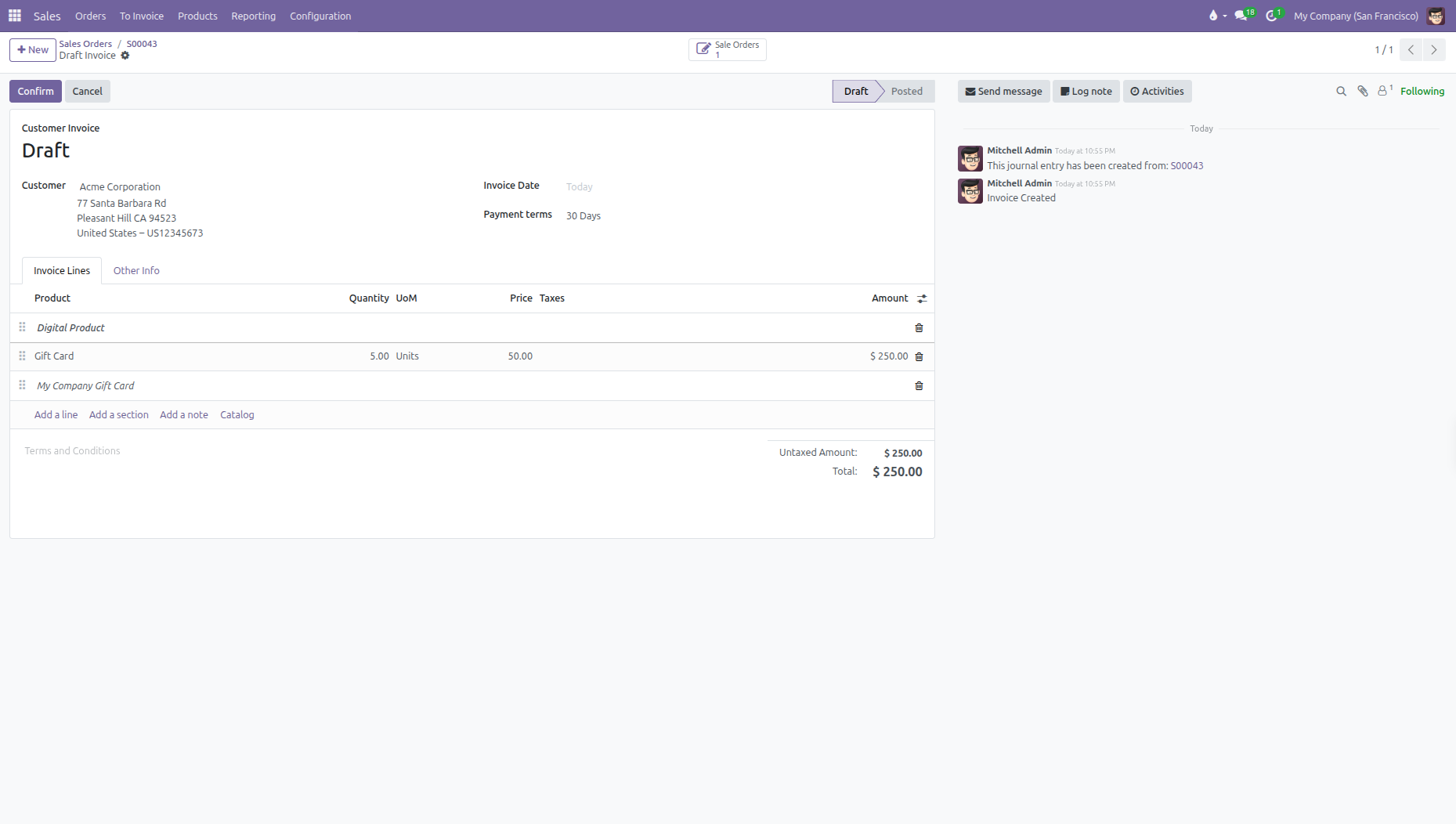
When an order contains both types of products, creating a regular invoice only pulls in lines that are currently eligible for billing. For example, a digital gift card set to ordered quantities appears on the draft invoice immediately, while physical furniture lines remain unbilled until warehouse delivery is completed.
To invoice delivered items:
Open the linked delivery slip by clicking the Delivery smart button on the sales order.
Verify shipped quantities and click Validate.
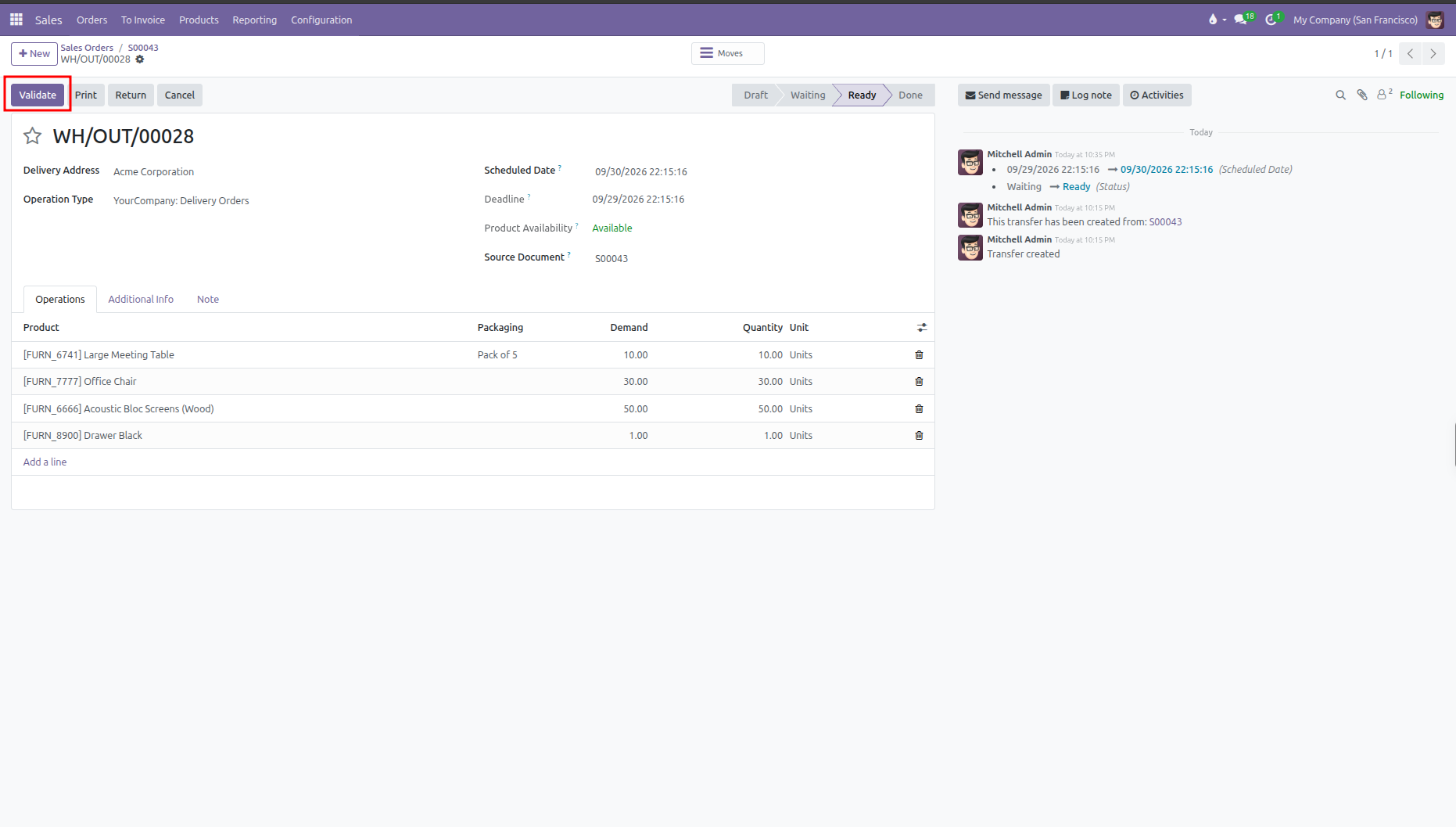
Return to the sales order and click Create Invoice again. The newly delivered products will now appear on the customer invoice.
3. Down Payments on Final Invoices
If you bill one or more advance deposits, CURQ handles the balance reconciliation automatically:
Advance invoices are created and paid during the project or preparation phase.
When the final delivery is complete, click Create Invoice and select Regular invoice.
CURQ automatically deducts the earlier paid down payment amounts from the final bill, charging the customer only for the remaining balance.
4. Tracking Invoicing Progress
You can monitor billing status directly from the sales order:
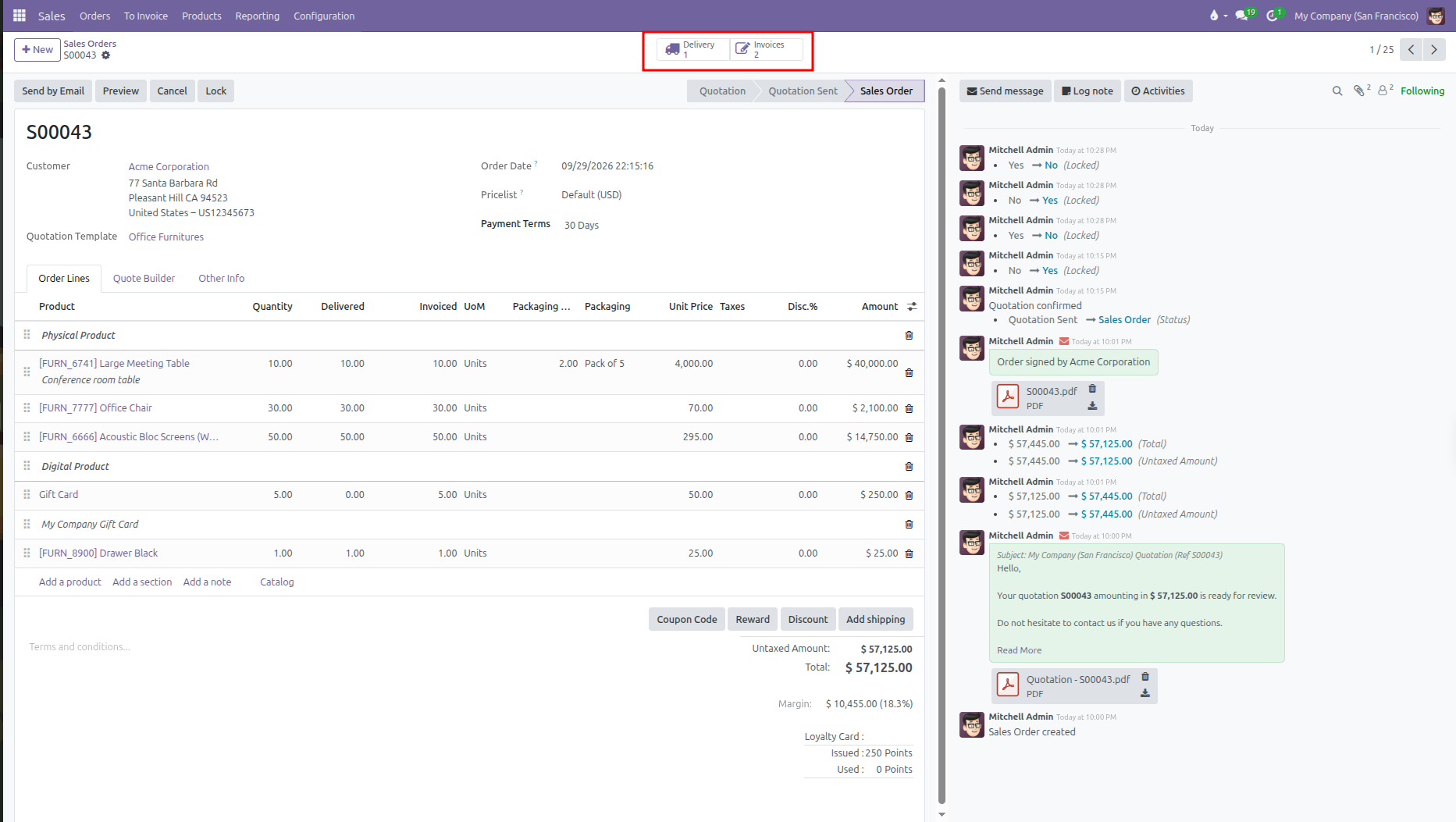
Invoices Smart Button: Located at the top center, this button shows the count of linked invoices and opens them with one click.
Order Line Tracking: Review the Quantity, Delivered, and Invoiced columns on each line to see exactly how much has been billed so far.