Manage Invoice Contracts
Invoicing Sales and Purchase Contracts
After all contract or subscription details have been configured, you can generate invoices based on the contract terms. CURQ supports both manual and automatic invoice generation, ensuring that recurring invoices are created according to the defined billing schedule.
Generating the First Invoice
Once the contract has been completed, the first invoice can be generated immediately.
There are two ways to create invoices:
Create Invoices Button
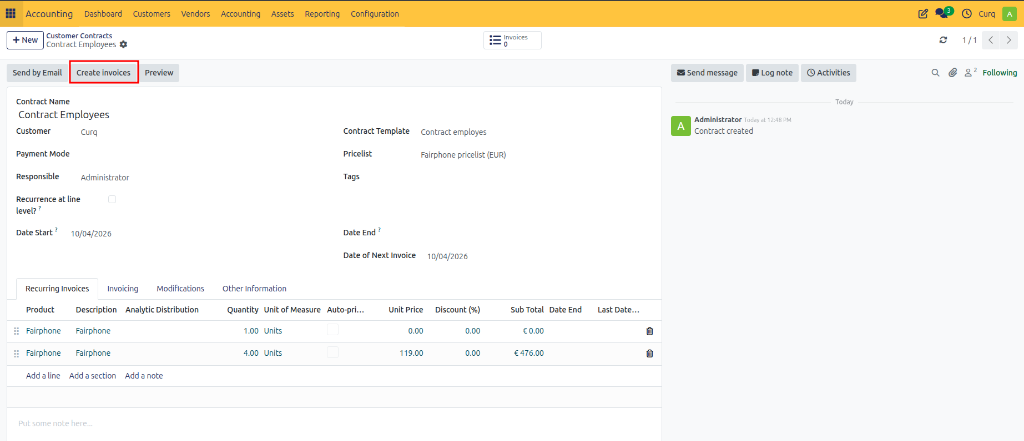
Open the contract and click the Create Invoices button.
This option generates an invoice directly from the contract and is typically used when the first invoice needs to be issued immediately after creating the contract.
Manual Invoicing
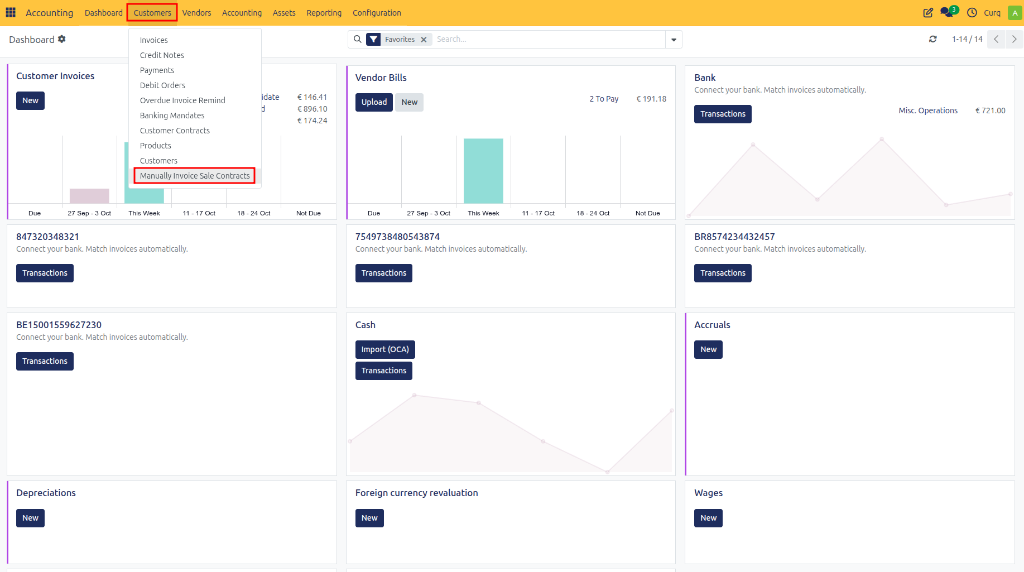
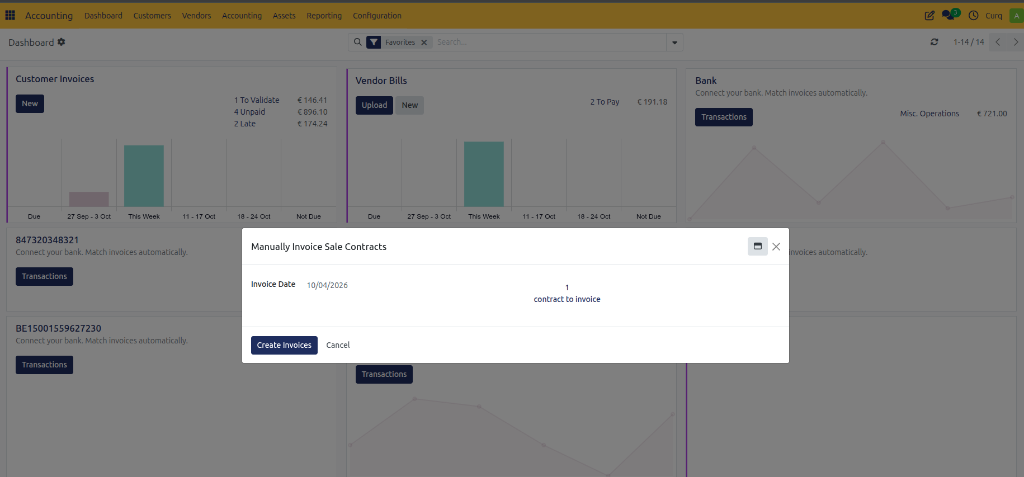
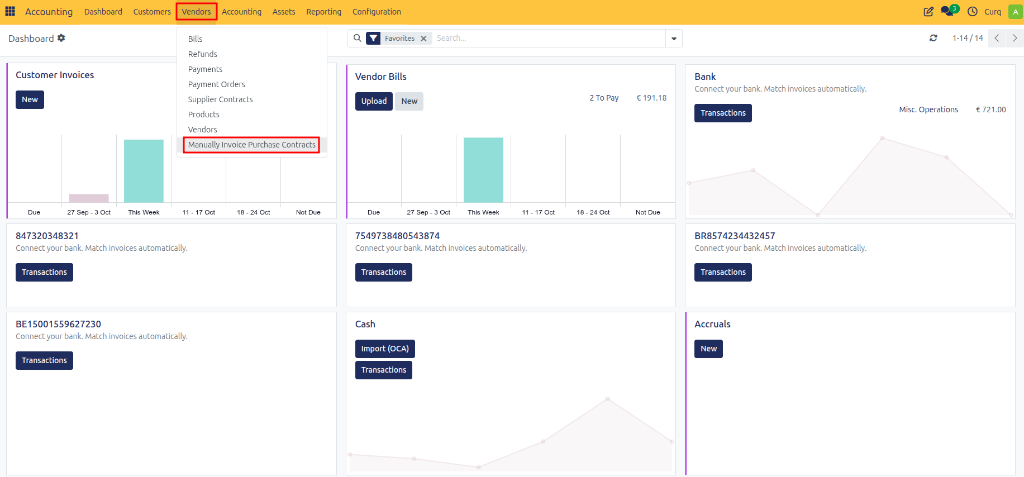
You can also generate invoices through the Manual Invoicing Sales Contracts menu.
This option processes all contracts that are currently eligible for invoicing and creates the required invoices in a single action. This is particularly useful when multiple contracts need to be invoiced at the same time.
Automatic Invoice Generation
CURQ automatically creates recurring invoices through the scheduled action: Generate Recurring Invoices from Contracts
This automated process runs daily and checks all active contracts for invoiceable subscription periods. When a contract reaches its next billing date, CURQ automatically generates the corresponding invoice according to the contract settings.
This ensures that recurring subscriptions continue to be invoiced without manual intervention.
Manual Execution in Debug Mode
Users with access to Developer (Debug) Mode can manually trigger the recurring invoicing process.
This is useful for:
Testing contract configurations
Verifying invoicing schedules
Creating invoices immediately without waiting for the scheduled action
Troubleshooting recurring invoice generation
By manually executing the process, invoices are generated instantly for all contracts that meet the invoicing criteria.
Viewing Generated Invoices
Invoices created from contracts remain linked to the originating contract.
Using the Show Recurring Invoices option, you can view all invoices generated from a specific contract, making it easy to track billing history and subscription activity.
Customer Portal View
Customers can view their subscriptions through the Customer Portal. The portal provides access to important subscription information, including:
Contract details
Active subscription products and services
Billing periods
Generated invoices
Subscription status
This allows customers to monitor their subscriptions without contacting an administrator.
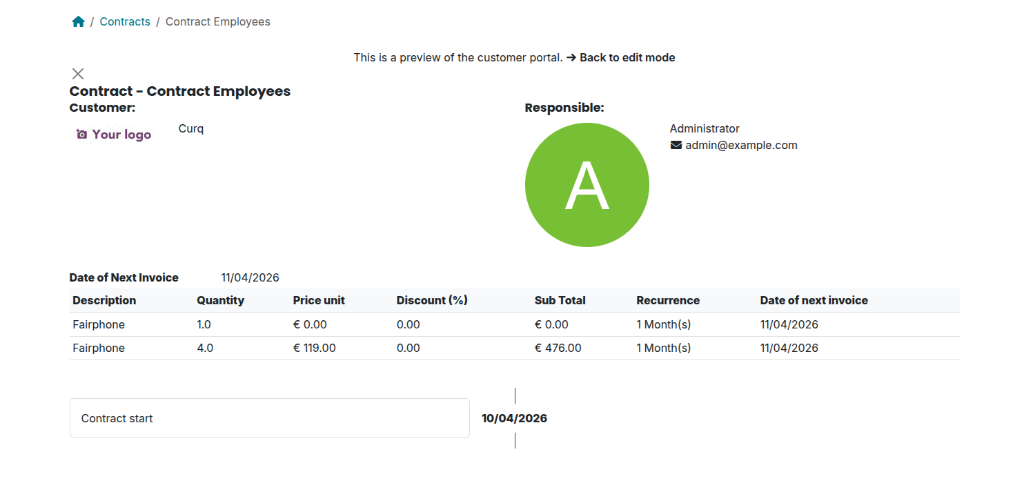
Customer Self-Service Subscription Management
If enabled in the contract configuration, customers can also manage their subscriptions directly from the portal. Depending on the settings, customers may be able to:
View subscription information
Review recurring invoices
Check renewal dates
Terminate subscriptions themselves
This self-service functionality reduces administrative workload while giving customers greater control over their subscriptions.
Terminate Sales Contracts
You can stop an active contract or subscription rule at any time. This is useful when a customer cancels a subscription, a service is temporarily suspended, or a contract needs to end on a specific date.
There are two ways to terminate a contract rule:
Using the Stop button on the contract rule.
Setting an End Date on the subscription rule.
Both methods prevent CURQ from generating future recurring invoices for that contract line.
Stopping a Contract Rule
Open the contract and locate the subscription rule you want to terminate. Next to the contract rule, click the Stop button.
When stopping a rule, you can:
Specify an End Date for the subscription.
Enter a reason for termination (if applicable).
Indicate whether the suspension is temporary or indefinite.
Once the end date is reached, CURQ will stop generating recurring invoices for that contract line.
Stopping a Contract Using an End Date
You can also terminate a contract rule directly through its configuration.
Open the contract.
Navigate to the Recurring Invoices tab.
Open the subscription line you want to stop.
Enter a value in the End Date field.
The subscription will remain active until the specified date and will automatically stop generating invoices afterwards.
Temporary Suspension
If the contract needs to be suspended without defining a permanent end date, you can stop the rule and leave it available for future reactivation.
This approach is useful for:
Temporary service interruptions
Seasonal subscriptions
Customer-requested pauses
Trial suspensions
Reactivating a Contract Rule
A terminated or suspended contract rule can be reactivated at any time.
To restart the subscription:
Click the Start Date calendar button located next to the Stop button, or
Open the subscription rule and modify the Start Date.
Remove or adjust the End Date if necessary.
Once the rule becomes active again, CURQ will resume generating recurring invoices according to the configured billing schedule.