Bank Transactions
Bank transactions can be imported into CURQ and matched with transactions in your accounting records, making the reconciliation process faster and more accurate.
The preferred method is to use bank synchronization, which automatically imports transactions from your bank. However, if synchronization is not available or your bank does not support it, CURQ provides alternative methods:
Import bank transaction files provided by your bank.
Register bank transactions manually.
Grouping transactions into bank statements is optional and can be configured according to your preferred accounting workflow.
Import Transactions
CURQ supports several formats for importing bank transactions:
SEPA Cash Management Format (CAMT.053)
SEPA Cash Management Format (CAMT.054)
CSV (.csv)
Excel (.xlsx)
To import a transaction file:
Navigate to
Accounting → Dashboard.Open the appropriate Bank Journal.
Click Import (OCA).
Upload the transaction file.
Confirm the import.
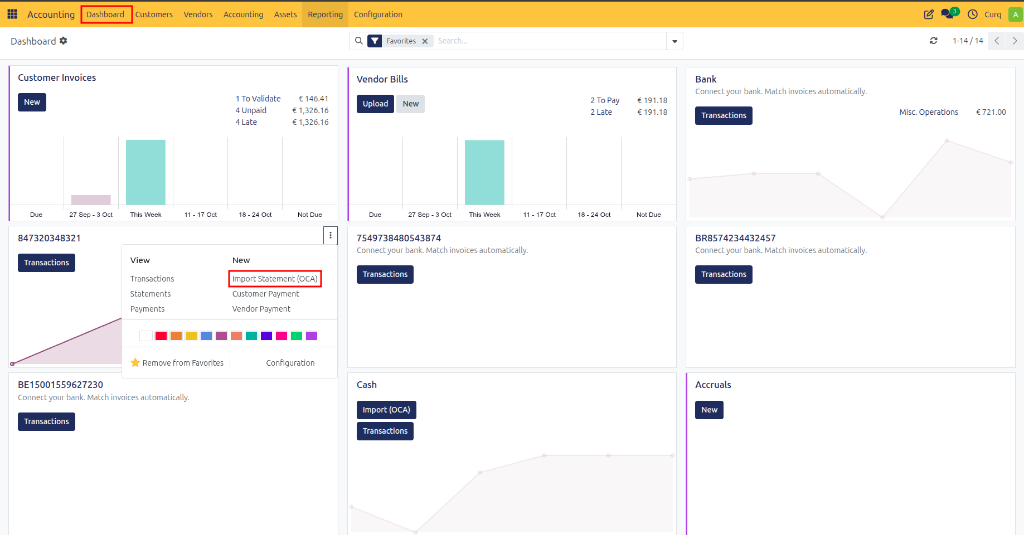
After importing, the transactions become available for reconciliation against invoices, payments, and other accounting entries.
Import Transactions via CSV or Excel
CURQ also supports importing bank transactions from CSV and Excel files. Because banks often use different export formats, it is recommended to configure a dedicated import template for each bank.
Navigation:
Accounting → Configuration → Statement Sheet Mappings
This menu allows you to define how columns from bank exports should be mapped to transaction fields in CURQ.
KNAB Bank Support
Some banks, such as KNAB, do not provide CAMT files. For this reason, CURQ includes a predefined import format for KNAB during installation. CSV files exported from KNAB can therefore be imported directly without additional configuration.
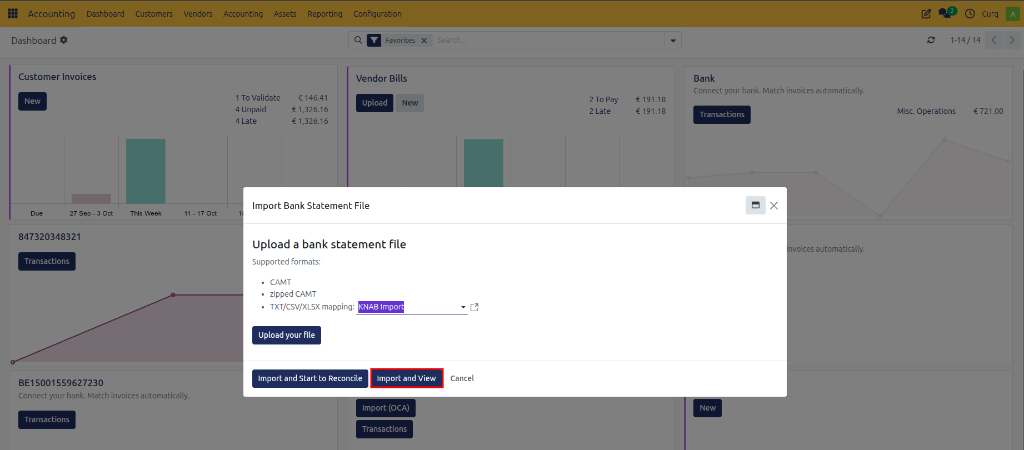
Since file layouts differ between banks, some banks may require a custom import template. If assistance is needed, contact the CURQ support team for help configuring the import format.
Register Bank Transactions Manually
Bank transactions can also be entered manually.
To create a transaction manually:
Navigate to
Accounting → Dashboard.Click the name of the Bank Journal.
Open the Transactions list.
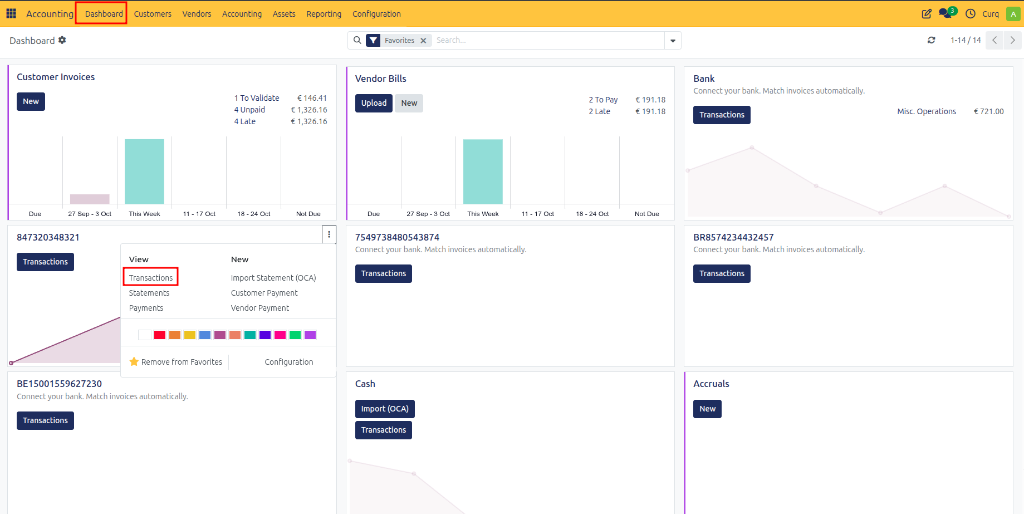
Click New (or Create).
Enter the transaction details and save the record.
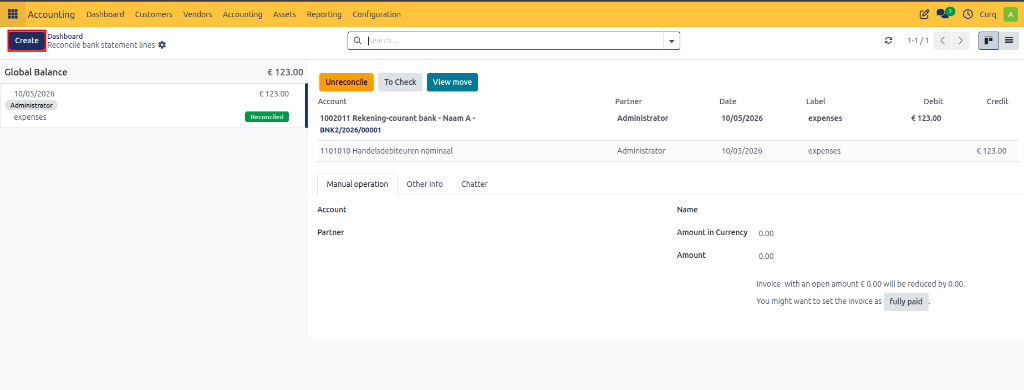
When creating manual transactions, it is recommended to complete the following fields:
Partner
Label
Providing this information helps CURQ identify potential matches during reconciliation.
Bank Statements
A bank statement is a document provided by a financial institution that contains all transactions that occurred on a bank account during a specific period.
In CURQ, transactions can optionally be grouped by bank statement.
To access bank statements:
Open
Accounting → Dashboard.Click the three-dot menu (⋮) next to the relevant bank or cash journal.
Select Statements.
Each statement contains its own Chatter section, allowing you to:
Upload supporting documents such as PDF bank statements.
Store statement-related files.
Communicate with colleagues regarding imported transactions.
Maintain an audit trail for statement processing.
Opening Bank Balance
When starting to synchronize or import bank transactions, it is important to record the opening balance of the bank account.
Recording the opening balance ensures that the balance displayed in CURQ matches the actual balance at your bank from the start of the accounting period.
To configure the opening balance:
Create a manual bank transaction representing the opening balance.
Reconcile this transaction against an Opening Balance Account.
Confirm the reconciliation.
This process ensures that:
The bank balance in CURQ matches the actual bank balance.
Future imported transactions reconcile correctly.
Financial reports accurately reflect the account balance from the start date.
By correctly recording the opening balance, the balance displayed on the bank journal tile will always correspond with the balance maintained by your bank.