Configuring Discount and Loyalty Programs
Create promotional campaigns, configure discount codes, issue coupons and loyalty cards, and manage rewards on sales orders in CURQ 18.
Prerequisites
(You need to enable Discounts and Promotions, Loyalty & Gift Card from Sales > Configuration > Settings under the Pricing section)
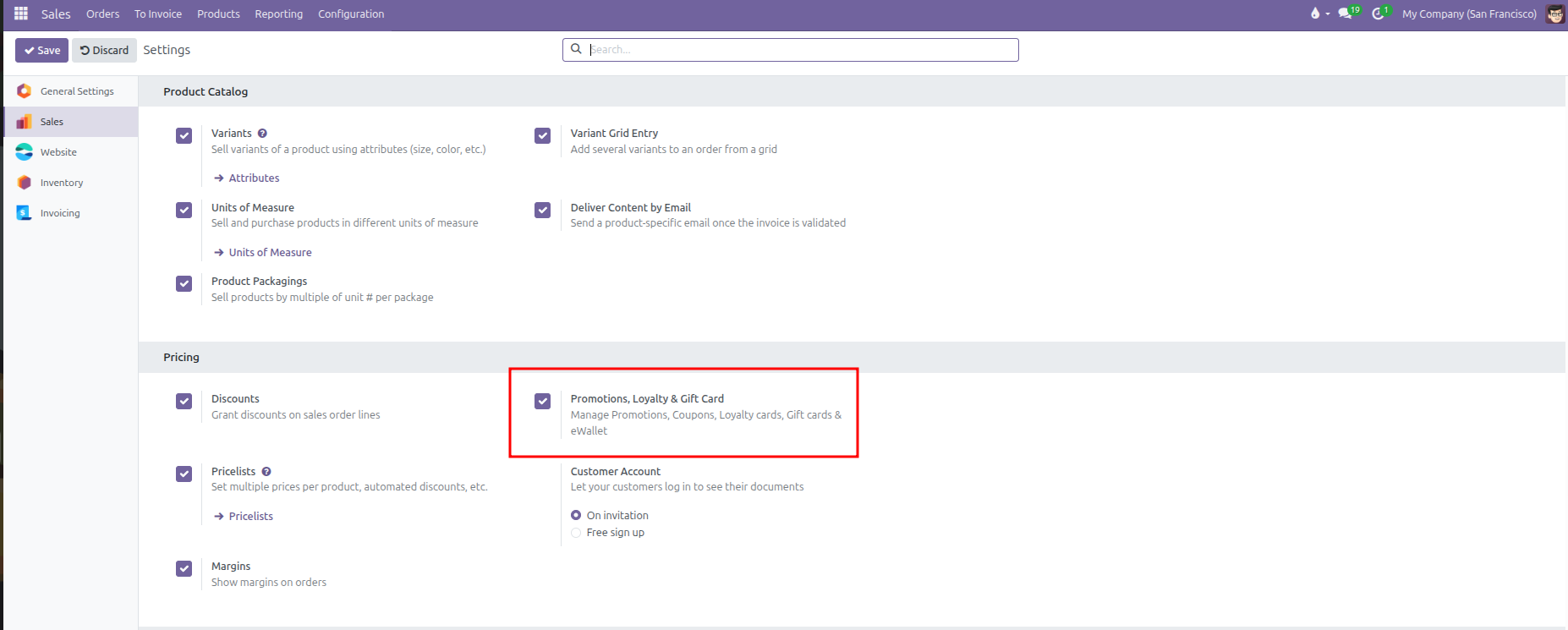
Discounts: Enables manual line-by-line discount percentages on sales quotation lines.
Promotions, Loyalty & Gift Card: Activates promotional campaigns, loyalty cards, coupons, and gift card programs, unlocking the Discount & Loyalty and Gift cards & eWallet menus under Products.
1. Accessing Promotional Programs
Promotion and loyalty programs are managed from the Products menu:
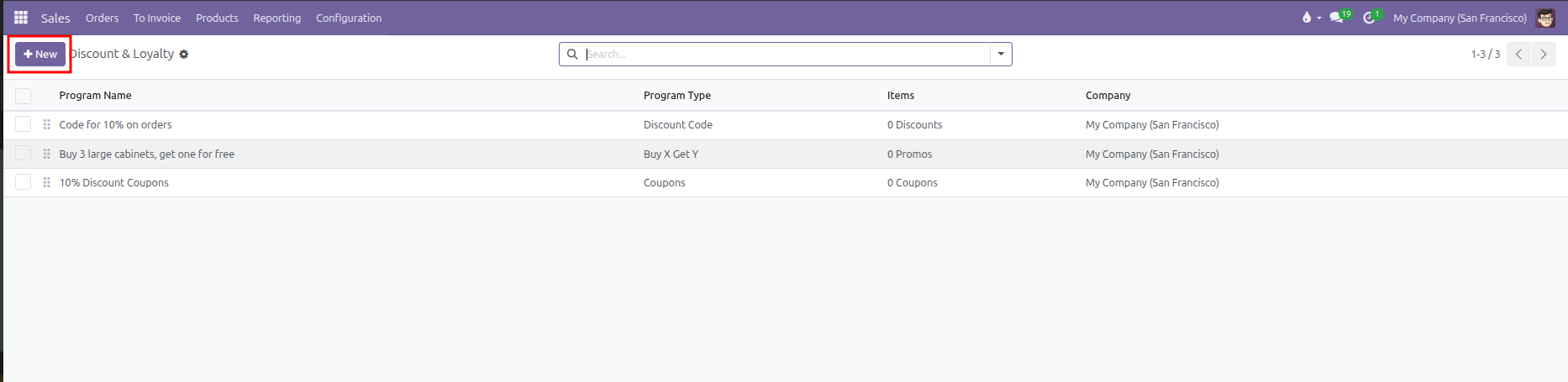
Products > Discount & Loyalty: Manages automated promotions, promo codes, coupon campaigns, loyalty point schemes, and Buy X Get Y offers.
Products > Gift cards & eWallet: Manages balance-backed digital gift cards and prepaid customer electronic wallets.
2. Choosing a Program Type
Click New under Products > Discount & Loyalty to open the program configuration form.
CURQ provides specialized program templates tailored for different commercial strategies:
Program Type |
Target Mechanism |
Practical Use Case |
|---|---|---|
Discount Code |
A single public promotional code. |
Marketing campaigns sharing codes (such as SUMMER10) that grant percentage or fixed discounts when entered on quotations. |
Coupons |
Unique, single-use generated voucher codes. |
Individual discount codes generated for specific customers through email campaigns or automated triggers. |
Loyalty Cards |
Point accumulation per dollar spent or item purchased. |
Long-term customer retention schemes where points convert into rewards or discounts once target thresholds are reached. |
Buy X Get Y |
Quantity threshold triggers. |
Volume promotions where purchasing a designated product quantity automatically grants free items or discounts (such as Buy 3, Get 1 Free). |
Promotions |
Automatic condition-based discounts. |
System-wide promotional rules applied automatically without requiring a code whenever cart conditions are fulfilled. |
Next Order Coupons |
Post-purchase incentives. |
Automatically issues a coupon code for future purchases after the current order is completed. |
3. Configuring Rules & Conditions
In the program header, establish overarching validity parameters and limits:
Pricelist: Restrict the promotional program to a specific pricing tier (such as Wholesale USD) or leave blank for universal availability.
Start Date & End Date: Define the calendar window during which the promotion is active.
Limit Usage: Restrict total program redemptions across all customers (such as to 10 usages).
Available On: Choose whether this program applies to backend Sales orders, Point of Sale, or Website ecommerce orders.
Program Stat Button: The stat button at the top right tracks active coupons, loyalty cards, or redemptions associated with this program.
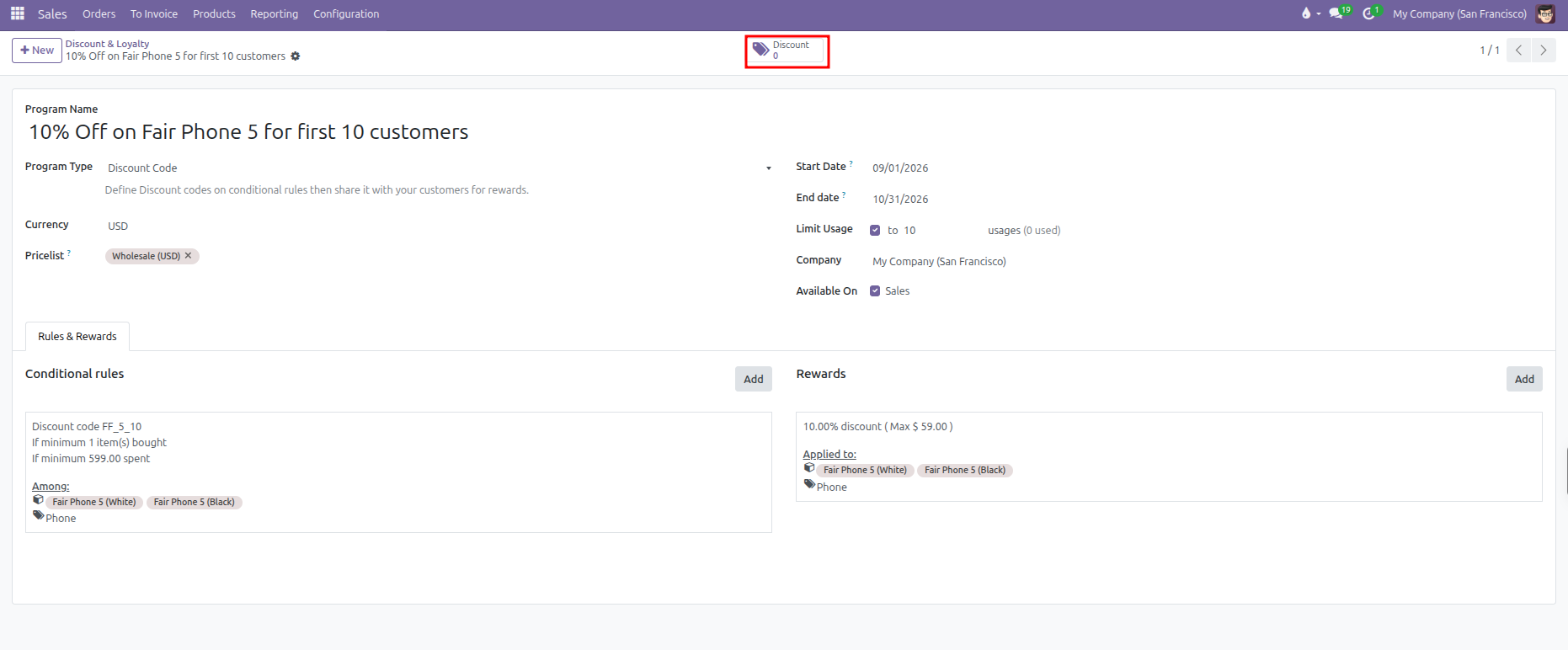
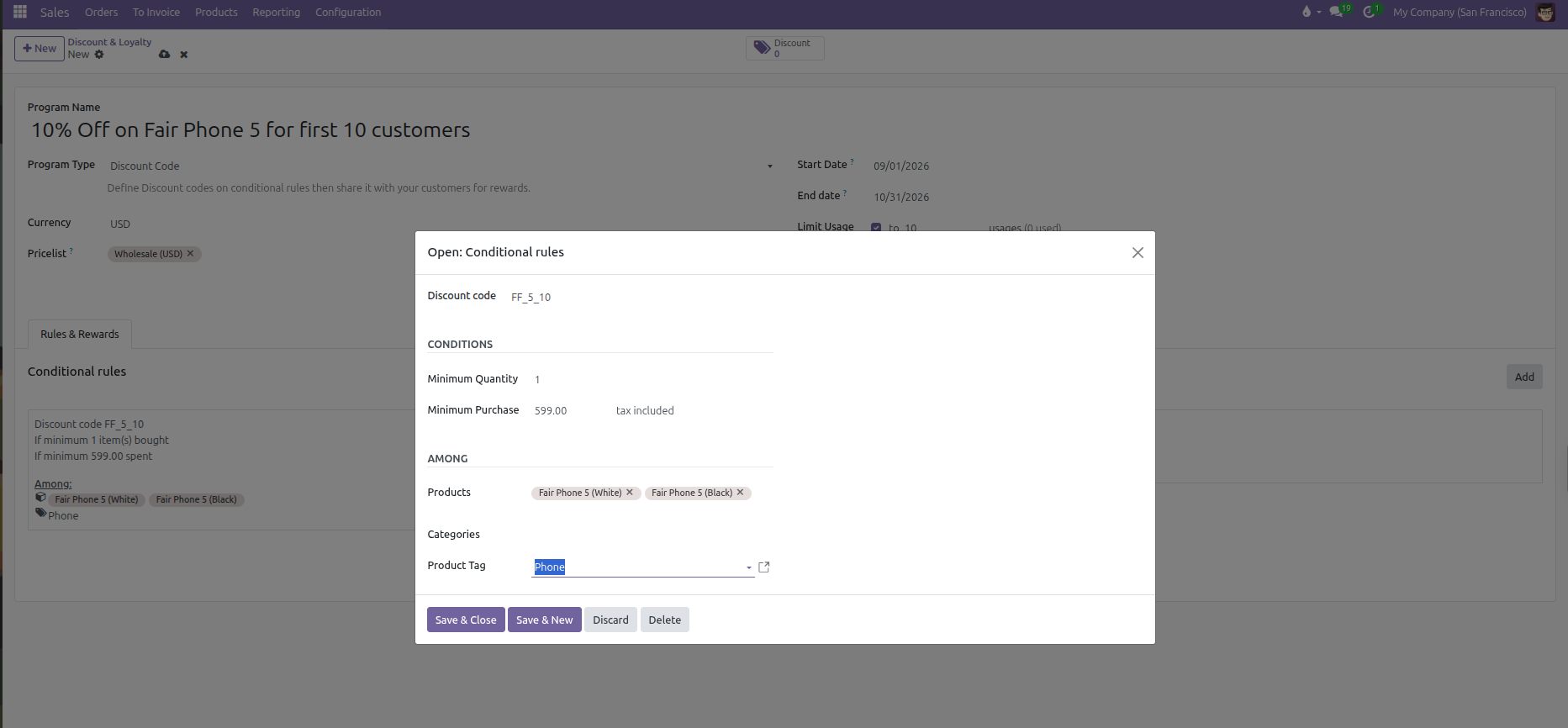
Under the Rules & Rewards tab, click into Conditional rules to establish qualifications:
Discount Code: Enter the exact promo code string customers must provide (such as FF_5_10).
Minimum Quantity: The minimum number of qualifying products required in the order lines before the rule applies.
Minimum Purchase: The minimum monetary subtotal required, with the option to evaluate tax-included or tax-excluded totals.
Among (Target Restrictions): Filter eligible items by Products (such as Fair Phone 5 White and Black), Categories, or Product Tag (such as Phone).
Grant Points: For loyalty programs, define how many points are awarded (such as 1 point per $ 10.00 spent).
Tracking and Generating Individual Codes
Clicking the stat button at the top right of the program form opens the registry of issued voucher codes and customer cards:
Generate Codes: Click New in the top left to generate new voucher codes or register customer loyalty cards manually.
Track Expirations and Balances: Inspect individual codes (such as 044e-b3d5-4ce5), point balances, expiration dates, and assigned customer contacts.
Dispatch via Email: Click the Send button on any line to email the promotional voucher directly to the client.

Adjusting Balances and Viewing History
Open any individual card or coupon record to inspect its detailed parameters:
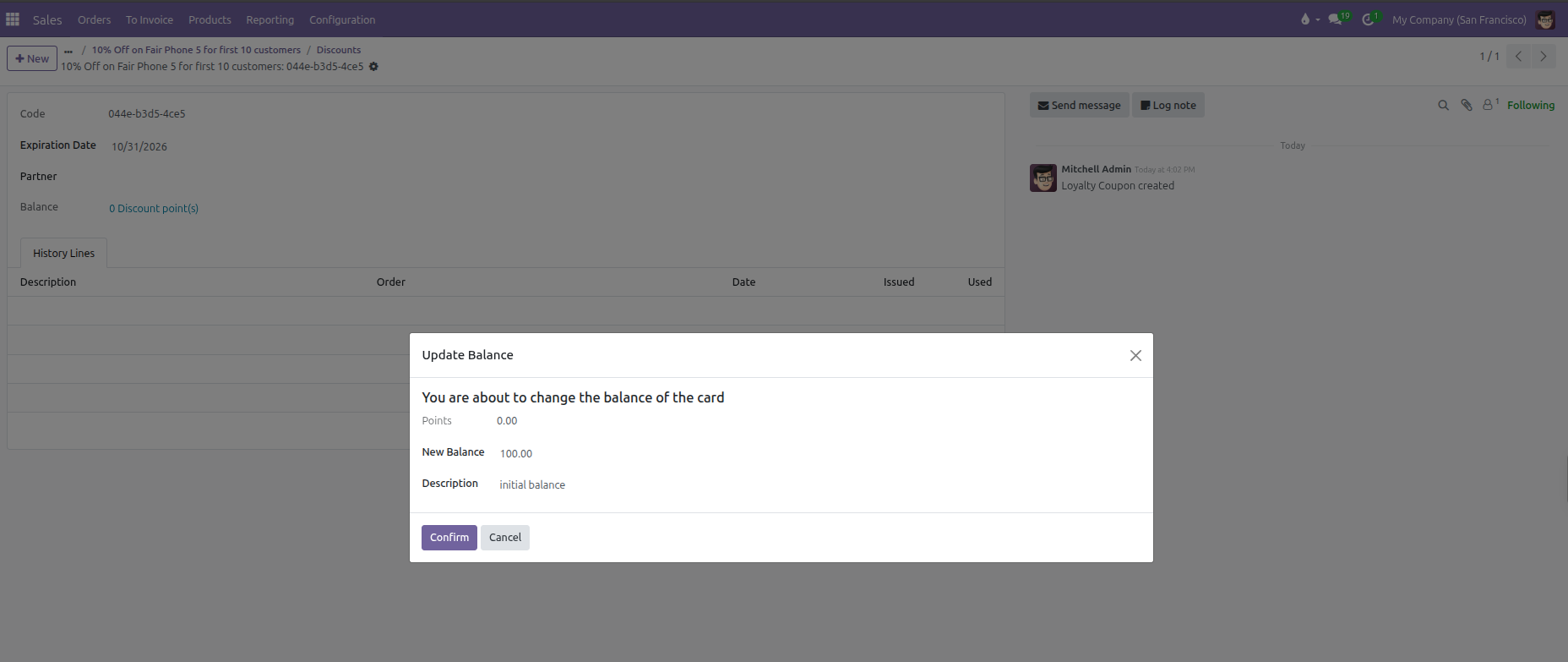
Manual Balance Adjustments: Click the Balance value to launch the Update Balance modal. Input the desired figure (such as 100.00) along with an audit reason in the Description field, then click Confirm.
Transaction History: The History Lines tab maintains a complete audit trail tracking every issued credit, redeemed debit, and linked sales order document.
4. Defining Rewards
The Rewards tab specifies what the customer receives when conditions are met:
Reward Type |
Configuration Options |
Practical Effect |
|---|---|---|
Free Product |
Select the exact reward item and quantity. |
Adds a zero-dollar line to the quotation for the specified free product. |
Discount |
Specify Percentage (such as 10 %) or Fixed Amount (such as $ 25.00). |
Deducts the discount from the order subtotal, the cheapest item, or specific designated items. |
Free Shipping |
Max discount amount (optional). |
Reimburses or waives shipping delivery fees up to the specified limit. |
Reward Target Scopes and Caps
When configuring a Discount reward, refine how the reduction applies:
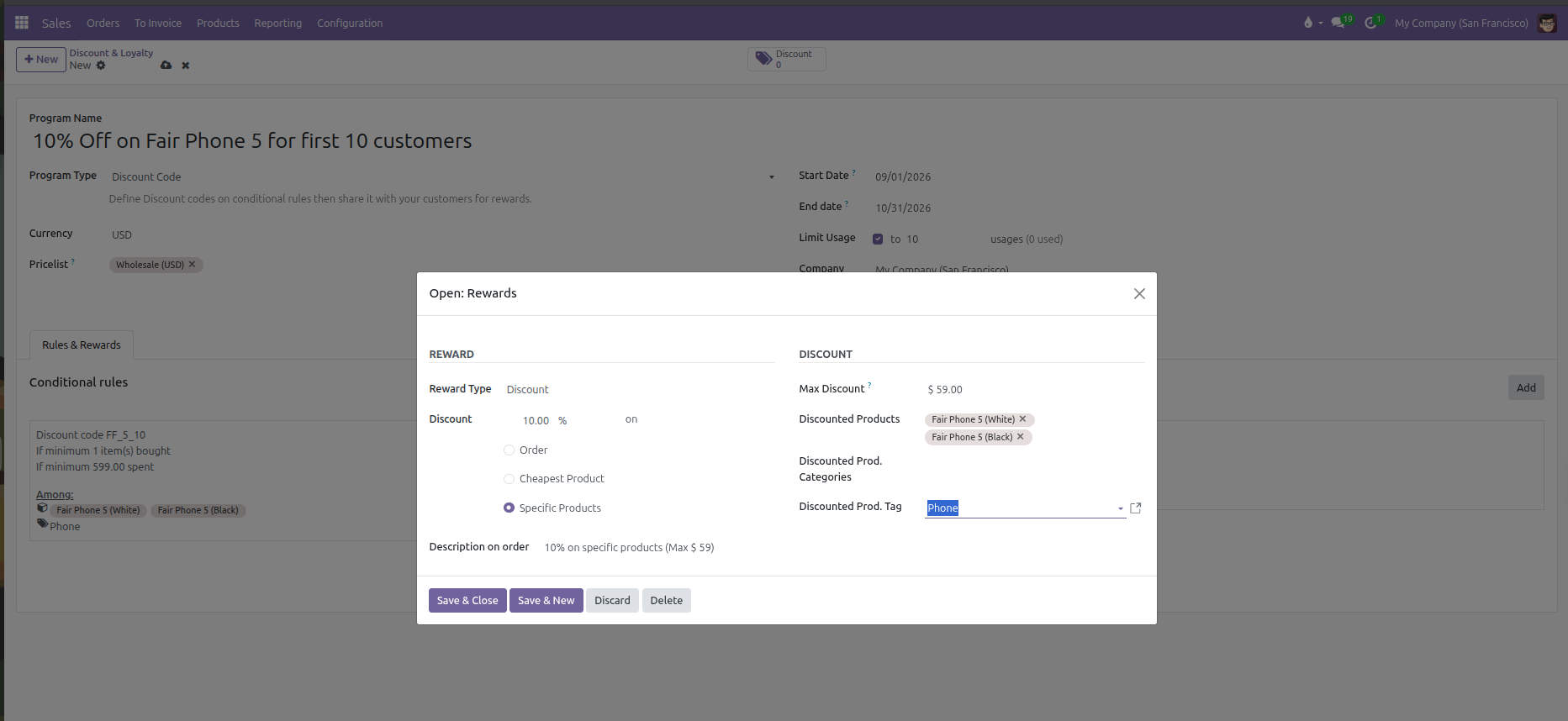
Discount Scope: Choose whether the discount calculates across the entire Order, exclusively on the Cheapest Product, or restricted to Specific Products (such as Fair Phone 5 variants).
Max Discount: Establish a monetary cap (such as $ 59.00) to ensure percentage reductions never exceed a maximum safety budget.
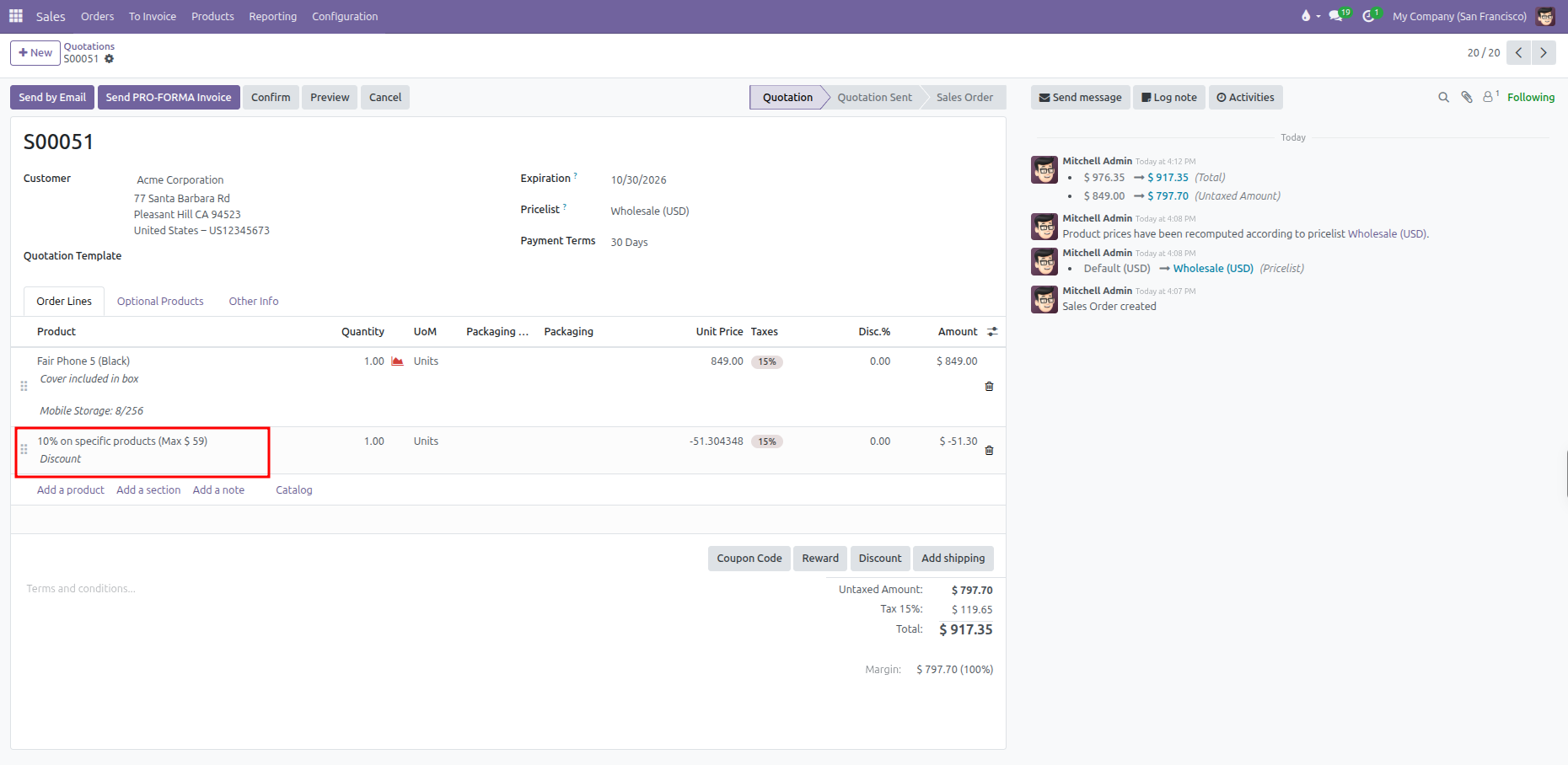
Description on order: Customize the line item description that appears on the quotation (such as 10% on specific products (Max $ 59)).
5. Configuring Gift Cards & eWallet Programs
Gift cards and electronic wallets track monetary balances rather than percentage discounts. Manage these programs under Products > Gift cards & eWallet:

Open an existing gift card program or click New to configure card generation and automated delivery parameters:
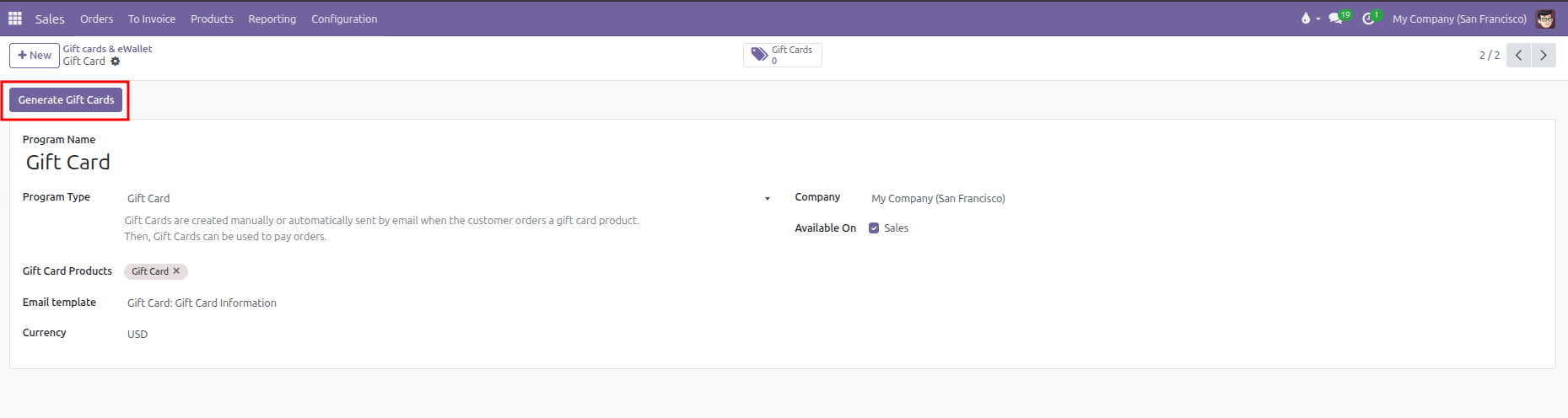
Program Name: Identifies the gift card or eWallet campaign (such as Gift Card).
Program Type: Set to Gift Card (or eWallet) to dictate whether balances are distributed as redeemable code vouchers or stored customer wallet credits.
Gift Card Products: Specifies the product variant sold to customers to issue the card (such as Gift Card). When purchased on a sales order, CURQ automatically generates and links a unique card code.
Email template: Defines the automated notification template used to deliver gift card codes, PINs, and balance details directly to recipients (such as Gift Card: Gift Card Information).
Currency: Designates the transactional monetary unit for card valuation (such as USD).
Generate Gift Cards Button: Click Generate Gift Cards to batch-create pre-loaded gift vouchers manually without requiring a customer purchase.
Gift Cards Stat Button: Tracks all issued active, redeemed, and expired card codes with their remaining balances.
Generating Gift Cards in Batches
Clicking Generate Gift Cards opens the batch generation modal:
For: Choose Anonymous Customers for generic physical or promotional vouchers, or Selected Customers to link generated cards directly to designated partner accounts.
Description: Provide an internal reference or label (such as $10 gift cards).
Quantity to generate: Specify the number of voucher codes to create (such as 5).
Gift Card value: Define the initial credit balance allocated per card (such as $ 10.00).
Valid Until: Establish an optional expiration date (such as 10/31/2026).
Click Generate Gift Card to create the vouchers and register them under the program.
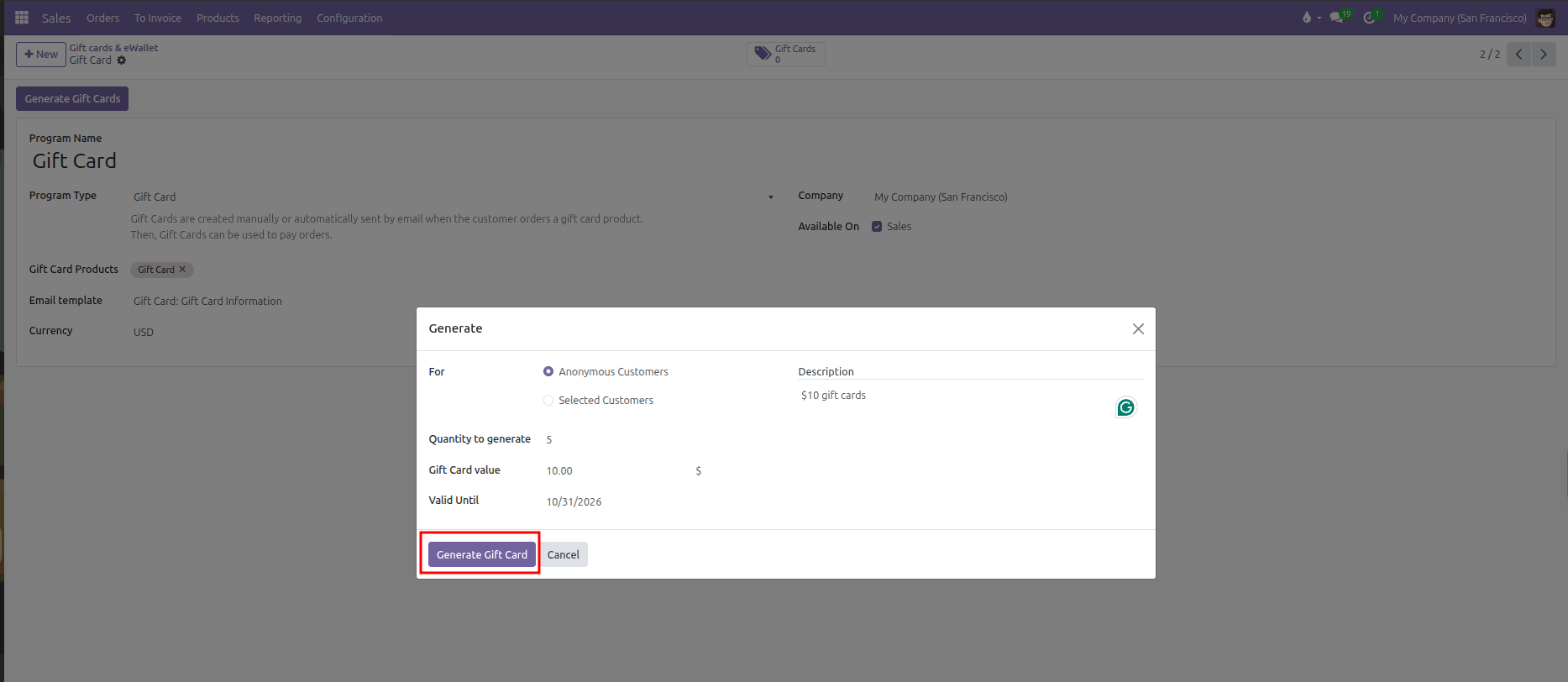
Tracking Generated Gift Cards
Once generated, the program stat button updates with the total number of issued gift cards:
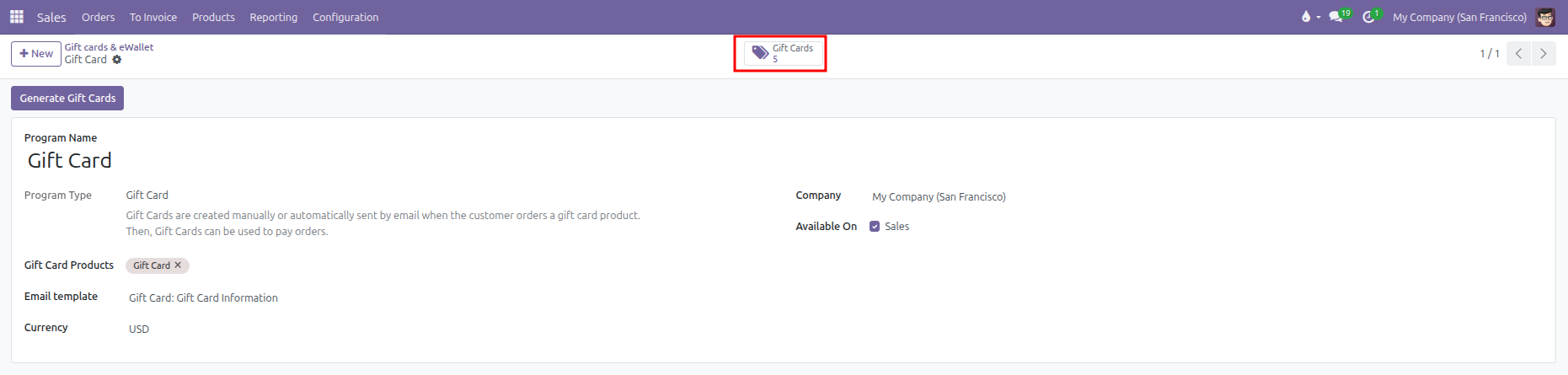
Clicking the Gift Cards stat button opens the registry of individual card vouchers:
Code: The unique redemption voucher key (such as 044f-3cf9-47c2) provided to customers during checkout.
Balance: The remaining spendable balance (such as $ 10.00).
Expiration Date: The date through which the card remains redeemable (such as 10/31/2026).
Send: Click Send on any row to email the voucher code and instructions directly to the cardholder.

6. Applying Discounts, Coupons, and Rewards on Quotations
On quotation forms, sales representatives manage discounts and rewards using interactive action buttons located directly below the order lines:
[Discount] Button:
Opens an interactive discount modal.
Allows applying a manual percentage (such as 5 %) or fixed amount discount directly to line items or the global order total.
[Coupon Code] Button:
Opens the coupon redemption window.
Enter public promotional codes (such as FF_5_10) or unique customer coupon codes and click Apply.
CURQ verifies validity against active conditional rules and appends the promotional reward line to the quotation.
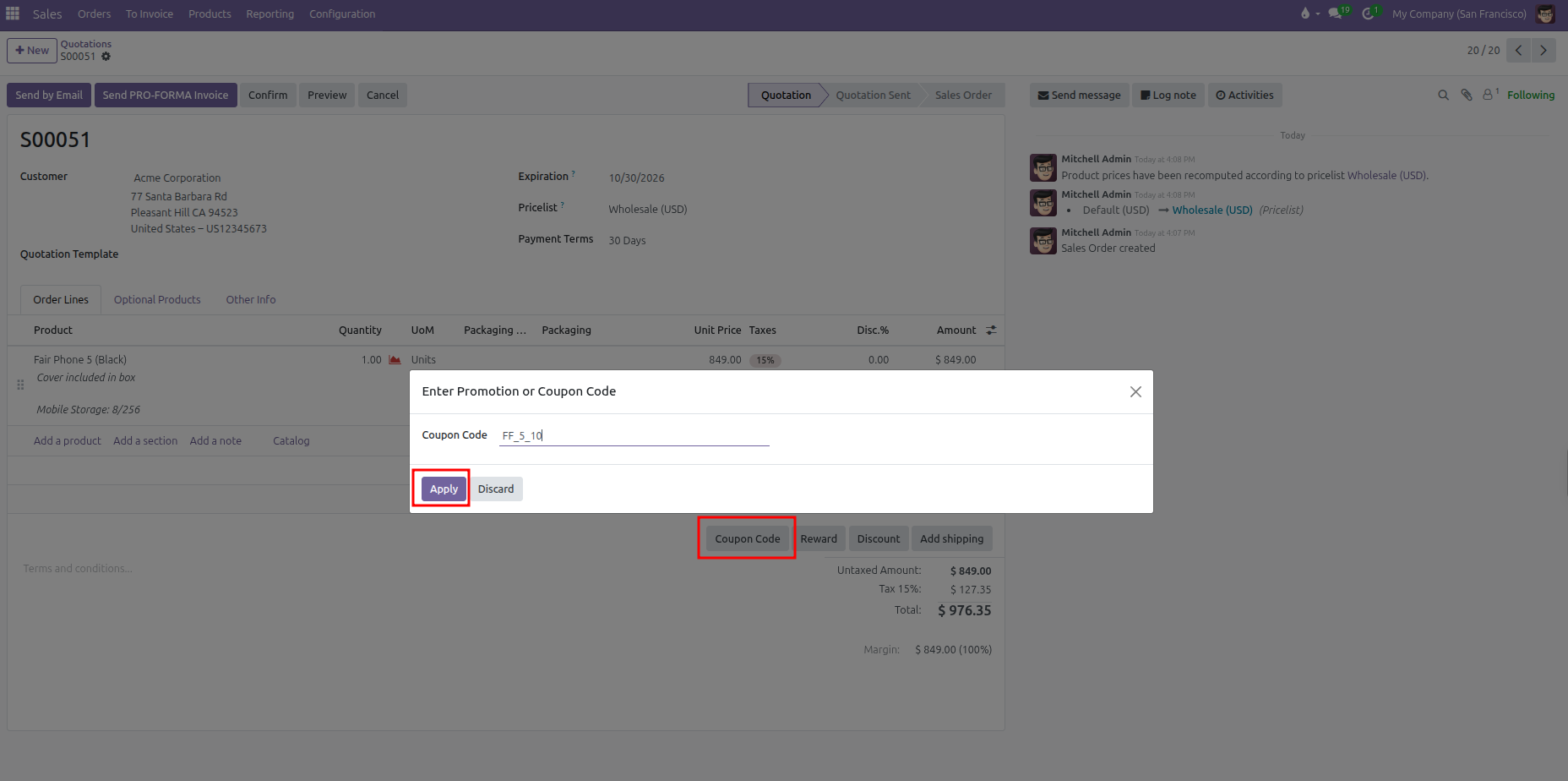
[Reward] Button:
Available when quotation items meet active promotion or loyalty conditions.
Clicking Reward opens the Available Rewards modal prompting the salesperson to select and apply eligible rewards (such as 10% on specific products).
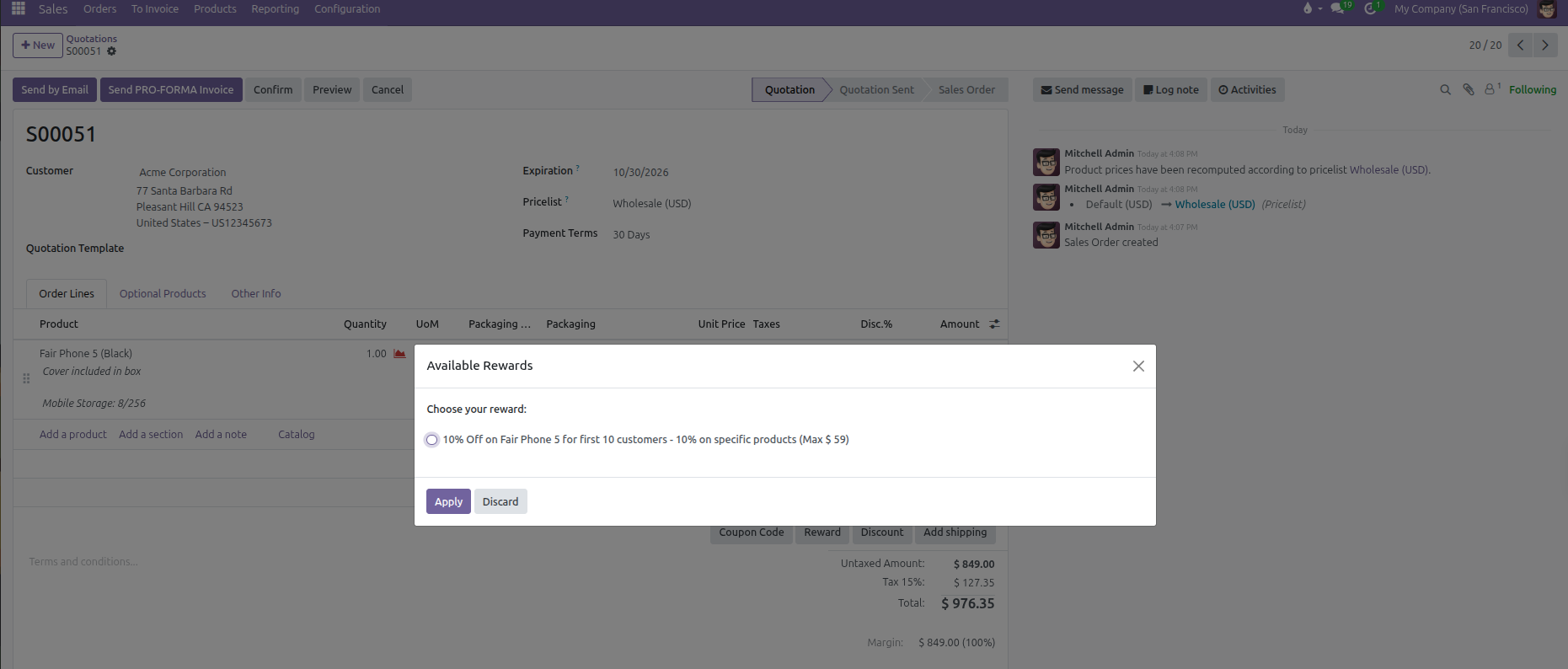
Reward Line Presentation:
CURQ inserts reward lines with negative amounts or zero-dollar entries.
Reward lines are marked as read-only to prevent manual price tampering while keeping full visibility on customer quote summaries.