Reviewing Orders Ready to Invoice
Follow these quick steps to find, review, and invoice all sales orders that are ready for customer billing in CURQ 18.
1. Open Orders to Invoice
Open the Sales app.
In the top navigation bar, click To Invoice.
Select Orders to Invoice.

This list automatically displays all confirmed sales orders with lines waiting to be invoiced.

Key columns in this view include:
Number: The unique sales order identifier (such as S00033).
Order Date: The date and time the order was placed or confirmed.
Customer: The purchasing partner contact or company.
Total: The overall monetary value of the sales order.
Invoice Status: Displays the To Invoice badge for orders requiring customer billing.
2. Find Orders to Invoice from the Main Orders List
You can also find orders ready for billing directly from your full orders list:
Go to Orders > Orders.
Click in the search bar at the top center to open the search dropdown.
Under Filters, select To Invoice to filter out fully invoiced orders.
Under Group By, select Salesperson (or Customer) to structure orders by account manager.
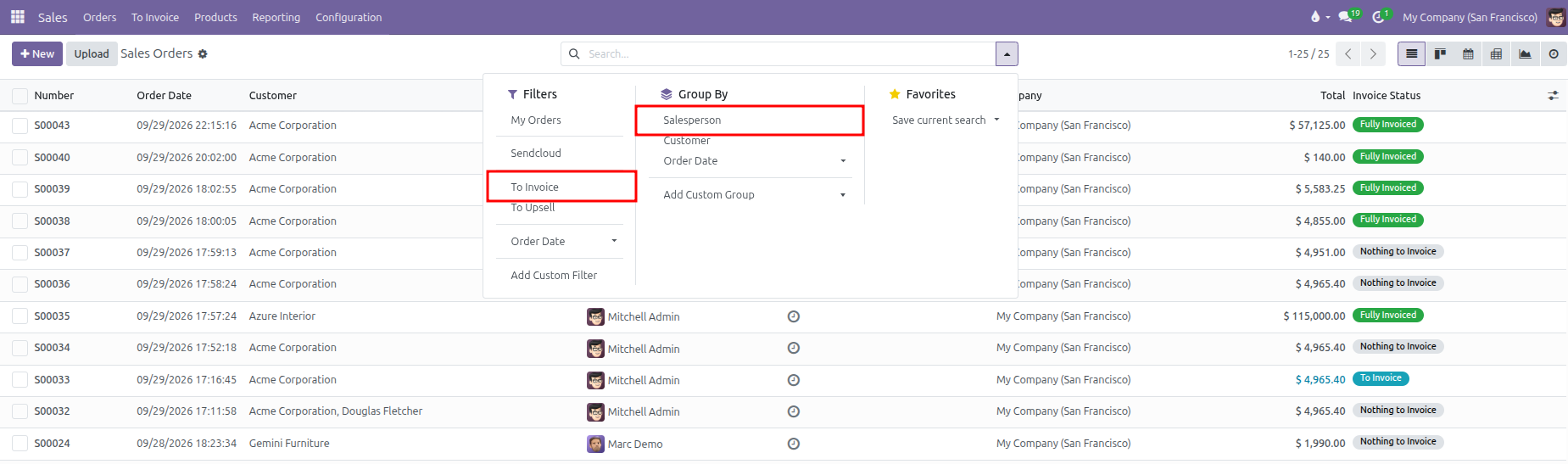
This displays only sales orders with lines waiting to be invoiced:

3. Review Order Quantities Before Invoicing
Before creating an invoice, check the quantities on the order:
Click on an order from the list to open it.
Under the Order Lines tab, review the three quantity columns:
Quantity: The total units ordered by the customer.
Delivered: The units shipped and validated by the warehouse.
Invoiced: The units already billed on previous invoices.
If an item is set to Delivered quantities, you can only invoice up to the amount shown in the Delivered column.
4. Create the Invoice
Once you confirm the quantities, generate the invoice:
Option A: Invoice a Single Order
From the open sales order, click Create Invoice at the top left.
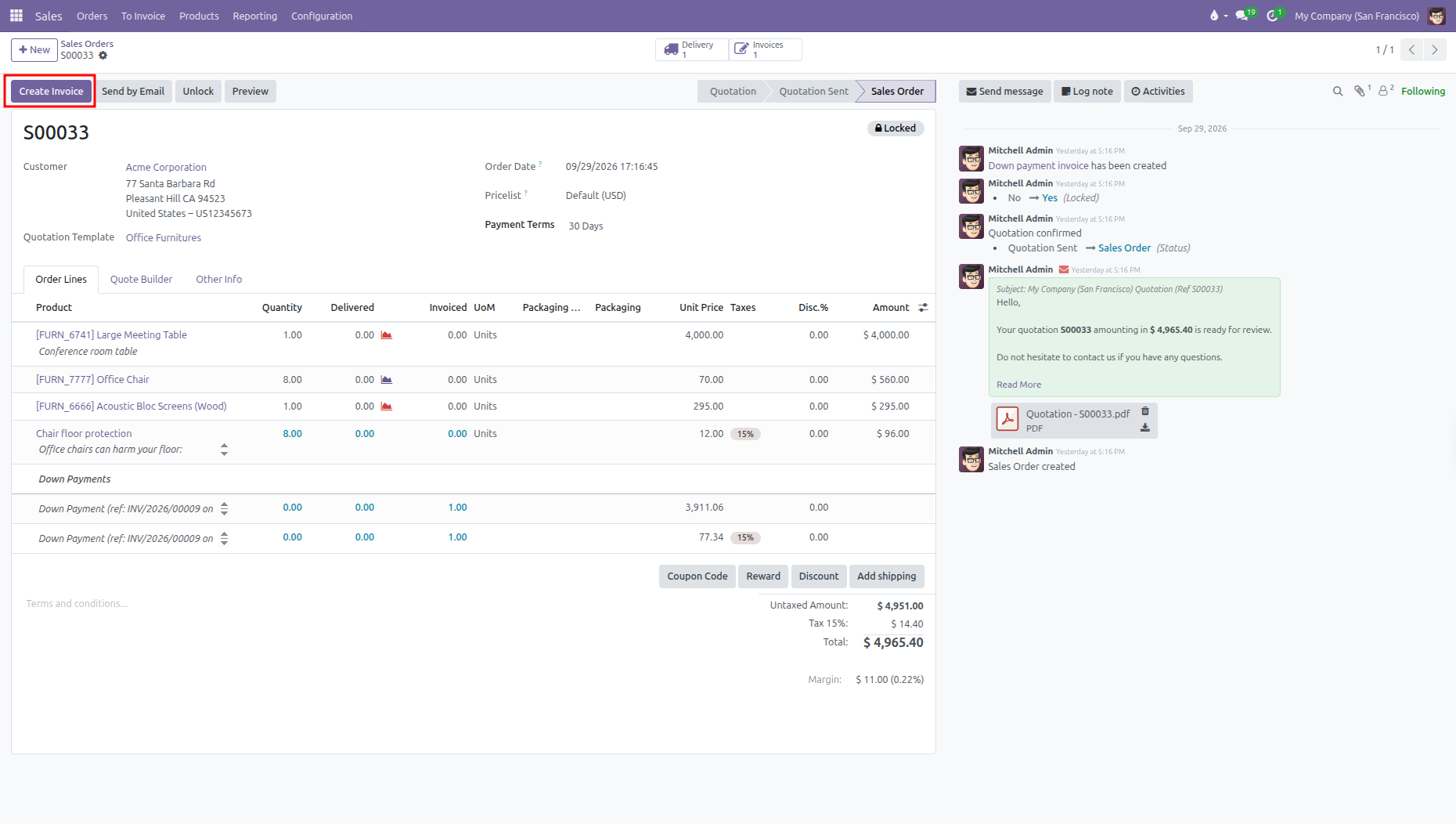
Select Regular invoice in the pop up window.
Click Create Draft.
Review the draft invoice and click Confirm to post it.
Option B: Invoice Multiple Orders in Batch
Go to To Invoice > Orders to Invoice.
Select the checkbox next to each order you want to bill, or click the header checkbox to select all orders at once.
Click the Create Invoices action button that appears in the top control bar.

In the pop up window, select Regular invoice and click Create and View Invoices.
5. Check Orders to Upsell
If a customer received more units than originally ordered:
Click To Invoice in the top navigation bar.
Select Orders to Upsell.
Open the order, verify the extra delivered quantities, and click Create Invoice to bill the difference.