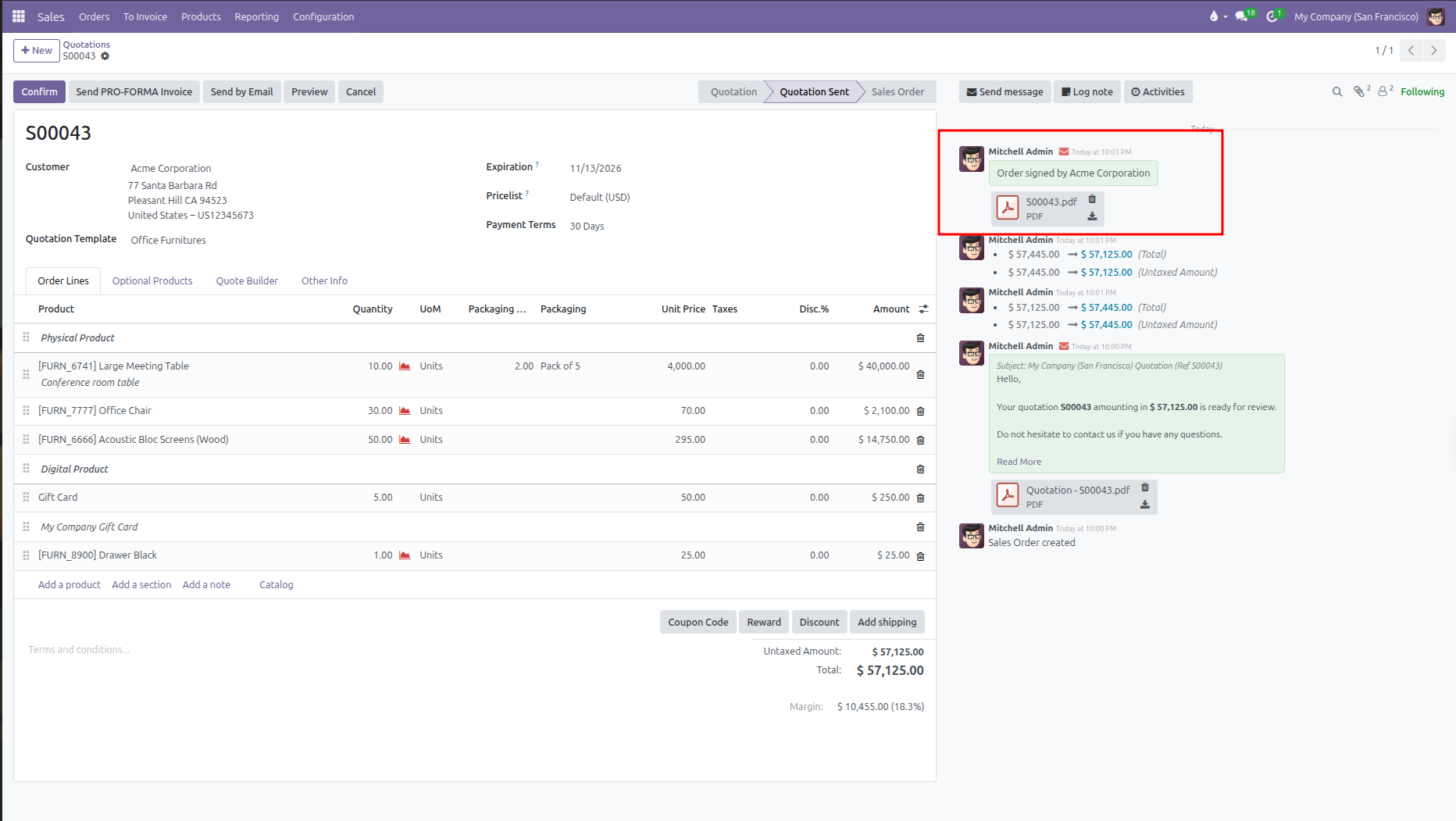
Sending and Approving Quotations
Email quotations to customers, preview their portal view, and collect online signatures and payments in CURQ 18.
1. Sending the Quotation by Email
When your quotation is ready:
Click Send by Email at the top of the quotation form.
A pop up window opens with a prewritten email message.
Review the email details:
Recipients: Defaults to your customer email address. You can add extra email addresses if needed.
Subject: Contains your company name and the quotation number.
Attachments: The quotation PDF is automatically attached. You can attach additional files by clicking the paperclip icon.
Click Send.
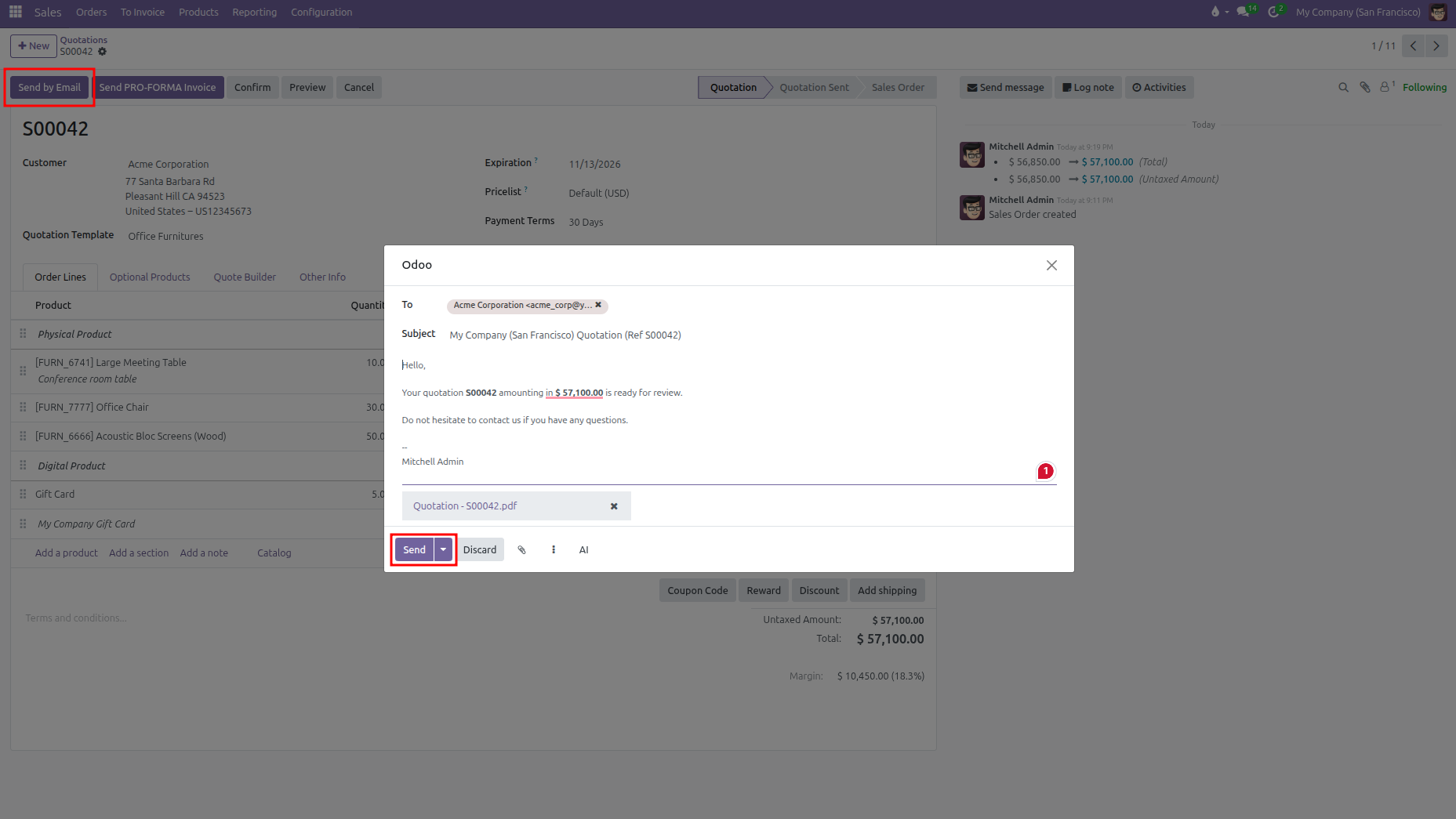
The quotation status changes from Quotation to Quotation Sent, and a copy of the sent email is recorded in the chatter log on the right side of the screen.
2. Previewing the Customer Portal
To see the quotation exactly as your customer sees it:
Click the Preview button at the top of the form.
CURQ opens the customer portal view in your browser.
From this screen, you can check:
How your products, descriptions, and totals appear to the client.
How optional products are displayed.
Your payment terms and company legal terms.
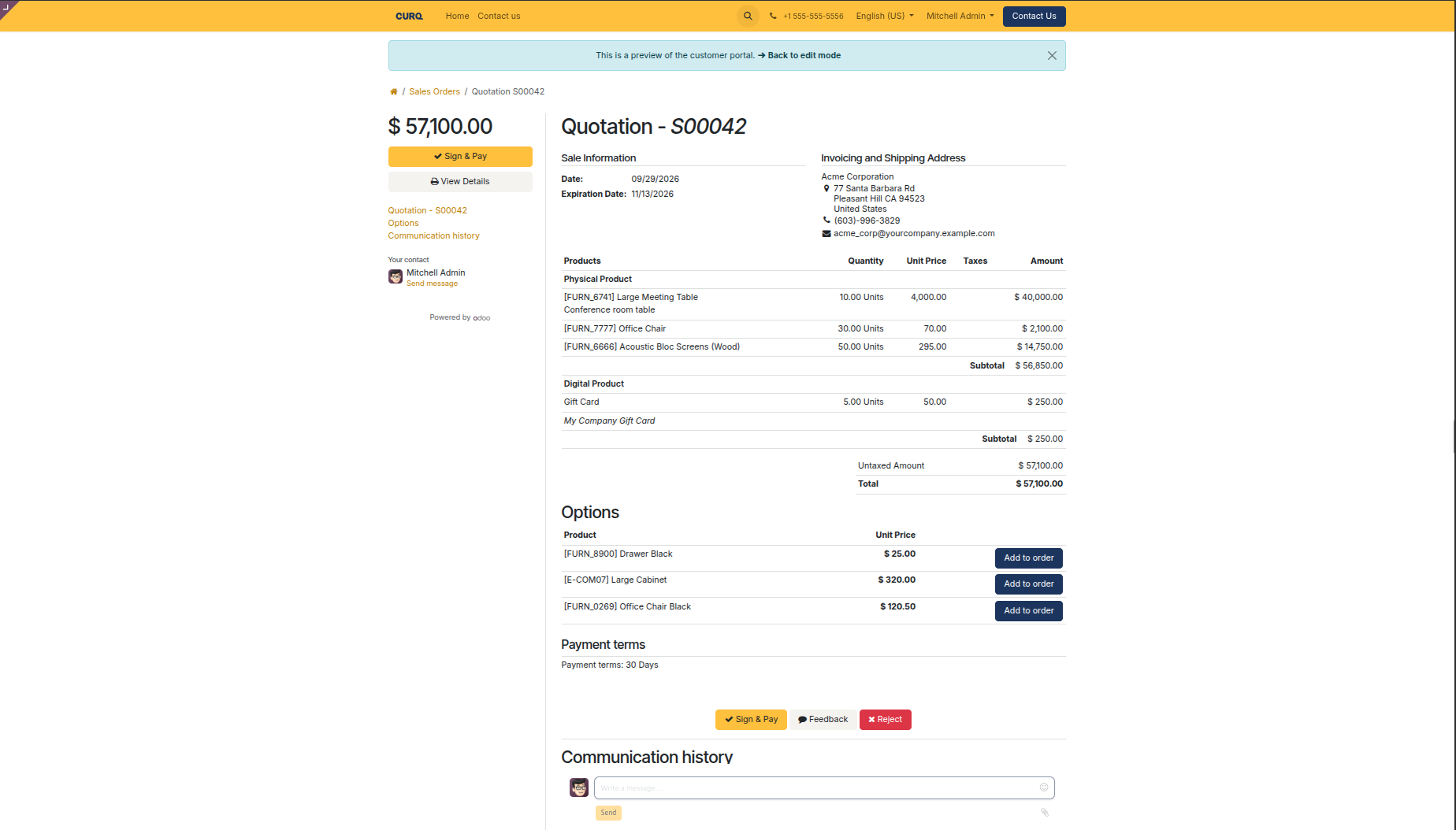
To return to the backend quotation form, click Back to edit mode or use your browser back button.
3. Customer Online Approvals
When customers view the quotation through the email link, they have several interactive options:
Action |
Details |
|---|---|
Download or Print |
Customers can click Download to save the formal PDF copy. |
Add Optional Products |
Customers can click the cart button next to any optional item to add it directly to their order. The total updates immediately. |
Sign Online |
If Online Signature is enabled, the customer clicks Sign & Pay or Accept & Sign. They can draw, type, or upload their signature. |
Pay Online |
If Online Payment is enabled, the customer can complete their deposit or full payment online. |
Ask Questions |
Customers can send messages directly in the portal chatter box. Their reply appears in your CURQ chatter log. |
Decline Quote |
Customers can click Decline and type a reason. CURQ cancels the quote and logs the feedback in the chatter. |
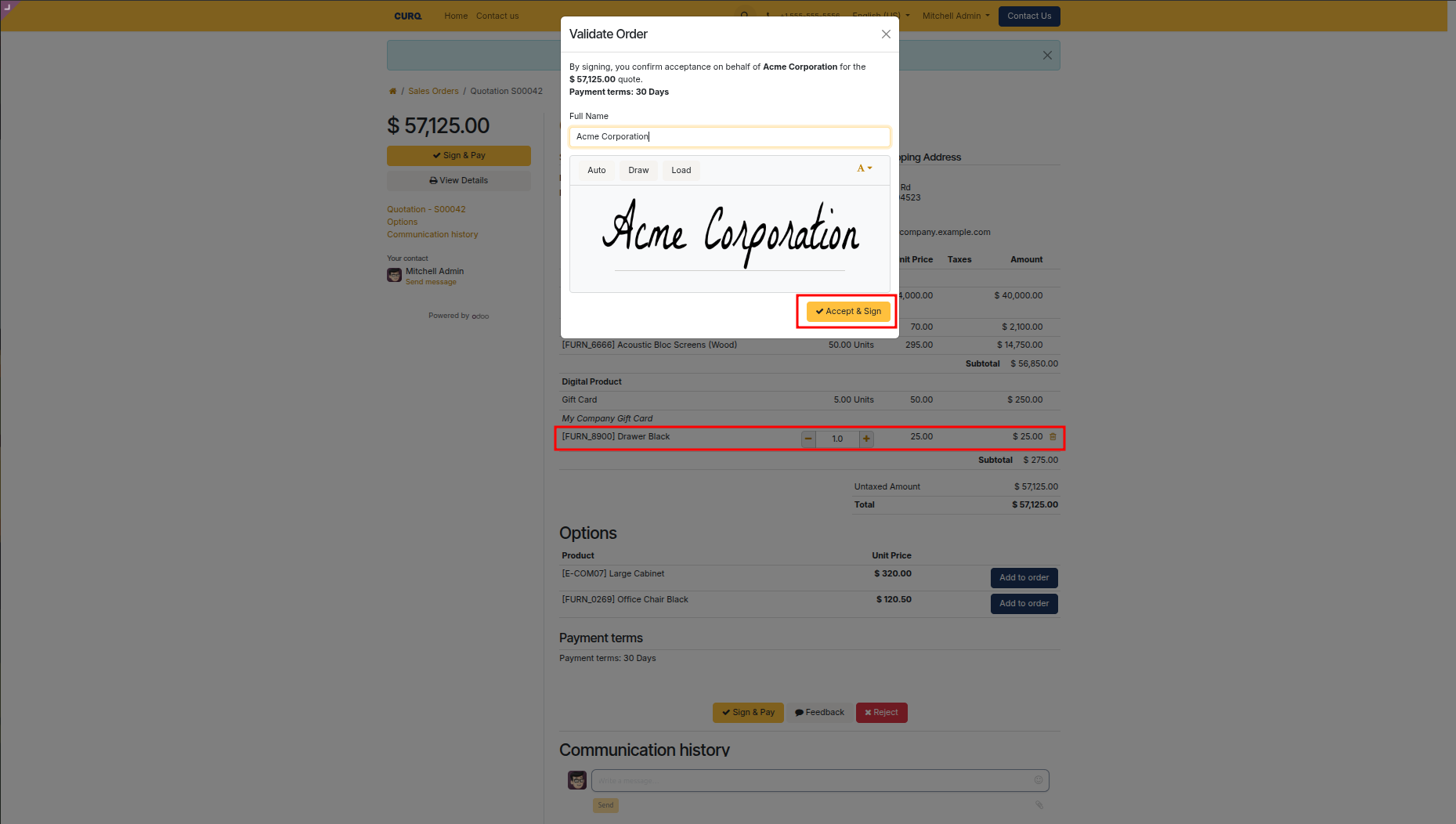
4. What Happens After Approval
Once the customer signs or completes payment on the portal:
Signed PDF Stored: A signed PDF copy containing the customer signature timestamp and IP address is automatically attached to the order chatter log.
Internal Notification: The assigned salesperson receives an activity notification confirming the customer approved the deal.
Status Update Rules:
If only Online Signature was required: The document status automatically advances from Quotation Sent to Sales Order.
If Online Payment was also required: The document stays in Quotation Sent until the customer completes the online payment or a salesperson clicks Confirm manually.