Confirming and Managing Sales Orders
Confirm quotations into official sales orders, lock orders to prevent unwanted changes, and handle cancellations in CURQ 18.
1. Confirming an Order Manually
When a customer accepts your quotation by phone, in person, or via standard email:
Open the quotation from the Orders > Quotations list.
Click the Confirm button at the top left of the form.
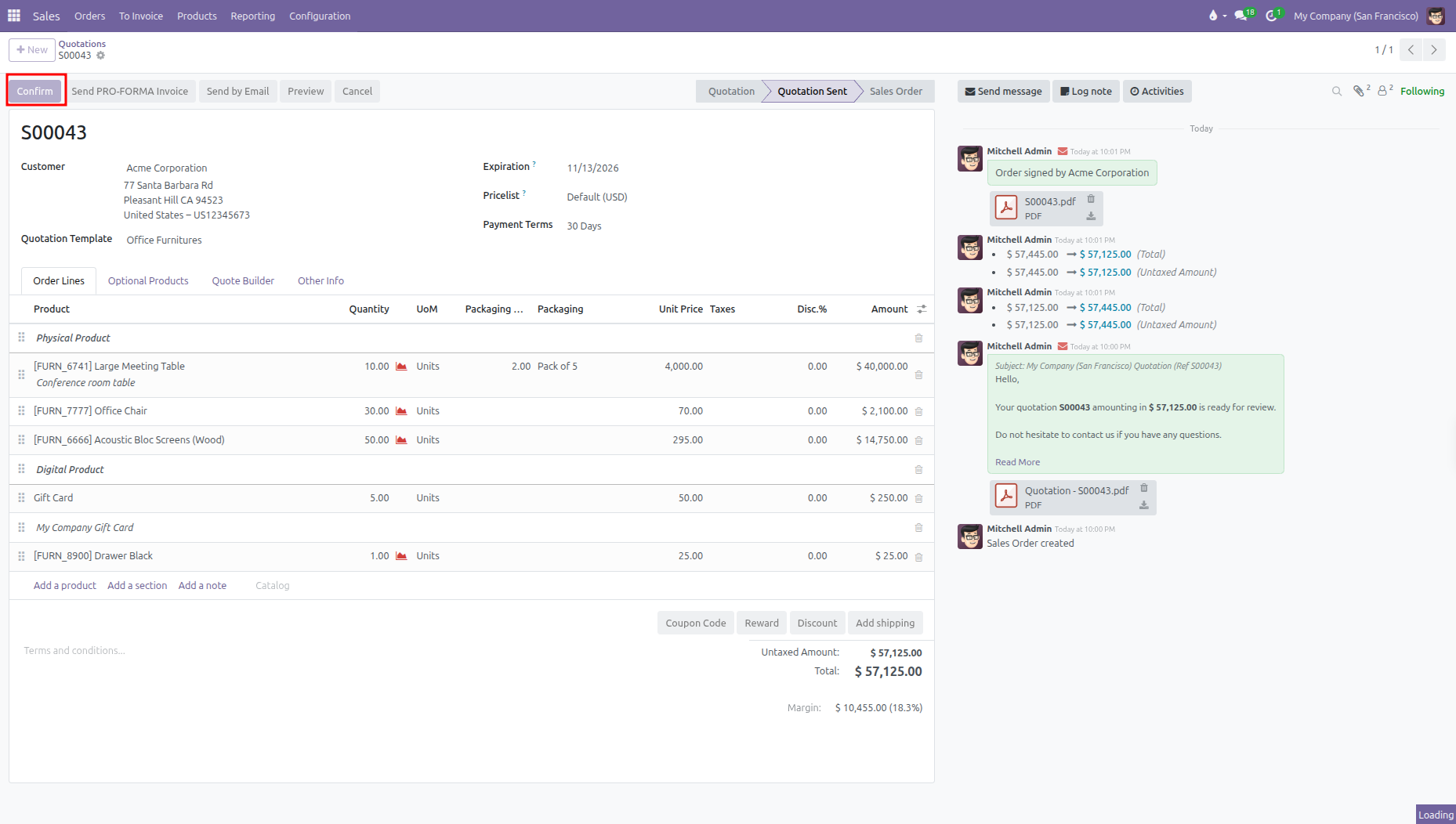
The quotation status immediately advances to Sales Order.
2. What Happens Automatically on Confirmation
When you confirm an order, CURQ automates several background actions:
System Action |
Details |
|---|---|
Status Update |
The quotation moves to Sales Order and records the confirmation timestamp. |
Delivery Creation |
For physical products, CURQ creates an outgoing delivery slip for the warehouse. A Delivery smart button appears at the top center. |
Invoicing Readiness |
The Create Invoice button prepares billing based on whether you invoice ordered or delivered quantities. |
Customer Follower |
The customer contact record is subscribed to the order chatter log to receive future notifications. |
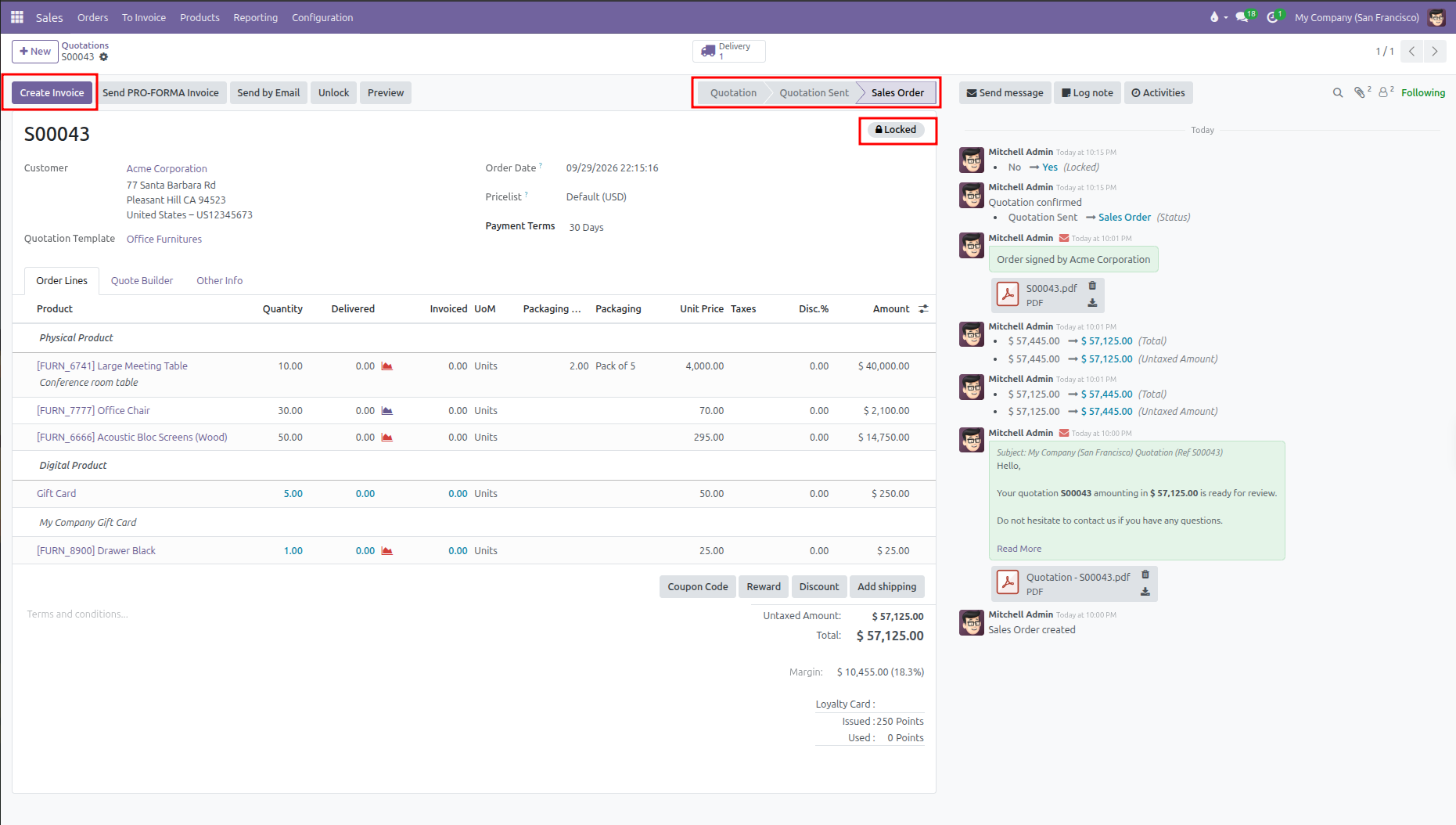
3. Locking and Unlocking Confirmed Orders
(You need to enable Lock Confirmed Sales from Sales > Configuration > Settings)
Locking an order protects confirmed pricing, discounts, and quantities from accidental edits after approval.
When an order is locked, a Locked badge displays at the top right of the screen, and order lines become read only.
To adjust a locked order:
A sales manager clicks Unlock at the top of the form.
Make the necessary changes to quantities, prices, or dates.
Click Lock to protect the document again.
4. Cancelling and Reactivating an Order
If a customer changes their mind or an agreement falls through:
If the order is locked, click Unlock first. The Cancel button is hidden while an order is locked.
Click Cancel at the top of the order form.
A cancellation pop up window appears with a prewritten email notification for the customer:
Click Send and cancel to email the cancellation notice to your customer and cancel the order.
Click Cancel if you want to cancel the order internally without sending an email.
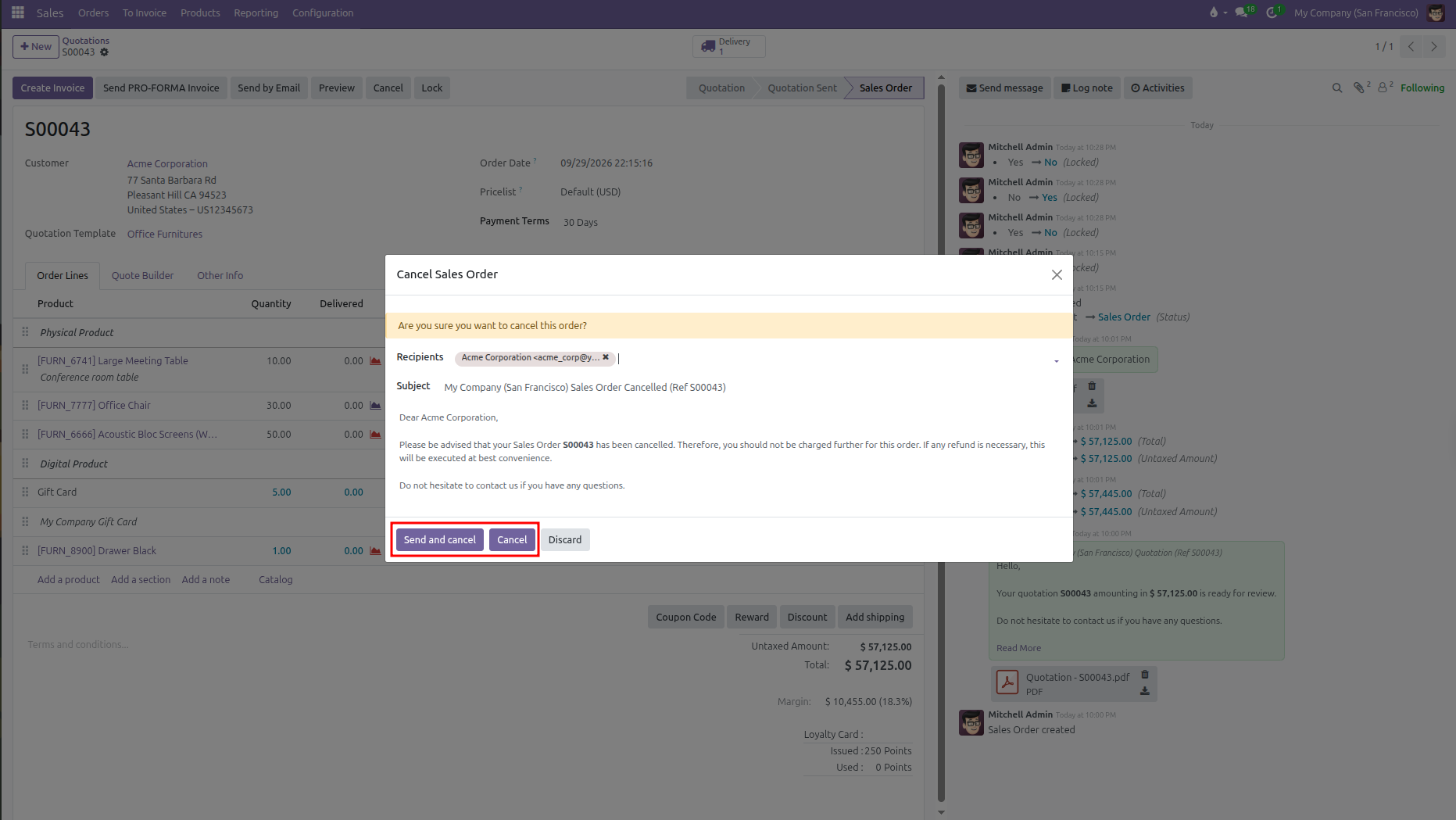
The order status moves to Cancelled, and any linked warehouse delivery pickings are cancelled automatically.
If the deal becomes active again later, click Set to Quotation to reopen the document as an active draft.