Selling in Bulk with Contracts
See how an office equipment and phone supplier uses CURQ 18 Sales to set bulk discounts, check profit margins, send clean PDF quotes, get online signatures, and collect payments automatically.
1. Summary of the Business Situation
Companies that sell office furniture and electronics in bulk face three big everyday problems:
Losing Profit on Discounts: Sales staff often give big discounts just to win deals, without knowing the real cost of the products. This cuts into company profits.
Slow Paperwork: Printing documents, waiting for hand signatures, scanning, and mailing forms back and forth takes days or weeks.
Payment Delays and Bookkeeping Work: Chasing customers for advance deposits and checking bank accounts by hand takes a lot of time between sales and accounting.
This walkthrough shows how a real company, Apex Workspace Solutions, sells office items to Acme Corporation, using CURQ 18 to handle prices, quotes, signatures, payments, and delivery all in one simple system.
2. What the Customer Needs
The Customer Order
Acme Corporation is opening a new office and wants to buy:
Office Furniture: Executive desks and storage cabinets.
Company Phones: Fair Phone 5 smartphones for their staff.
Extra Options: Noise-blocking screen partitions and extra warranty coverage.
Rules for the Sale
Apex Workspace Solutions sets a few clear rules before selling:
Bulk Discount: Give cheaper prices when the customer buys more items.
Minimum Profit: Make at least 15% profit on the total order.
Online Signature: The customer must sign online before products leave the warehouse.
Full Advance Payment: The customer must pay 100% online before warehouse staff start packing.
Automatic Invoice: Create the invoice right away as soon as the payment goes through.
3. Step 1: Setting Up the Rules in CURQ
Before creating the quote, the manager turns on the right settings in CURQ:
A. Main Settings
Go to Sales > Configuration > Settings:
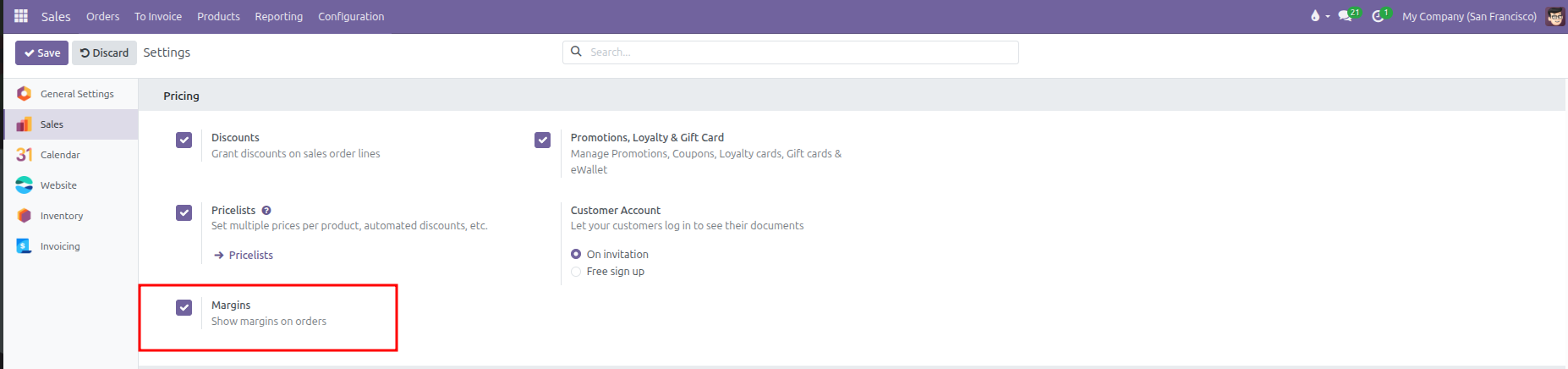
Under Pricing, turn on Margins. This lets sales staff see the item cost, profit dollar amount, and profit percentage on each quote line:
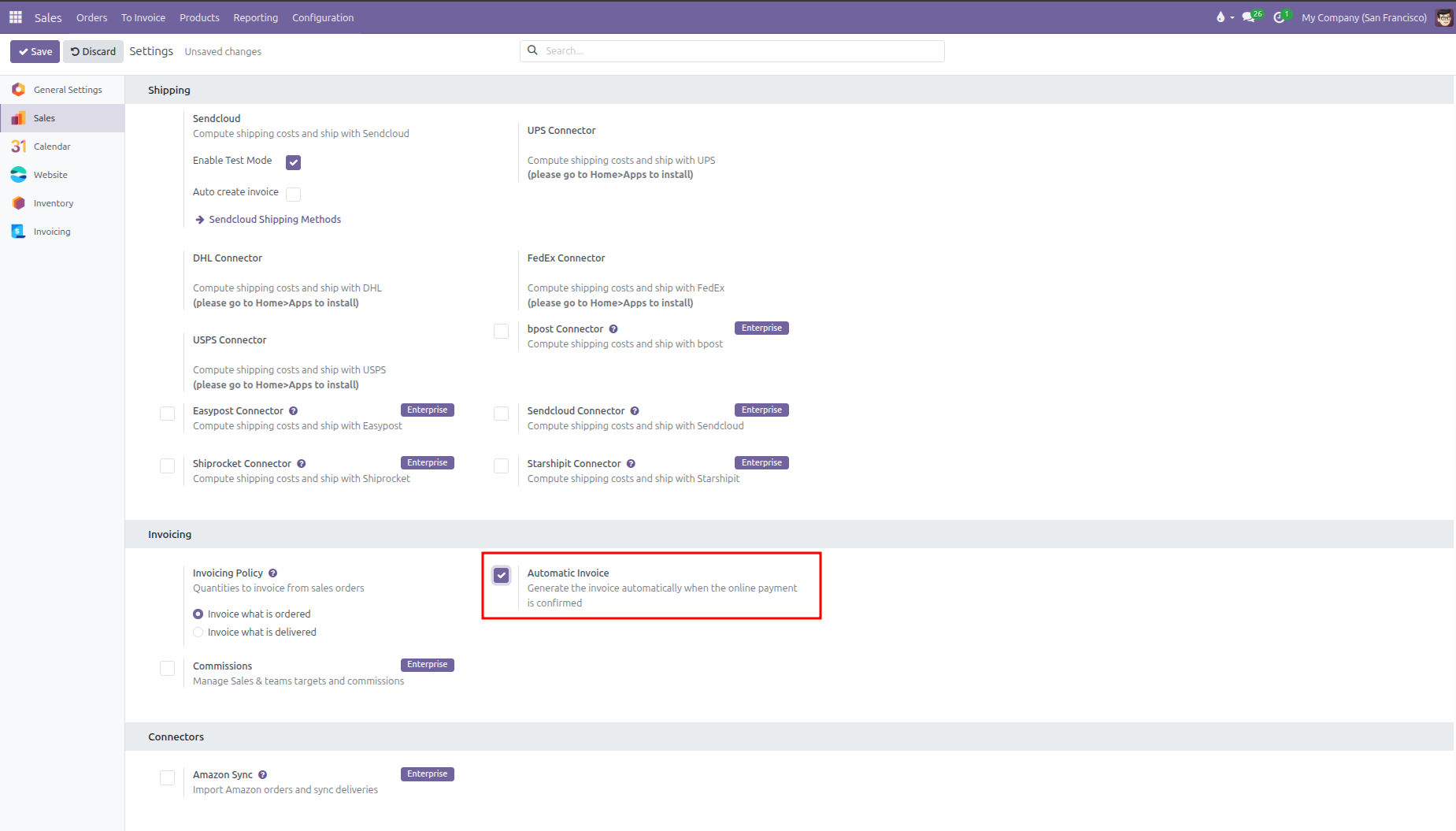
Under Quotations & Orders, check Online Signature and Online Payment with a default payment of
100 %.Under Invoicing, check Automatic Invoice and choose Invoice what is ordered:
B. Volume Price List
Go to Sales > Products > Pricelists and set up bulk pricing rules:
Regular price for less than 20 items.
10% off when buying between 20 and 49 items.
15% off when buying 50 items or more.
C. Ready-Made Quote Template
Go to Sales > Configuration > Quotation Templates and make a template for office packages:
Adds standard desks, cabinets, and phones automatically.
Sets online signature and 100% online payment by default.
Adds PDF header cover pages and footer warranty terms so the quote looks clean and professional.
4. Step 2: Creating the Quote and Checking Profits
The salesperson creates the quote inside CURQ:
A. Picking the Customer and Template
Go to Sales > Orders > Quotations and click New.
Select Acme Corporation in the Customer box.
In the Quotation Template box, choose the office package template.
CURQ fills in the products, puts in the right prices, and turns on signature and payment in the Other Info tab.
B. Checking Profit on Each Item
Before sending the quote, the salesperson checks the profit numbers to make sure the company does not lose money:
In the Order Lines tab, click the small slider icon at the far right of the table header.
Check the boxes for Cost, Margin, and Margin (%).
Look at the profit for each item:
Executive Desks: Selling at
$ 140.00with a cost of$ 120.50leaves$ 19.50profit (13.93%margin).Fair Phone 5: Selling at
$ 599.00with a cost of$ 499.00leaves$ 100.00profit (16.69%margin).
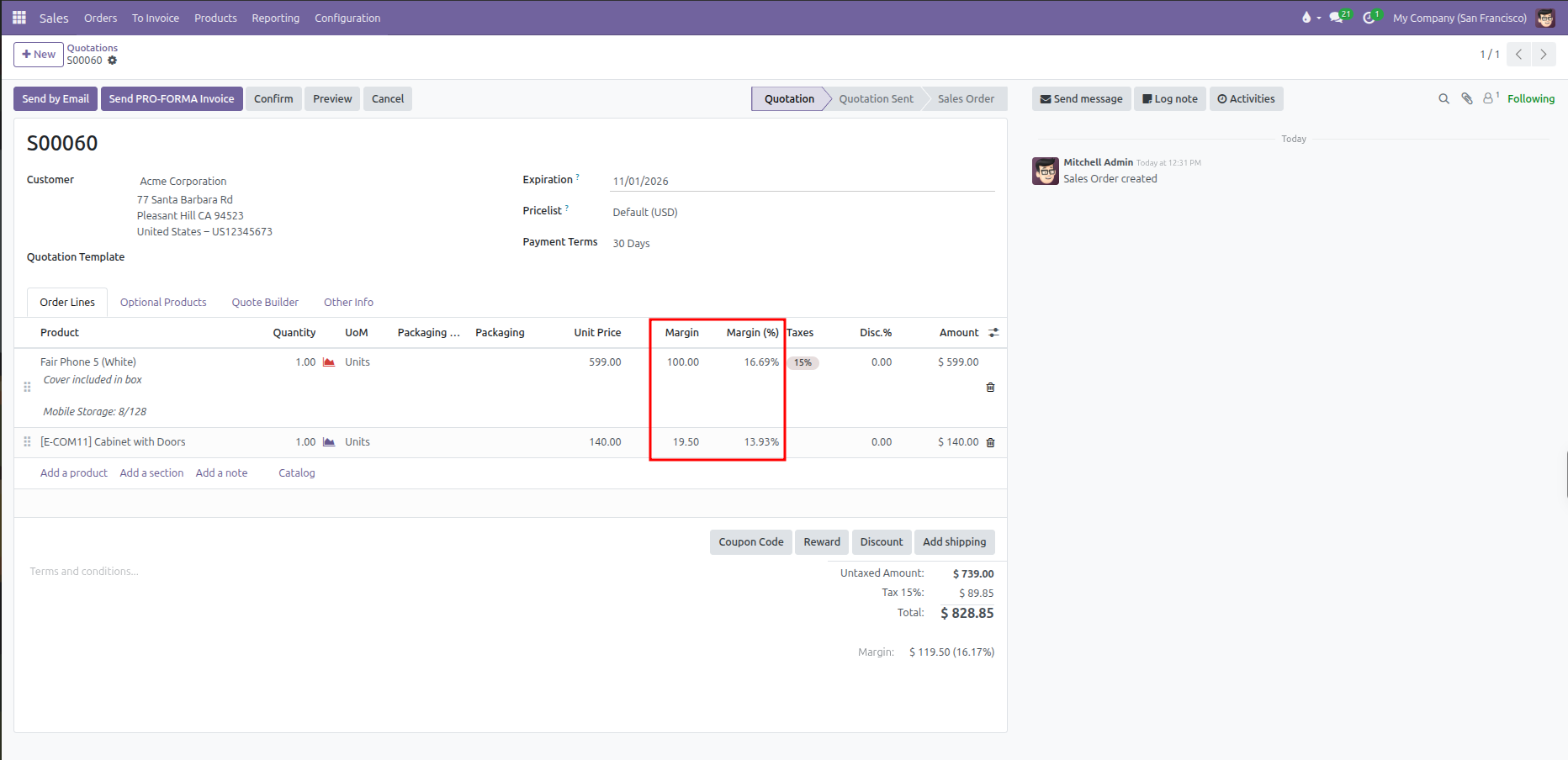
Look at the total profit at the bottom right:
Untaxed Sales Total:
$ 739.00Total Profit:
$ 119.50Profit Percentage:
16.17%
Because the total profit is 16.17%, which is above the company 15% minimum rule, the salesperson knows the deal makes good money and does not need special manager approval.
C. Adding Optional Extra Products
In the Optional Products tab, the salesperson adds noise-blocking screens and extra warranty packs. The customer can see these on their screen and click to add them if they want them.
5. Step 3: Customer Signs and Pays Online
The salesperson clicks Send by Email. The customer gets an email with a link to open their quote online.
A. Reviewing the Quote Online
On their web screen, the customer can:
Look at all items, quantities, and prices.
Read the attached PDF with company details and warranty terms.
Click to add any optional extra items right away, which updates the total price on screen.
B. Signing on Screen
The customer clicks Sign & Pay.
A popup box opens:
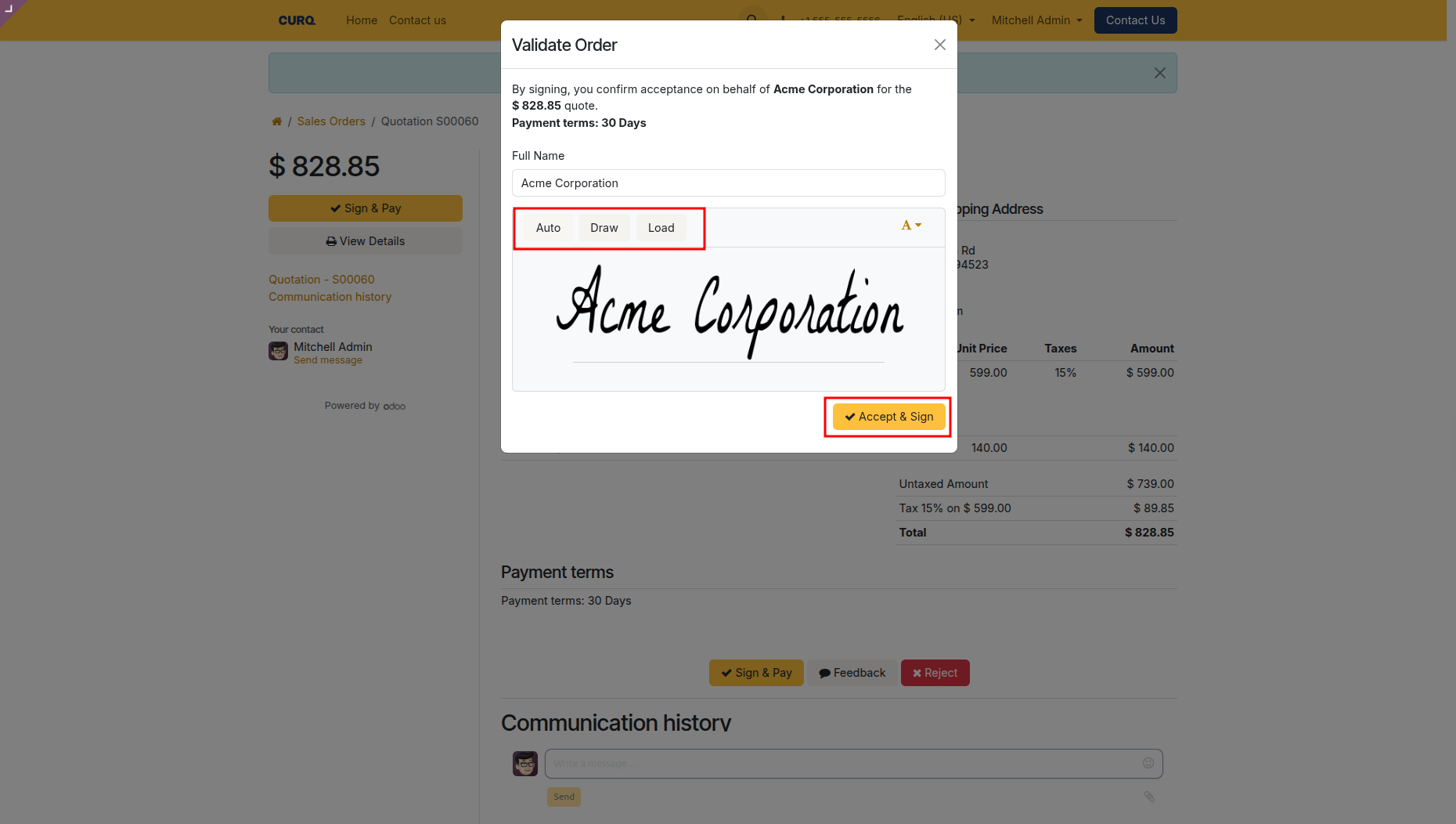
The customer types their name and draws their signature with a mouse, finger, or pen.
Clicking Accept & Sign saves the signature along with the date, time, and IP address.
C. Paying the Bill
Right after signing, CURQ shows a clear message: “Thank You! Your order has been signed but still needs to be paid to be confirmed.”
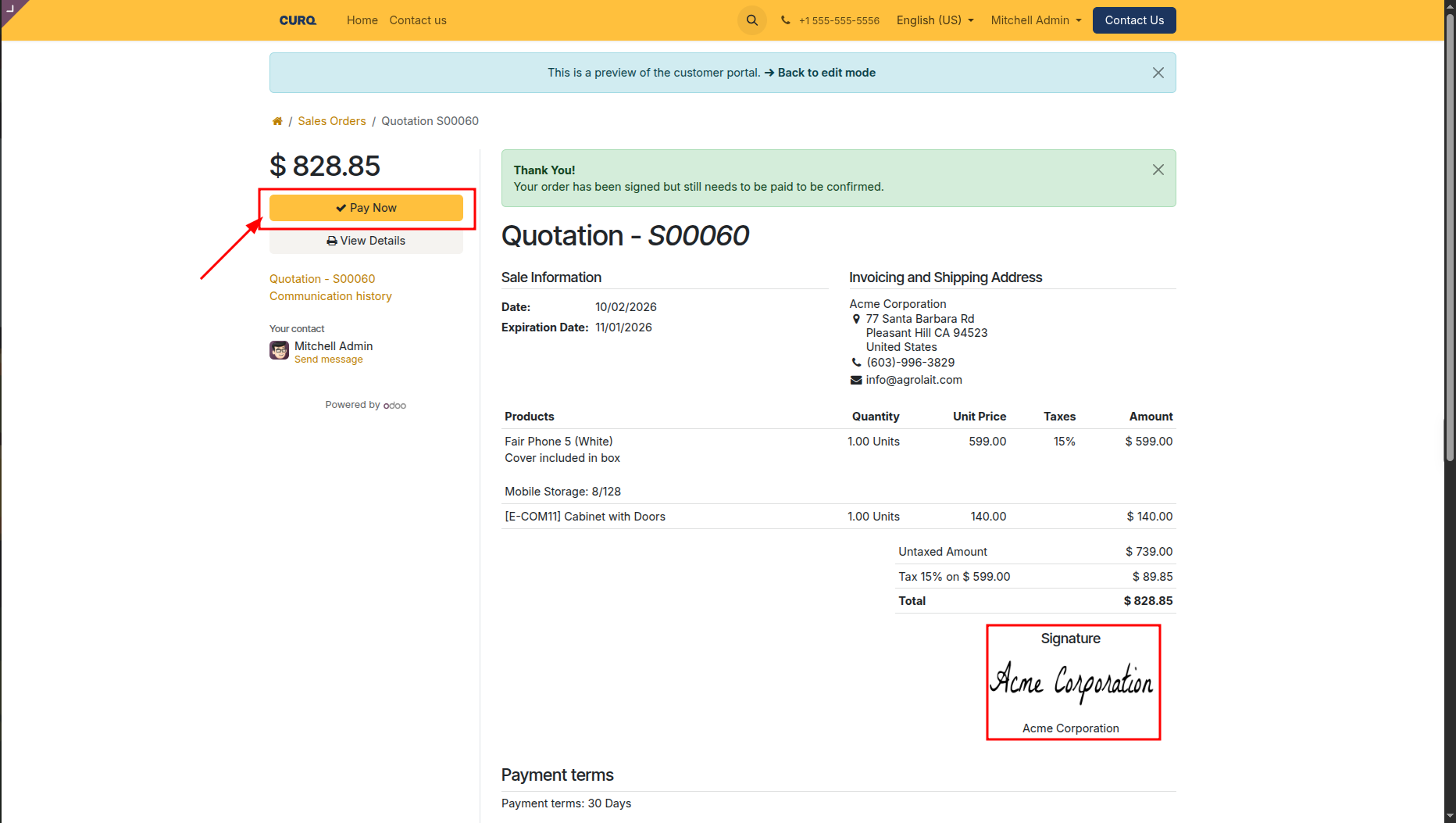
The customer clicks the yellow Pay Now button.
A payment box appears showing available payment methods:
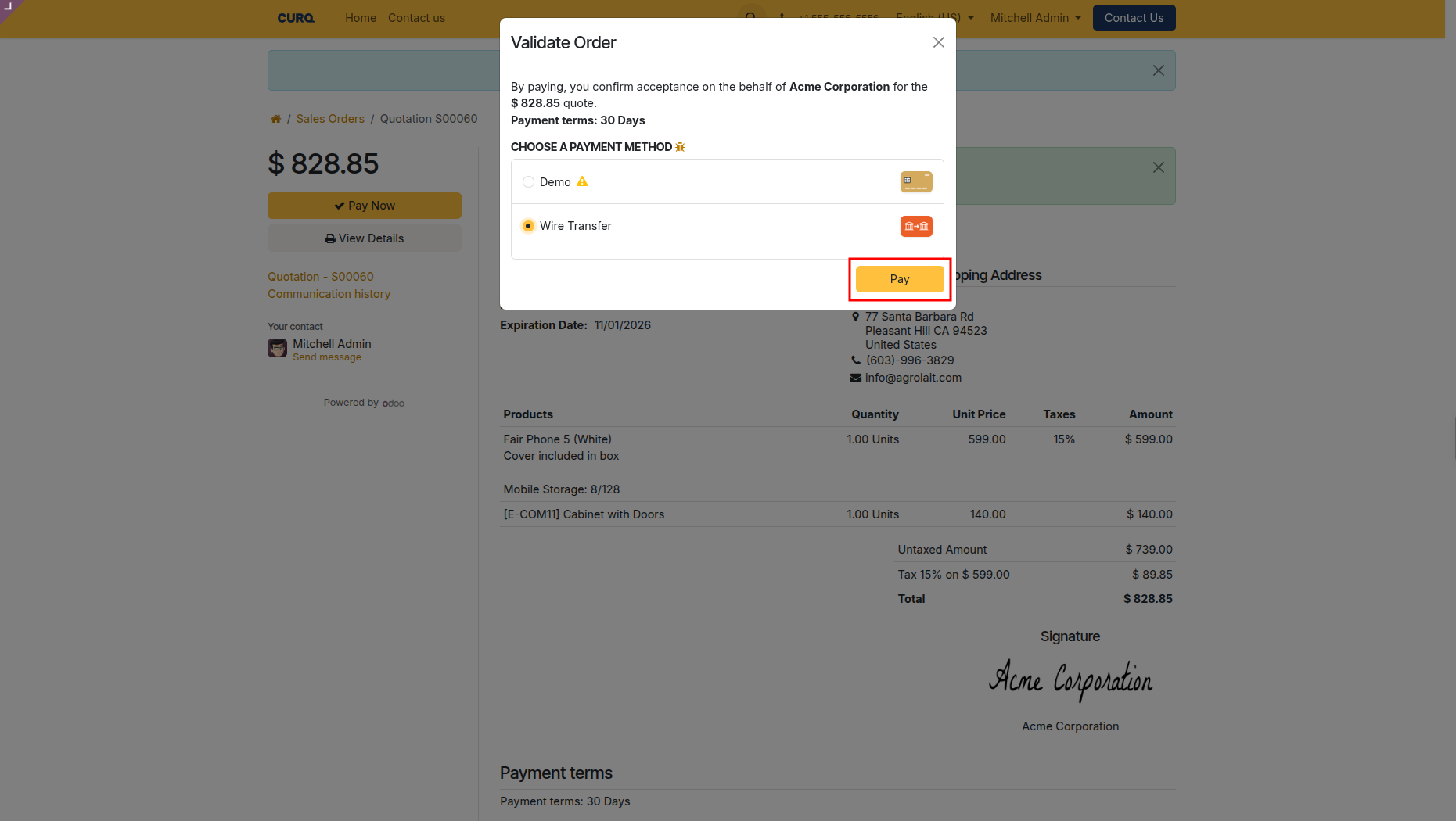
The customer picks Wire Transfer or credit card and clicks Pay.
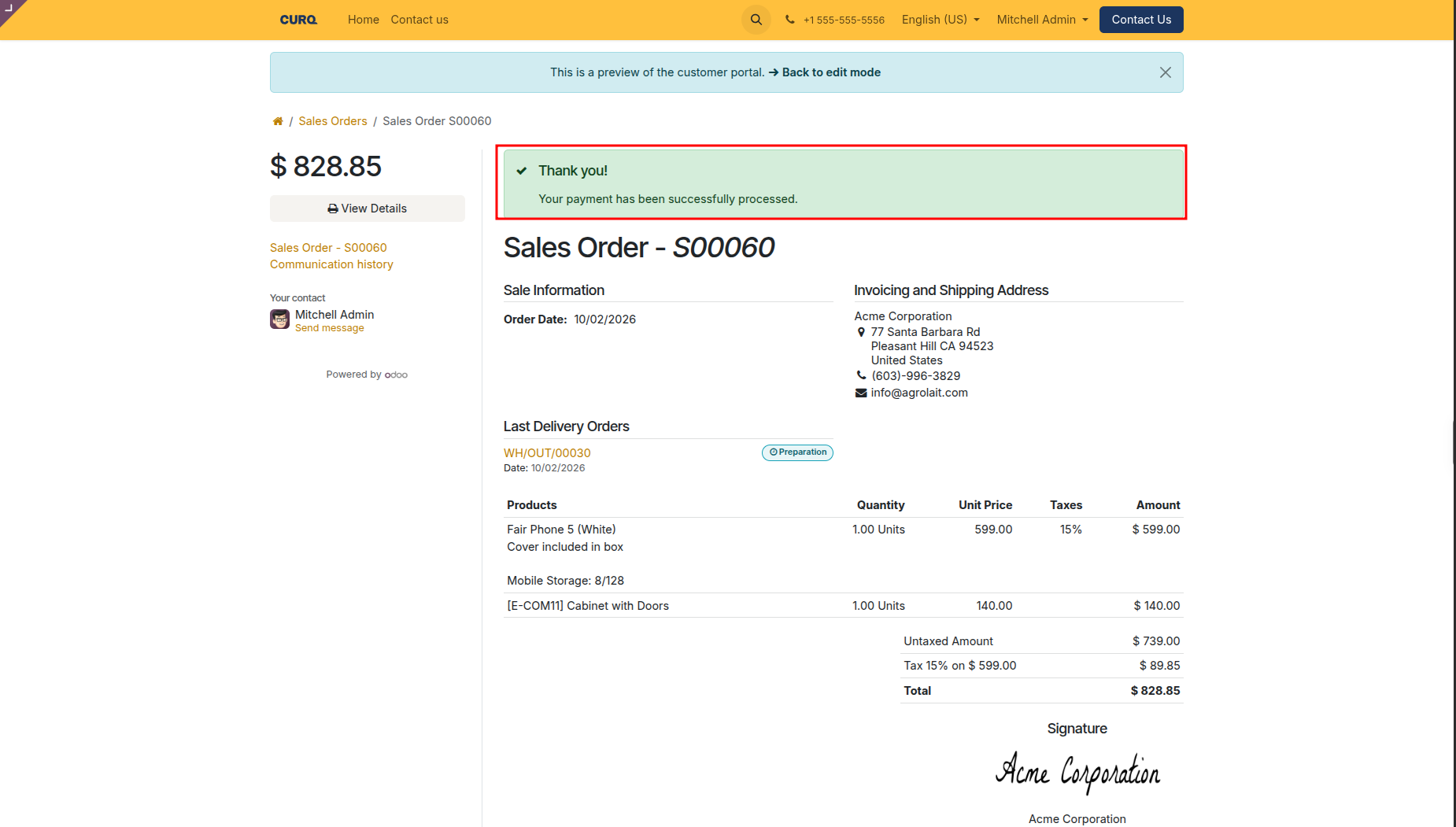
Once the payment goes through, the screen updates to show a green success box: “Thank you! Your payment has been successfully processed.”
6. Step 4: What Happens Automatically Behind the Scenes
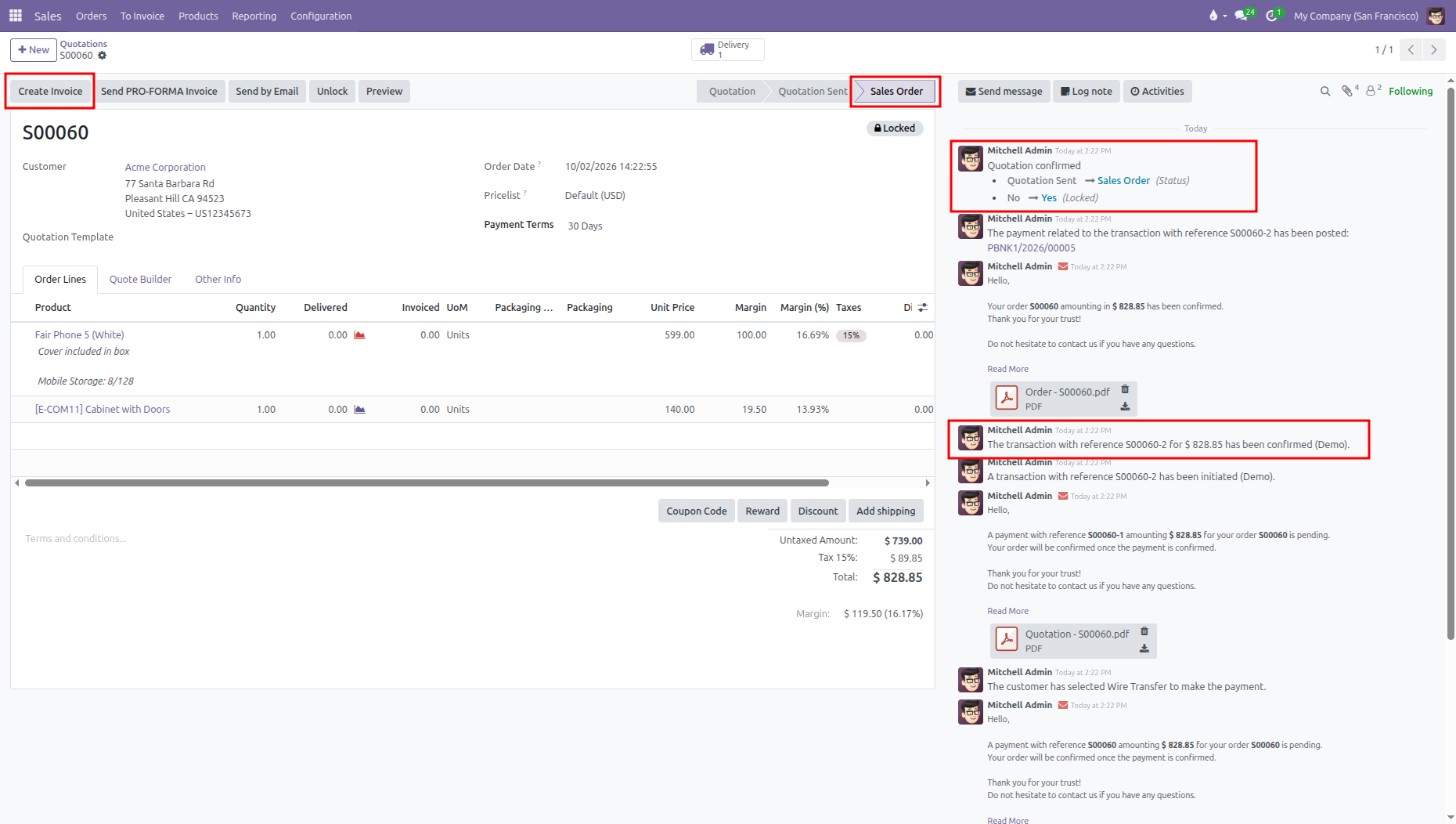
As soon as the payment succeeds, CURQ finishes the whole job automatically:
A. Sales Order Confirmed
The quote immediately changes status from Quotation Sent to Sales Order and locks so prices cannot accidentally change.
CURQ creates a signed PDF document with the customer signature, date, and IP address.
The signed PDF is stored right inside the order notes on the right side of the screen.
B. Warehouse Notified
Inventory marks the items as reserved so nobody else can take them.
A delivery slip is created right away so the warehouse team can pack and ship the products.
C. Invoice Created and Marked as Paid
Because Automatic Invoice was turned on, CURQ creates the invoice on its own. Nobody has to click buttons or type numbers.
The payment is matched to the invoice, marking it as paid right away.
7. Step 5: Checking the Results in Sales Reports
At the end of the month, sales managers can check how much money the deal made:
Go to Sales > Reporting > Sales.
Click the Pivot grid icon in the top right.
Click Measures and choose Margin and Margin (%).
Group rows by Customer and columns by Product Category.
What the Numbers Show
Good Profits on Big Deals: Bulk pricing brought in a large order while still keeping a safe profit of over 16%.
Extra Sales from Options: Giving optional items on the web screen brought in more money without any extra sales effort.
Zero Waiting for Cash: Getting paid upfront online means the company does not have to wait 30 or 45 days for customer checks. The money is in the bank before products ship.