Tags Setup
Configure and organize commercial tags to categorize quotations and sales orders in CURQ 18.
2. Access the Tags Menu
To manage sales order tags:
Open the Sales app.
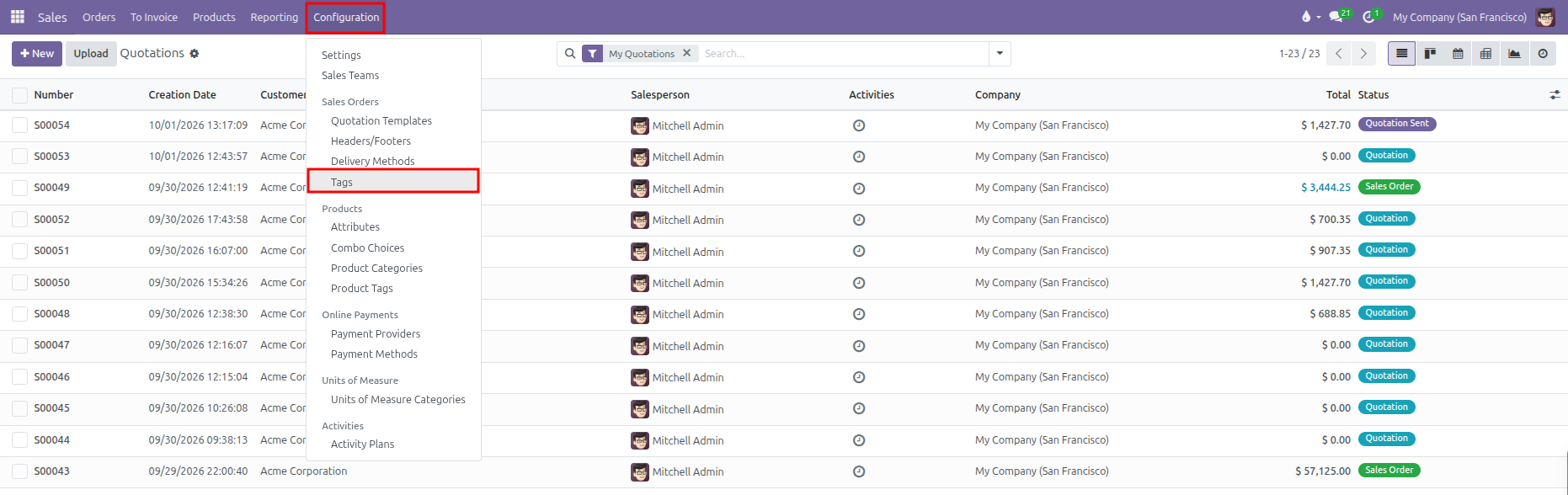
In the top navigation bar, click Configuration.
Under the Sales Orders section, select Tags.
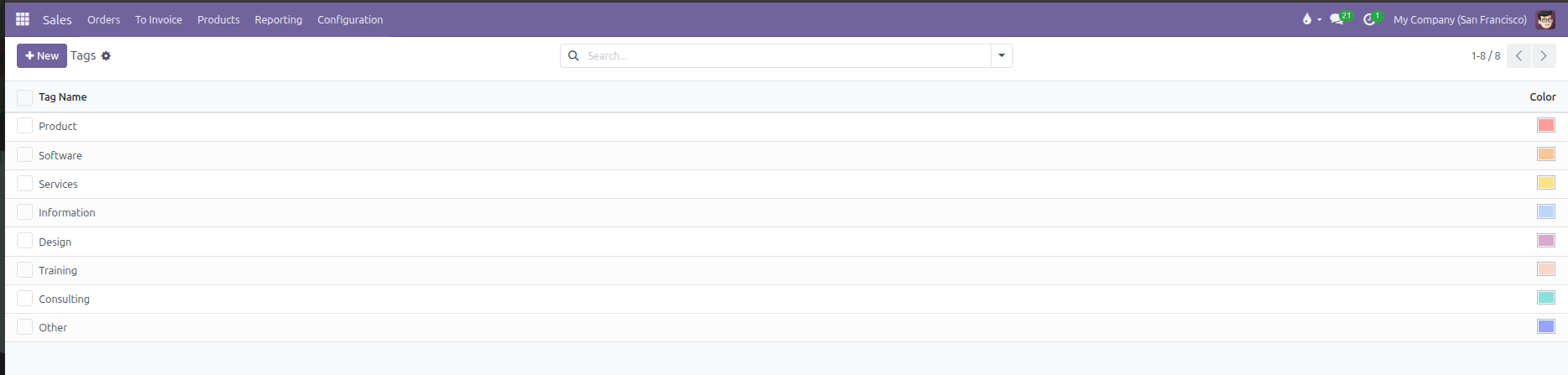
CURQ displays the list of existing tags alongside their assigned color badges:
3. Create or Edit a Tag
To create a new tag:
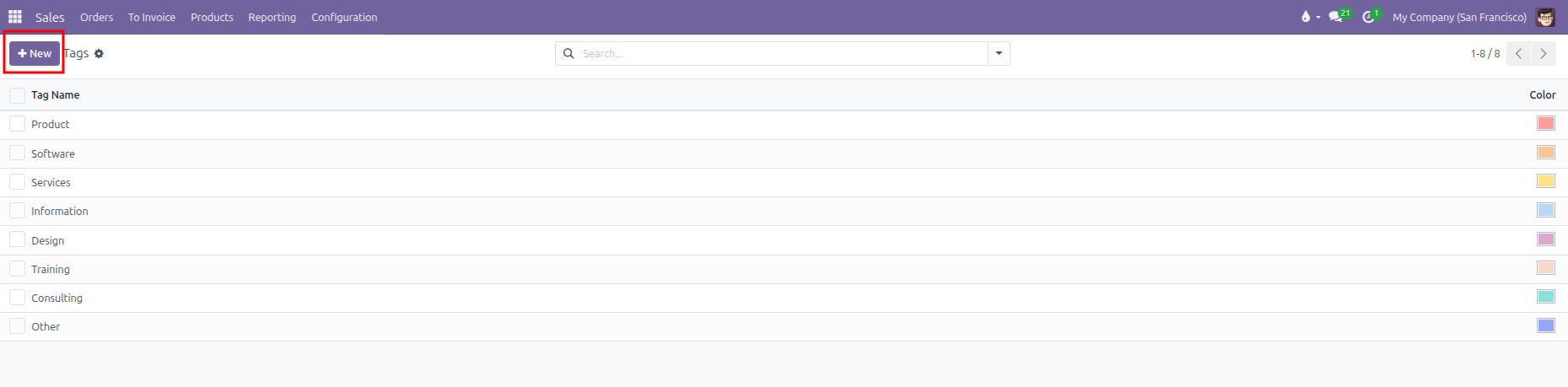
Click New at the top left of the Tags list, or click into an empty row at the bottom of the table.
Configure the tag properties:
Field |
Description |
Practical Effect |
|---|---|---|
Tag Name |
Descriptive label for the category (such as |
Appears on quotation badges, filter dropdowns, and search results. |
Color |
Color swatch selected from the color picker palette. |
Determines the background color of the tag badge across forms and list views. |
Click the color picker box to select a distinct visual shade from the 12 available color options:
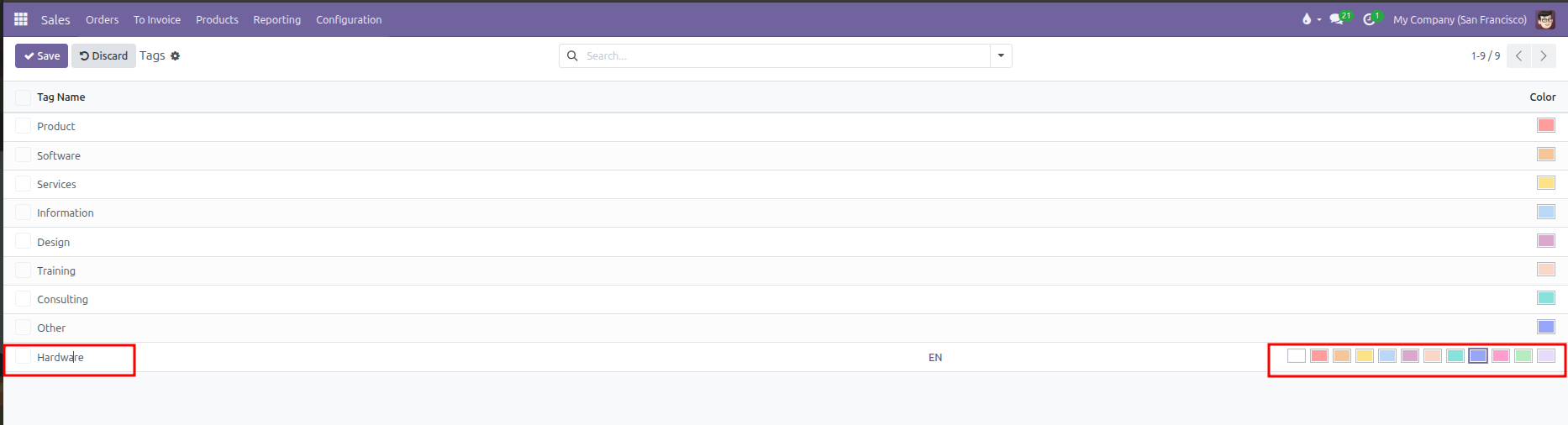
Click outside the row or click Save at the top left to apply the changes.
4. Assign Tags to Quotations and Sales Orders
To tag a quotation or sales order:
Open a sales quotation in Sales > Orders > Quotations.
Select the Other Info tab.
Locate the Tags field under the Sales section.
Select one or more tags from the dropdown list.
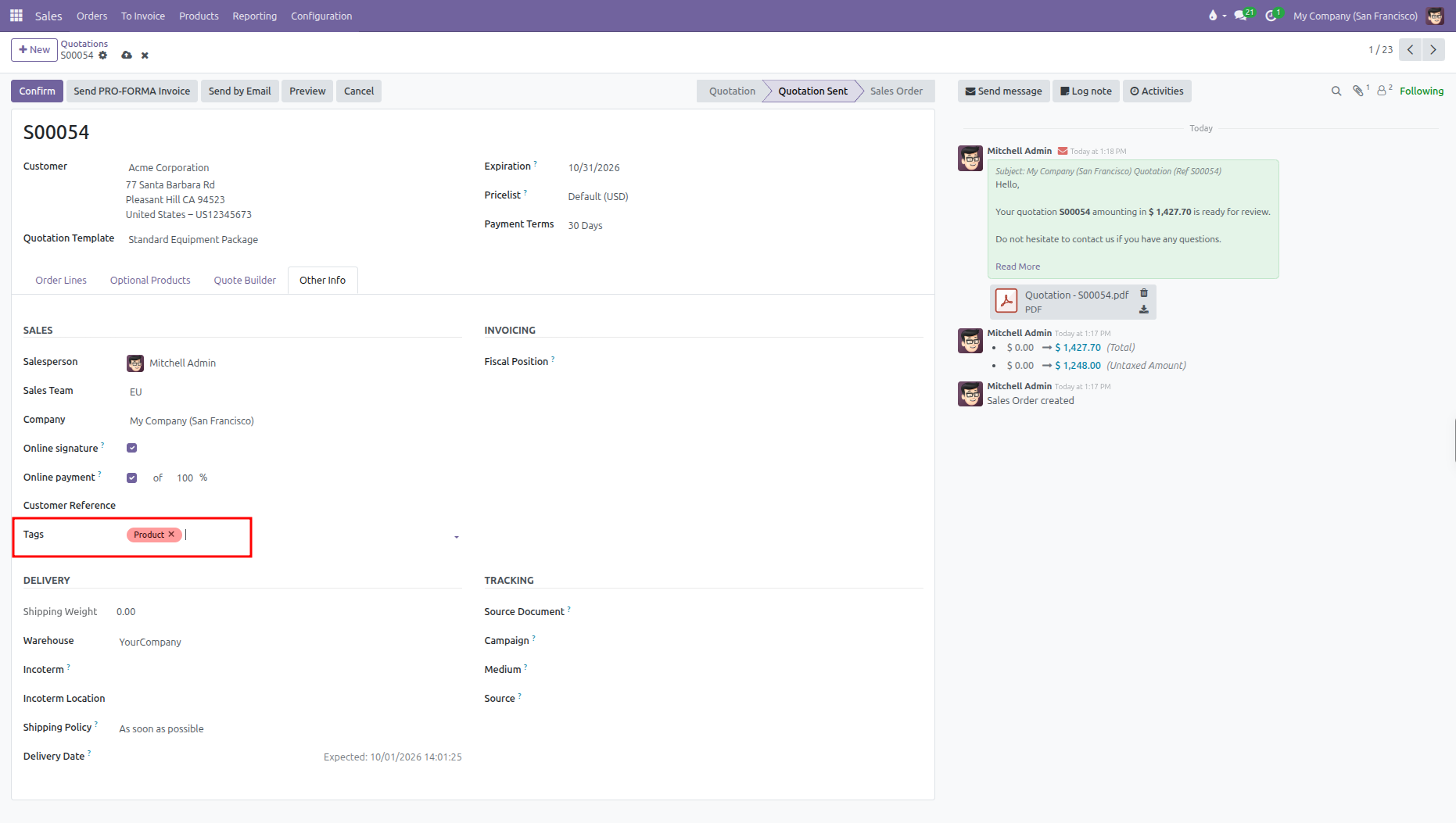
(Salespeople can also create a new tag on the fly by typing the tag name into the Tags field and clicking Create and edit)
5. View and Filter Orders by Tag
Tags can be displayed directly in list views and used to filter orders:
Navigate to Sales > Orders > Quotations (or Orders).
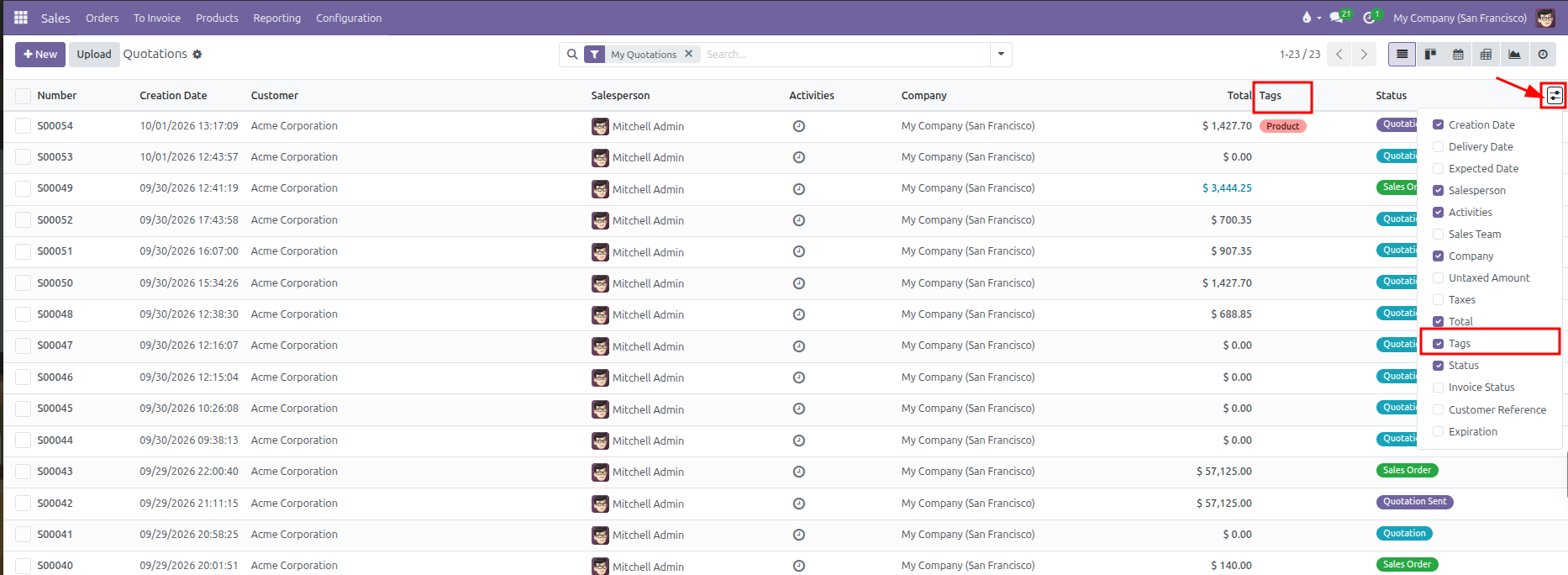
Click the optional columns toggle icon at the far right of the table header.
Check the Tags column to display tag badges in the list view.
Use the search bar at the top to filter orders by specific tags.