Configuring Product Attributes and Variants
Set up product attributes, select variant creation modes, calculate price extras, and manage variant-level inventory codes in CURQ 18.
Prerequisites
Before configuring attributes or using bulk matrix grids, verify that the required features are enabled in system settings:
Navigate to Sales > Configuration > Settings.
Under the Product Catalog section, enable Variants:
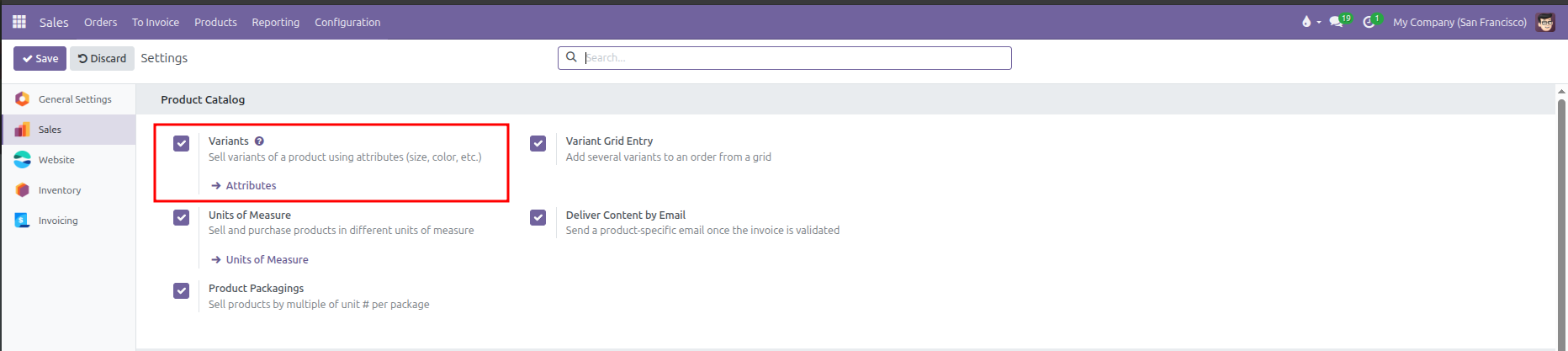
Enabling Variants unlocks the Attributes & Variants tab on product templates and adds the Attributes menu under Products.
If your business sells multi-attribute items in bulk (such as apparel or wholesale hardware), also enable Variant Grid Entry:
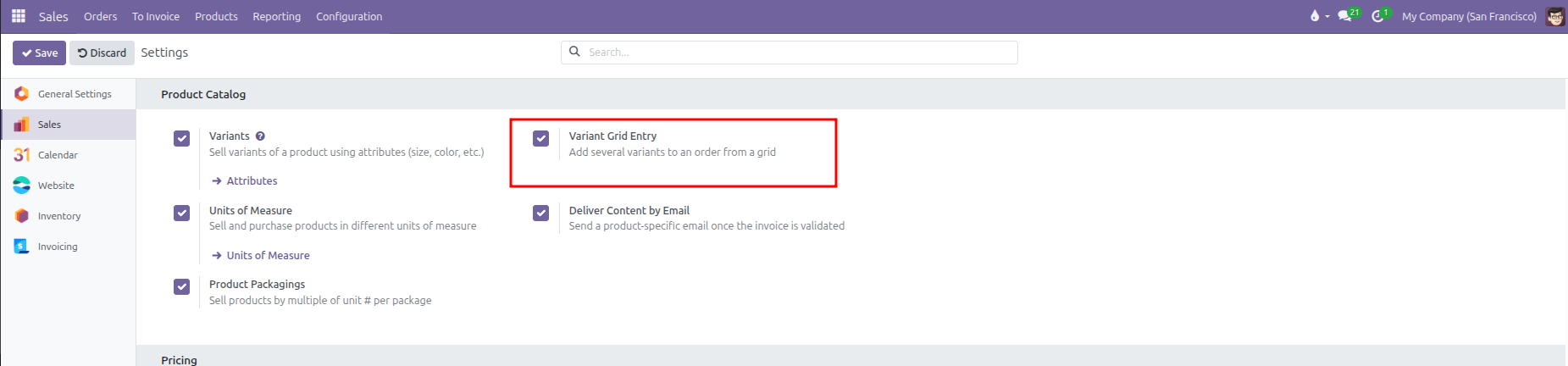
Enabling Variant Grid Entry unlocks the multi-dimensional matrix dialog for bulk order entry on sales quotations.
Click Save.
1. Attributes and Display Types
Attributes represent the variable dimensions of a product (such as Size, Color, or Storage Capacity). Navigate to Products > Attributes to manage global attributes.
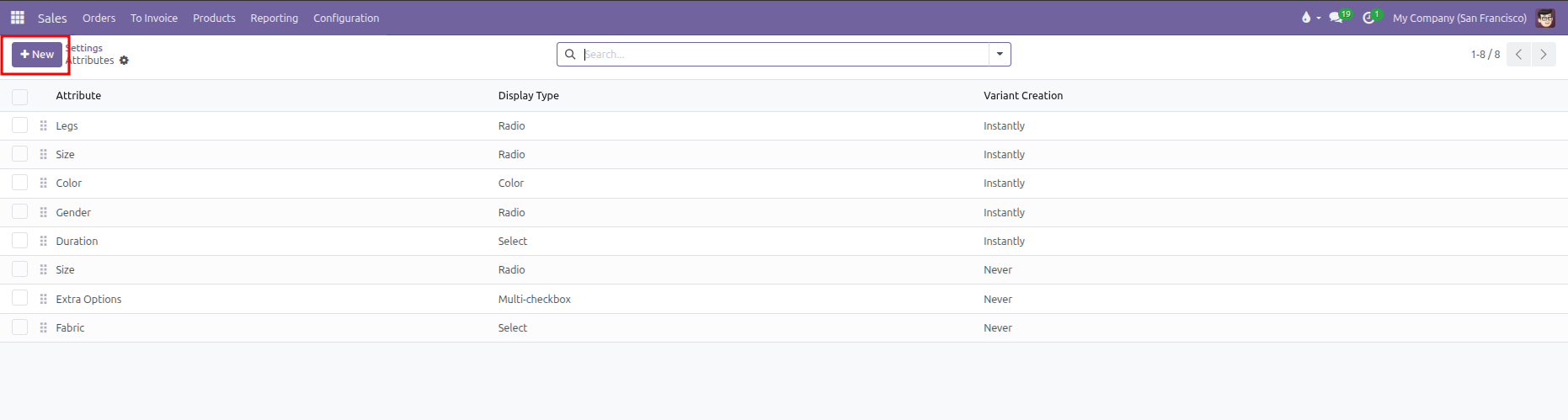
Display Types
The Display Type controls how options look inside the product sales configurator:
Display Type |
How Customers See It |
Best Used For |
|---|---|---|
Radio |
Round single-choice option buttons. |
Small sets of options where all choices should remain visible (such as 128 GB, 256 GB, 512 GB). |
Pills |
Clickable pill-shaped buttons with rounded borders. |
Visual size pickers or quick specification tags (such as S, M, L, XL). |
Select |
Dropdown selection menu. |
Long lists of values to keep quotation screens compact (such as Country of Origin or Shoe Size). |
Color |
Visual color swatches showing HTML hex colors or texture images. |
Fabric swatches, finishes, and product exterior colors (such as Space Gray, Silver, or Gold). |
Multi-checkbox |
Square checkboxes allowing multiple simultaneous selections. |
Add-on features or included items where customers choose multiple options. Only available when Variant Creation is set to Never. |
Variant Creation Modes
The Variant Creation setting controls when CURQ generates concrete variant records:
Creation Mode |
Database Behavior |
Operational Impact |
|---|---|---|
Instantly |
Creates all possible variant combinations immediately upon saving the product template. |
Standard choice for products with predefined inventory SKUs, barcodes, and stock levels. |
Dynamically |
Creates variant records only after a salesperson or customer selects that specific combination on an order. |
Prevents database bloat on custom products with thousands of possible theoretical combinations. |
Never |
Never generates separate product variant records. |
Stores selections directly on sales order lines without creating inventory SKUs (useful for personal engravings or custom text). |
Attribute Values Table
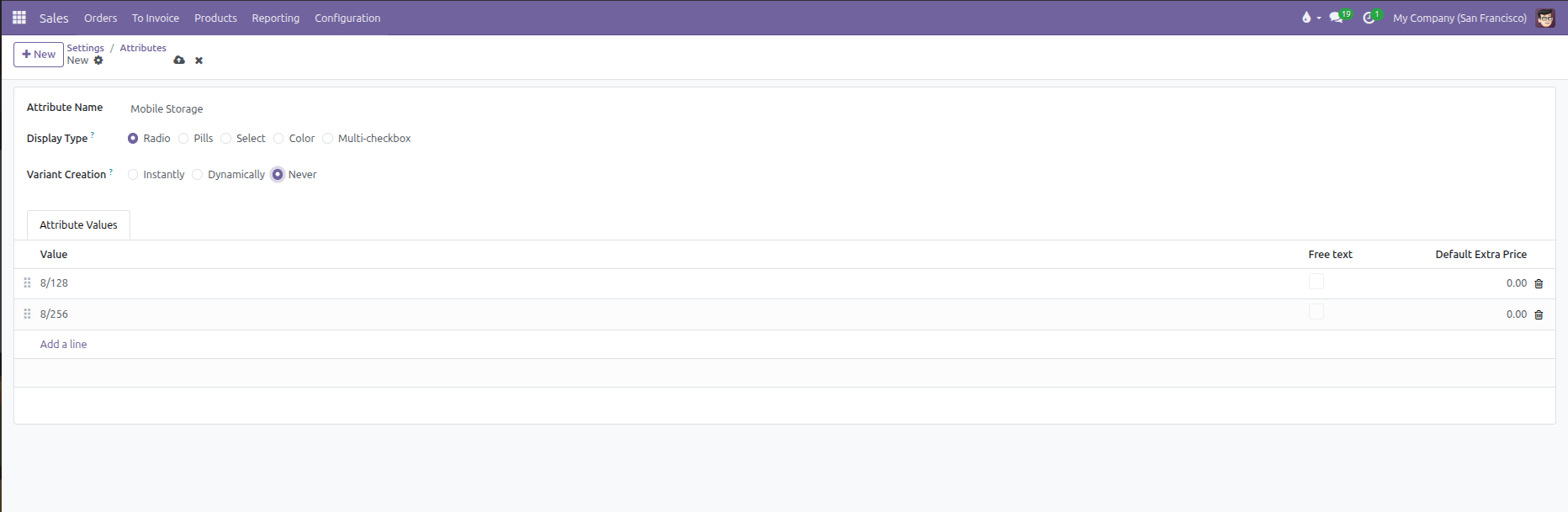
Under the Attribute Values tab on the attribute record:
Value: Enter the title of each selectable option (such as 8/128 and 8/256).
Free text: Check this box to allow customers or sales staff to enter custom text for this option on quotes (such as personalized engraving).
Default Extra Price: Enter a baseline surcharge that applies whenever this value is added to products.
2. Adding Attributes to a Product Template
To add attributes and values to an existing product:
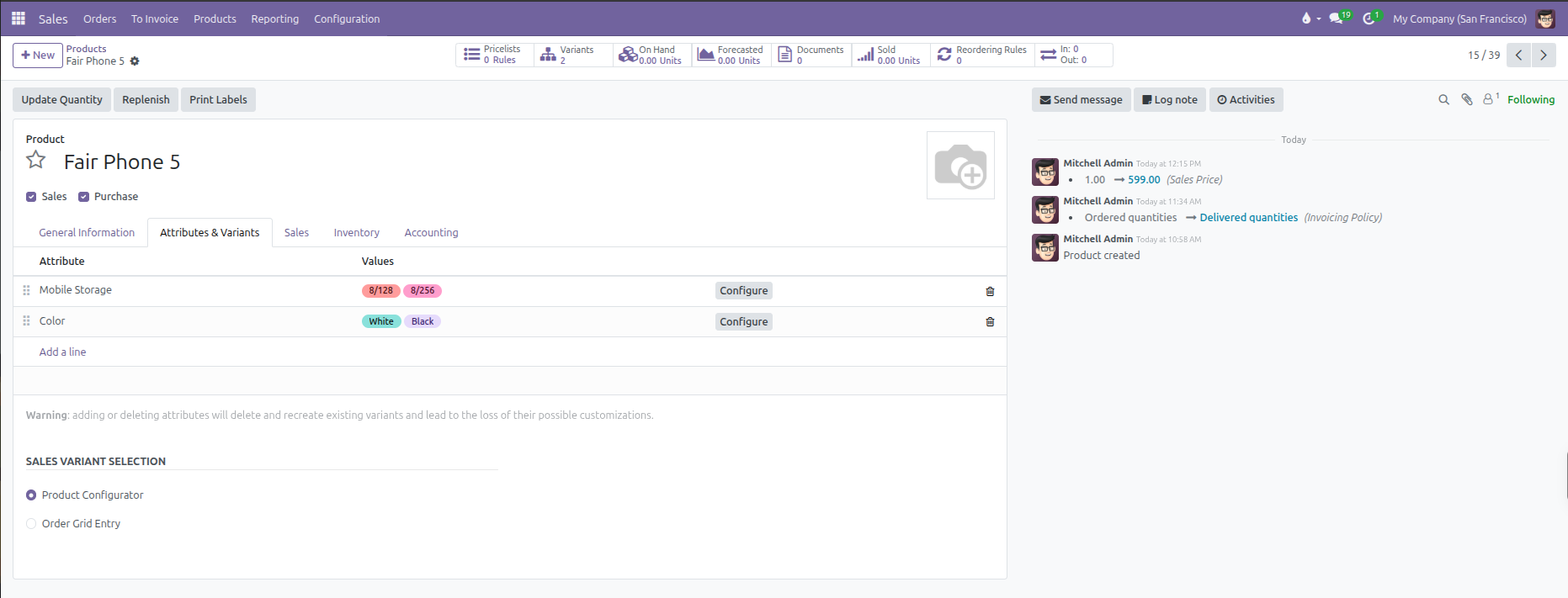
Navigate to Products > Products and open a product record (such as Fair Phone 5).
Open the Attributes & Variants tab.
Click Add a line in the attributes table.
Select an existing attribute in the Attribute column (such as Mobile Storage).
In the Values column, select or type the desired values (such as 8/128 and 8/256).
Click Add a line again to add a second attribute (such as Color with values White and Black).
(Adding or deleting attributes rebuilds existing variant records. Make sure to configure attributes before adding variant-specific barcodes or custom stock levels)
Once saved, CURQ displays a Variants stat button at the top of the form showing the total count of active variants.
Sales Variant Selection
At the bottom of the Attributes & Variants tab, under the Sales Variant Selection section, choose how sales staff add variants to quotations and sales orders:
Selection Mode |
Operational Behavior |
Recommended Business Application |
|---|---|---|
Product Configurator |
Opens an interactive pop up dialog where staff select attribute values one by one, review dynamic price adjustments, and add optional upsell accessories. |
Best for consumer electronics, custom machinery, furniture, or goods sold individually where optional accessories (such as protective cases, cables, or service warranties) are offered. |
Order Grid Entry |
Opens a multi-dimensional matrix dialog (rows and columns) allowing staff to enter quantities across dozens of variant combinations simultaneously. |
Best for wholesale distributors, apparel, footwear, textiles, and hardware where commercial clients order multiple sizes, colors, or specifications on a single order. |
3. Configuring Price Extras and Exclusions
Not all variant combinations cost the same amount to sell. You can configure price extras and block incompatible options directly from the product template:
Setting Price Extras
To add a price premium for premium specifications:
On the Attributes & Variants tab, click the Configure button on the attribute row.
In the list of values, locate the premium value (such as 8/256).
Enter the additional amount in the Value Price Extra column (such as $ 250.00).
CURQ calculates the final selling price on quotations using this formula:
$$\text{Final Variant Sales Price} = \text{Base Product Sales Price} + \text{Value Price Extra}$$
For example, if the base Fair Phone 5 costs $599.00:
Selecting the 8/128 value ($0.00 extra) sets the quotation price to $599.00.
Selecting the 8/256 value ($250.00 extra) automatically sets the quotation price to $849.00.
Setting Variant Exclusions
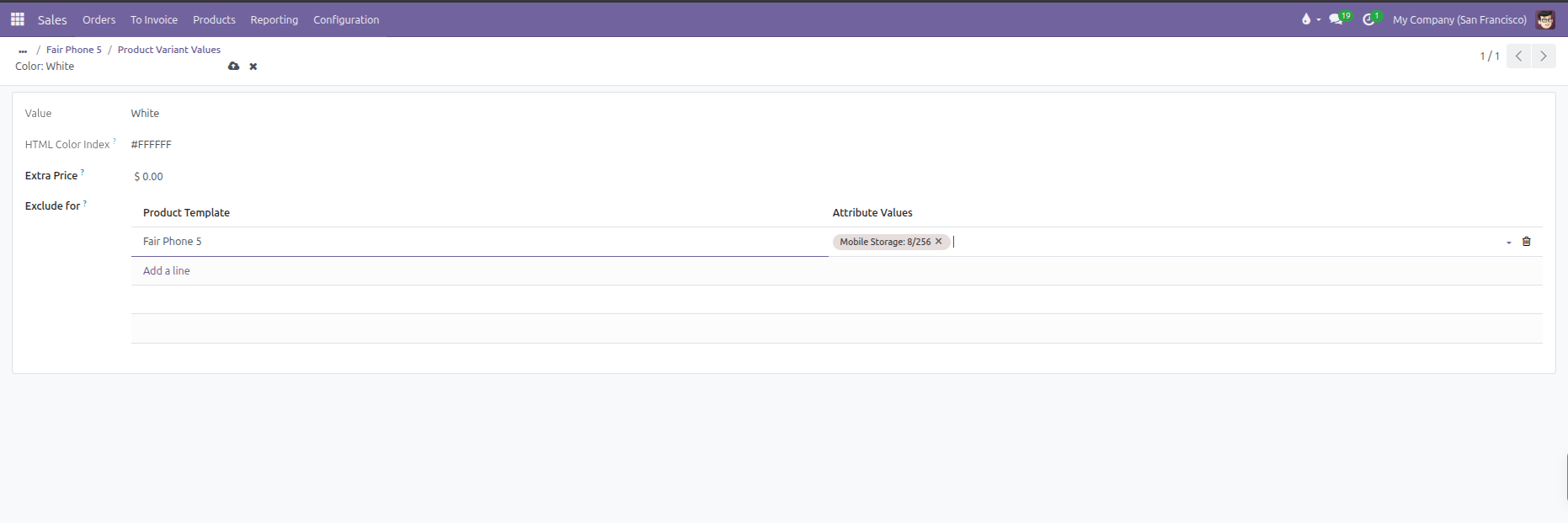
If certain combinations cannot be sold together (for example, White color is not available with 8/256 storage):
On the Attributes & Variants tab, click the Configure button on the attribute line (such as Color). This opens the Product Variant Values list view.
Click directly on the value row you want to restrict (such as White). This opens that specific value detail form.
In the detail form, locate the Exclude for table positioned below the Extra Price field.
Click Add a line inside the Exclude for table.
In the Product Template column, select the product (defaults to current product).
In the Attribute Values column, select the incompatible attribute value (such as 8/256).
Save the record.
When staff select White on a quotation, the sales configurator automatically disables and blocks 8/256, preventing invalid orders.
4. Managing Individual Variant Records
Each generated combination creates an individual variant record in CURQ. Access these records by clicking the Variants stat button at the top right of the product form, or via Products > Product Variants.
Each individual variant form lets you set unique operational data:
Field |
Purpose |
Practical Effect |
|---|---|---|
Internal Reference |
Unique SKU per variant. |
Allows warehouse and sales staff to identify specific models (such as FF5-BLK-128). |
Barcode |
Unique barcode per variant. |
Enables optical scanning of specific variants during packing, shipping, and inventory counts. |
Cost |
Acquisition or manufacturing cost per variant. |
Overrides base template cost to calculate exact margins for high-spec variants. |
Sales Price |
Display of the computed price. |
Displays the base price plus price extras for this specific combination (read-only when multiple variants exist). |
Logistics |
Weight and Volume per variant. |
Provides accurate shipping weight for carrier label calculations when variants differ in size or materials. |
Variant Image |
Visual photo of the specific variant. |
Replaces the base template image with a color-accurate photo on customer quotes and website product pages. |
Archive |
Deactivates a single combination. |
Hides discontinued variants from new quotations without affecting other active combinations. |
5. Adding Variant Products to Quotation Lines
Depending on whether the product is configured for Product Configurator or Order Grid Entry, CURQ provides two distinct order entry workflows:
Workflow A: Individual Selection via Product Configurator
When a product is set to Product Configurator:
Navigate to Sales > Orders > Quotations and open or create a quotation.
Under the Order Lines tab, click Add a product.
Select the base product template (such as
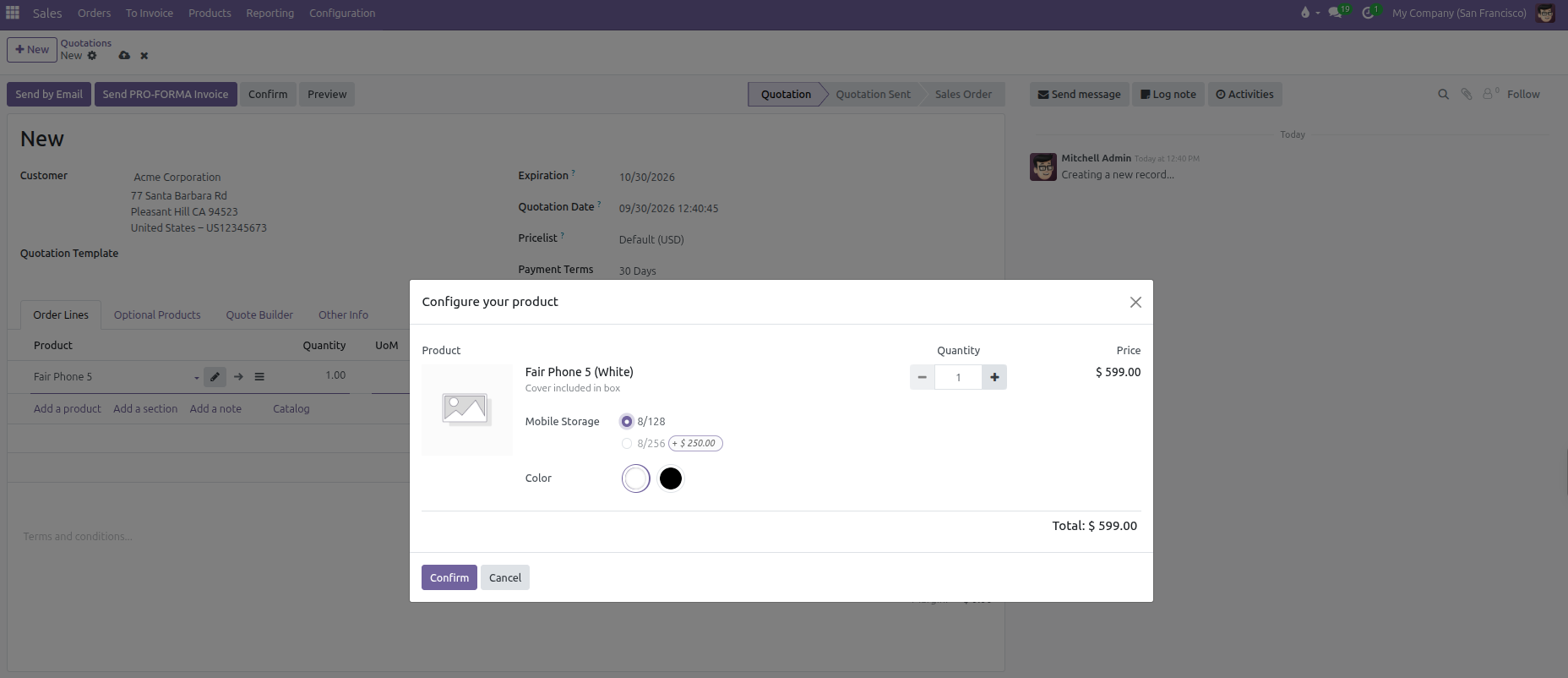
Fair Phone 5).CURQ automatically opens the Configure your product dialog window:
Attribute Values: Pick the desired specifications using the configured display types (such as selecting
Whitefrom color circles and8/128or8/256from storage radio buttons).Price Extras: Options with surcharges display clear price badges (such as
+ $ 250.00next to8/256). The displayed unit price updates in real time as options are selected.Incompatible Combinations: Any combination restricted by variant exclusions appears disabled, preventing sales staff from placing invalid orders.
Optional Upsell Accessories: If optional accessories (such as phone cases, fast chargers, or extended warranties) are configured under the product Sales tab, they appear below the main variant with quantity selectors. Staff can click Add to bundle accessories directly onto the quotation.
Review the quantity and calculated line total at the bottom of the modal.
Click Confirm. CURQ inserts the chosen product variant line (along with any selected optional accessory lines) directly into the quotation.
Workflow B: Bulk Matrix Entry via Order Grid Entry
When a product is set to Order Grid Entry:
Navigate to Sales > Orders > Quotations and open or create a quotation.
Under the Order Lines tab, click Add a product.
Select the multi-attribute product template (such as
Fair Phone 5).CURQ automatically displays the Choose Product Variants matrix modal dialog:
Matrix Layout: One attribute (such as Mobile Storage: 8/128, 8/256) populates the columns, while the second attribute (such as Color: White, Black) forms the rows.
Price Surcharges: Surcharges appear directly beneath column headers (such as
+ $ 250.00under8/256).Exclusion Enforcement: Incompatible combinations display as Not available (such as
Whitewith8/256) and cannot receive quantity input.Bulk Quantity Entry: Sales staff type desired quantities directly into multiple cells simultaneously (for example, entering 5 for White / 8/128 and 10 for Black / 8/256).
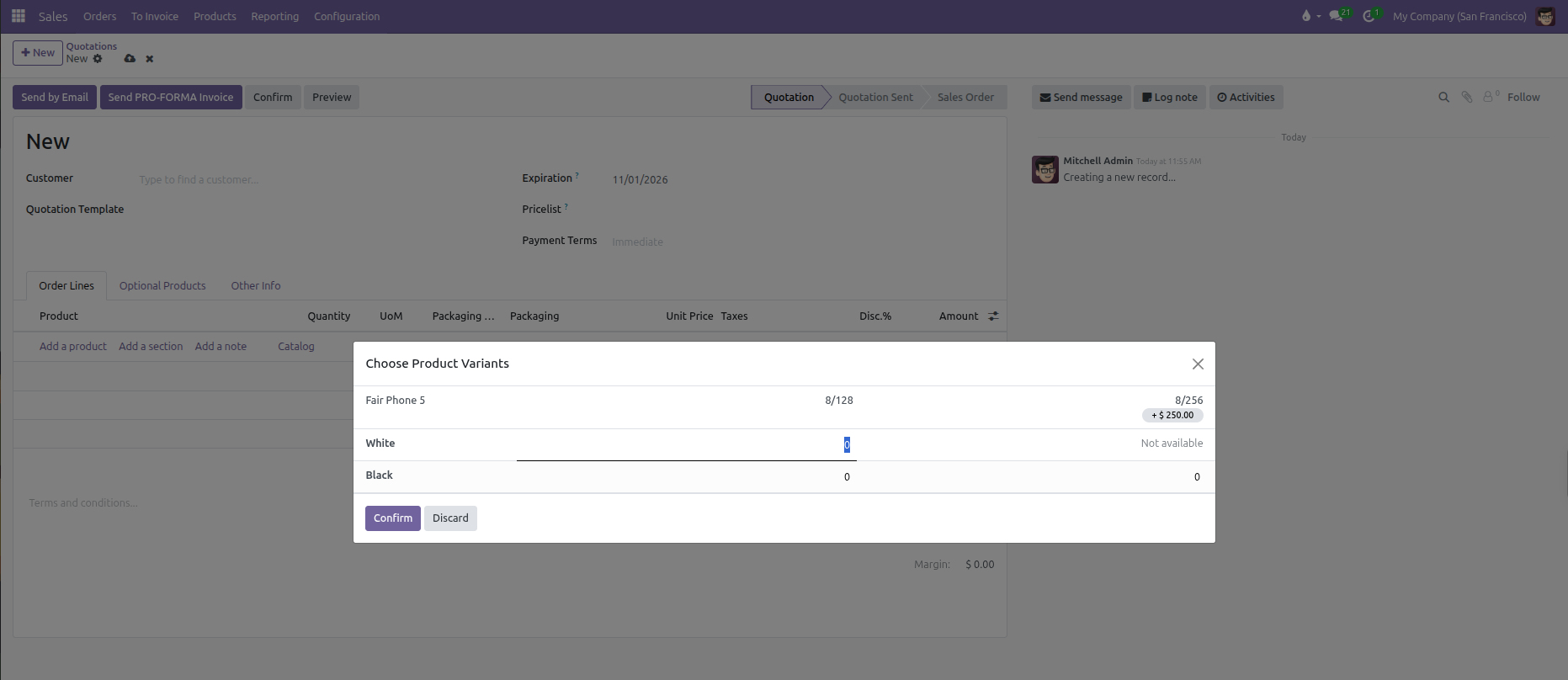
Click Confirm. CURQ instantly generates individual sales quotation lines for every cell with a quantity greater than zero.
Editing Matrix Lines: If quantities need modification, clicking any existing order line for that product re-opens the matrix dialog, automatically highlighting the selected cell while preserving all previously entered quantities across the grid. Changing a cell quantity to
0removes that specific line from draft and sent quotations.Customer PDF Quote Printing: Under the quotation Other Info tab, the Print Variant Grids setting ensures the full matrix table prints neatly on the customer PDF quotation report.