Online Signature and Online Payment Setup
Configure electronic signature policies, enable online payment collection and prepayment percentages, configure automatic invoice generation, manage customer portal approvals, and automate order validation in CURQ 18.
1. Overview of Customer Confirmation Methods
CURQ provides digital confirmation tools that allow customers to legally approve quotations and pay deposits directly from their web browser. Eliminating manual paperwork, printing, scanning, and external payment follow-ups accelerates sales turnaround and improves cash flow.
Businesses can configure three distinct confirmation workflows depending on commercial requirements:
Online Signature Only: Customers sign the quotation digitally on the portal. The order automatically confirms into a sales order immediately upon signature submission.
Online Payment Only: Customers pay the full order amount or a partial deposit online. The order automatically confirms into a sales order as soon as payment is authorized.
Combined Signature and Payment (“Sign & Pay”): Customers first sign the agreement digitally, then complete the required prepayment. The order confirms only after both signature capture and payment authorization succeed.
2. Enable Confirmation and Automatic Invoicing in Global Settings
To activate signature capture, payment confirmation, and automated billing across the entire company:
Open the Sales app.
In the top navigation bar, click Configuration > Settings.
Locate the Quotations & Orders section.
Enable Online Signature
Check the box for Online Signature (Request customers to sign quotations to validate orders):
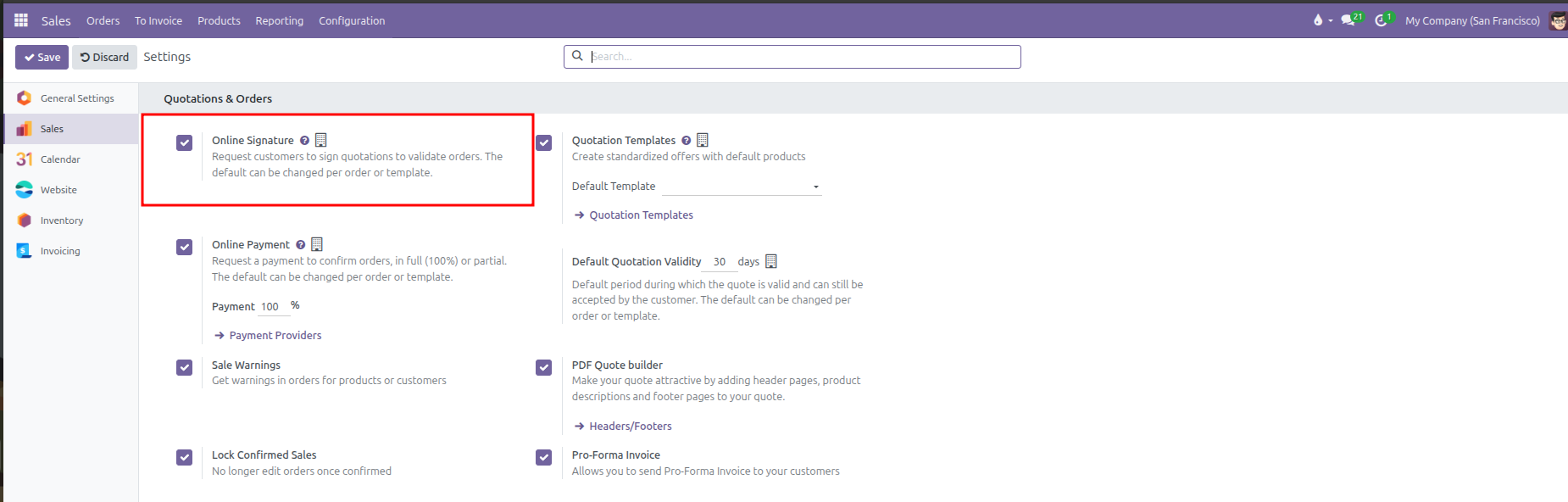
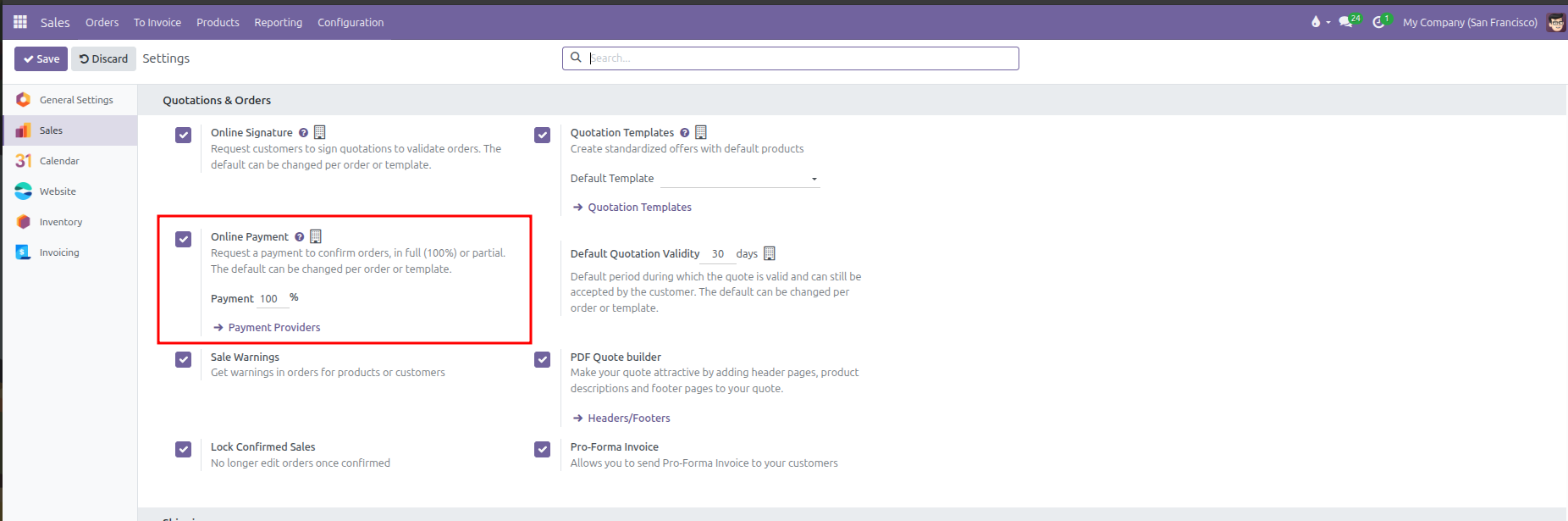
Enable Online Payment
Check the box for Online Payment (Request a payment to confirm orders, in full (100%) or partial), and specify the company default Payment percentage (such as 100 % for full payment, or 30 % for a standard deposit):
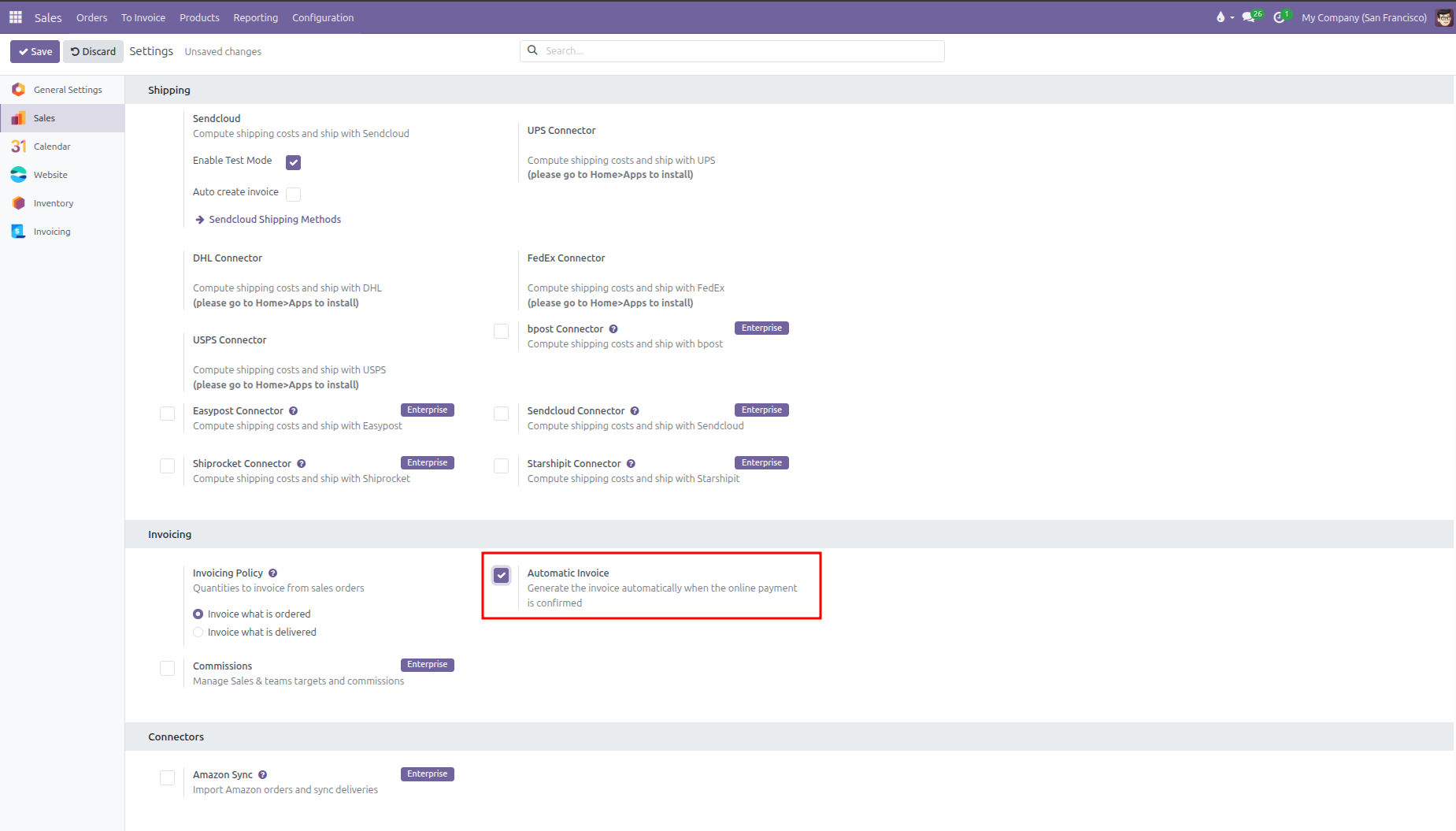
Enable Automatic Invoice Generation
In the same Settings screen, scroll down to the Invoicing section:
Check the box for Automatic Invoice (Generate the invoice automatically when the online payment is confirmed):
Review the company baseline Invoicing Policy:
Invoice what is ordered: When an online payment is confirmed, CURQ automatically creates and posts an invoice for the total ordered quantities.
Invoice what is delivered: Automatically creates down payment invoices matching the confirmed online transaction, while final product line invoicing waits until warehouse delivery.
Click Save in the top left corner.
Activating these global settings establishes the default confirmation and invoicing rules for all newly drafted quotations and templates across the company.
3. Configure and Activate Payment Providers
For customers to submit online payments, at least one payment provider must be active:
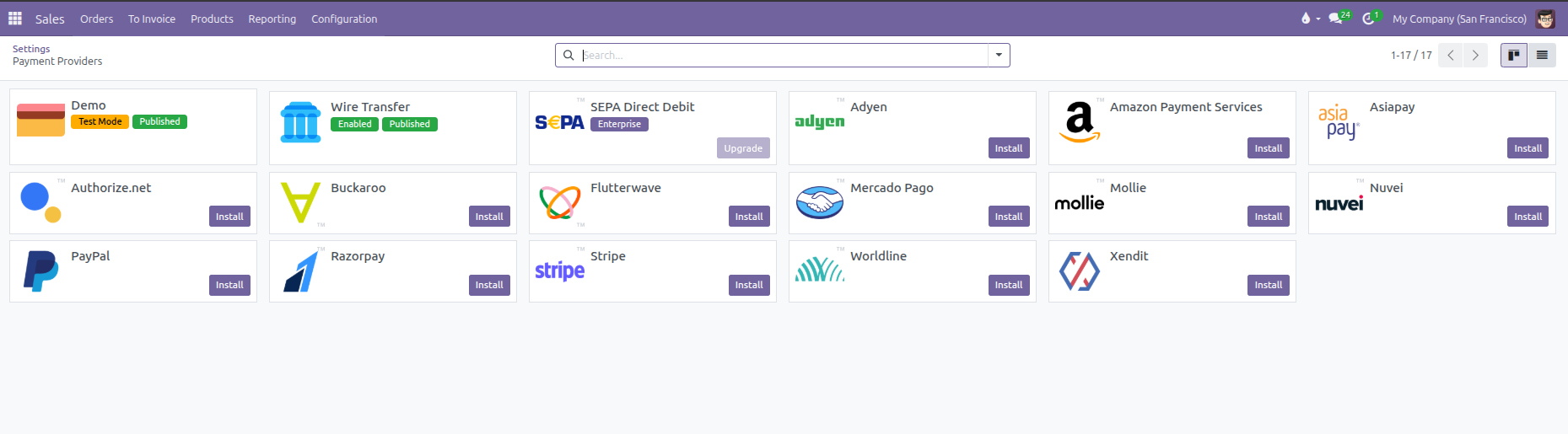
In Sales > Configuration > Settings under Online Payment, click the Payment Providers link.
Review the gallery of available payment gateways:
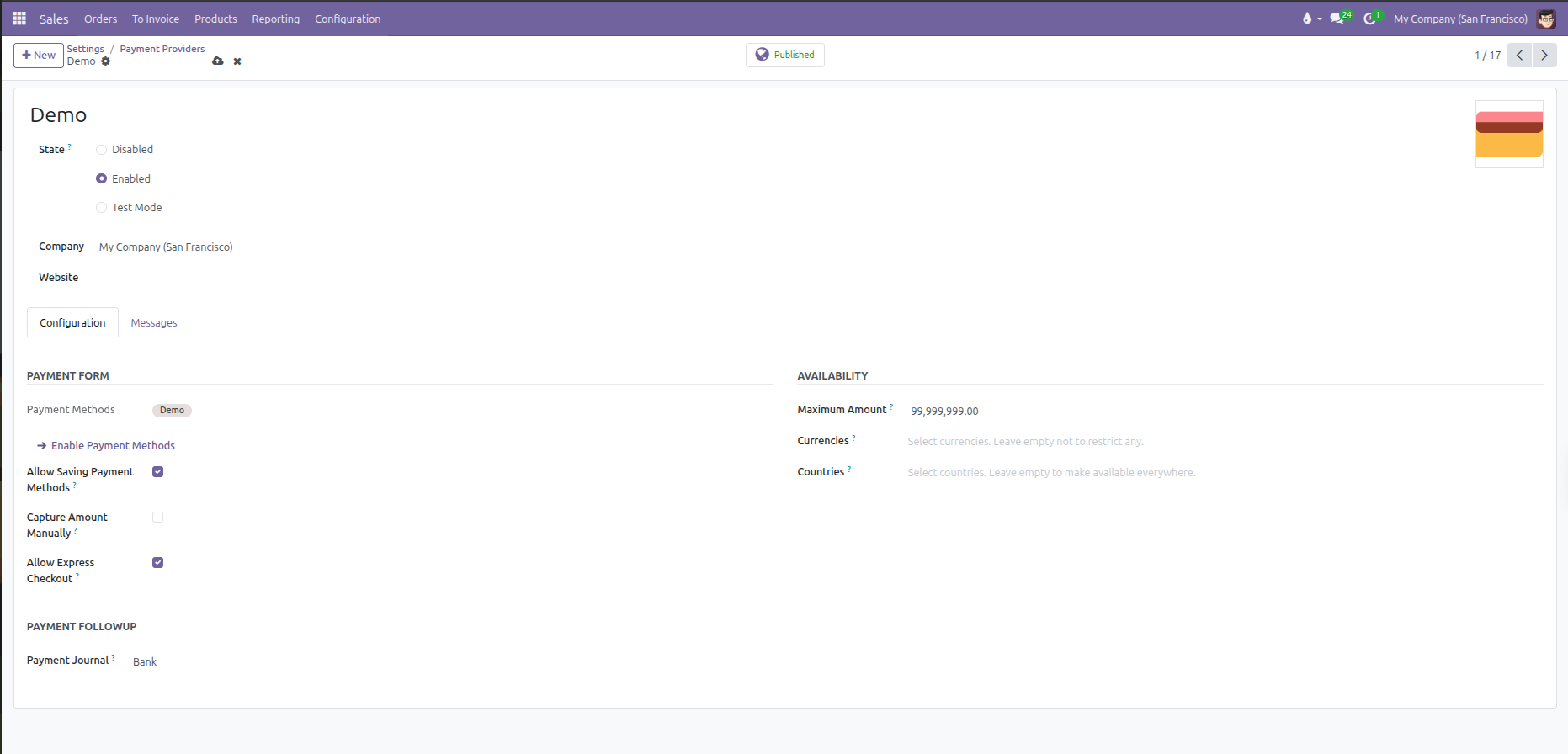
Click into a provider record (such as
DemoorWire Transfer) to open its configuration form.Set the State:
Disabled: The payment method is hidden from customers.
Test Mode: Simulates transactions using test credentials without processing real funds.
Enabled: Active live mode processing real customer payments.
In the Configuration tab, review payment form options, saving payment methods, and availability limits:
In the Messages tab, customize customer-facing messages for Pending, Authorize, Done, and Cancelled payment statuses:
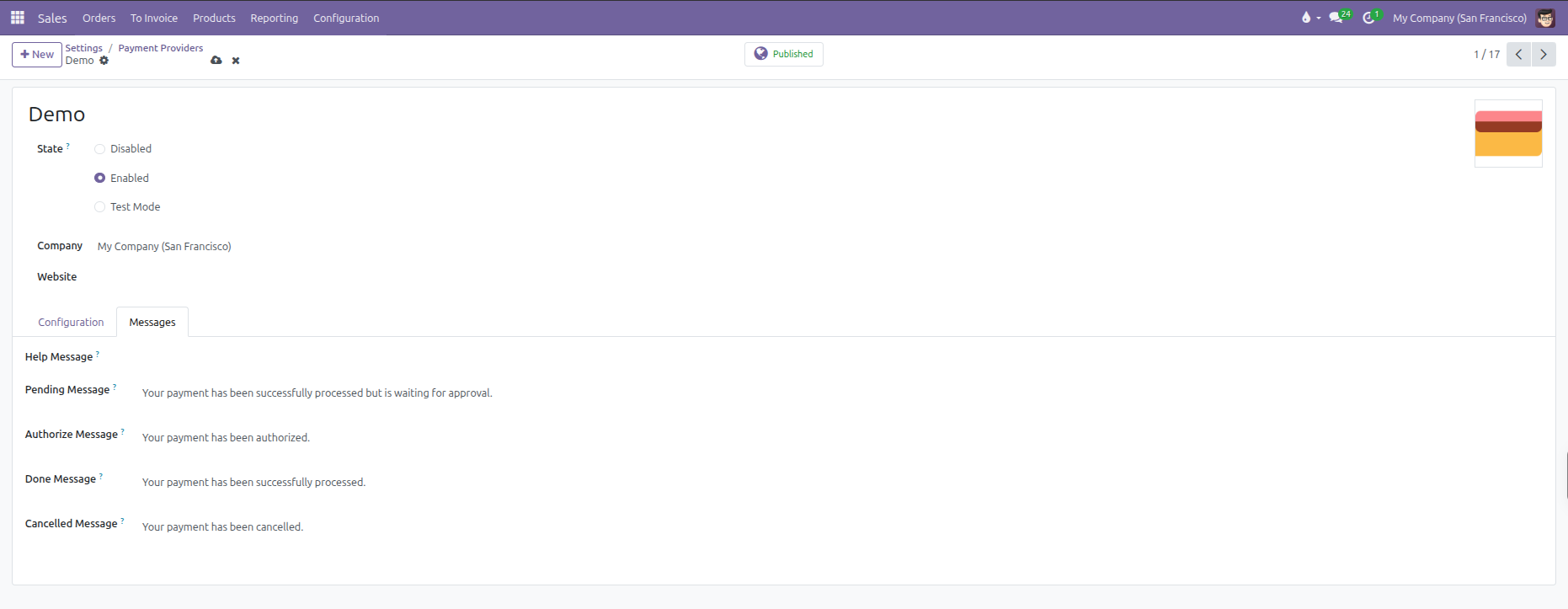
Ensure the Published indicator in the top header is active so customers can use the provider during checkout.
4. Apply Confirmation Rules on Quotation Templates
Standardized quotation templates allow businesses to enforce specific confirmation requirements based on product type, deal size, or contract terms:
Navigate to Sales > Configuration > Quotation Templates.
Select an existing template (such as
Standard Equipment Package) or click New.Under the template header on the right side, configure the confirmation rules:
Online Signature: Check to require an electronic signature whenever this template is applied.
Online Payment: Check to require an upfront payment before order confirmation.
Prepayment Percentage: Specify the exact percentage required for this template (such as
of 100 %).
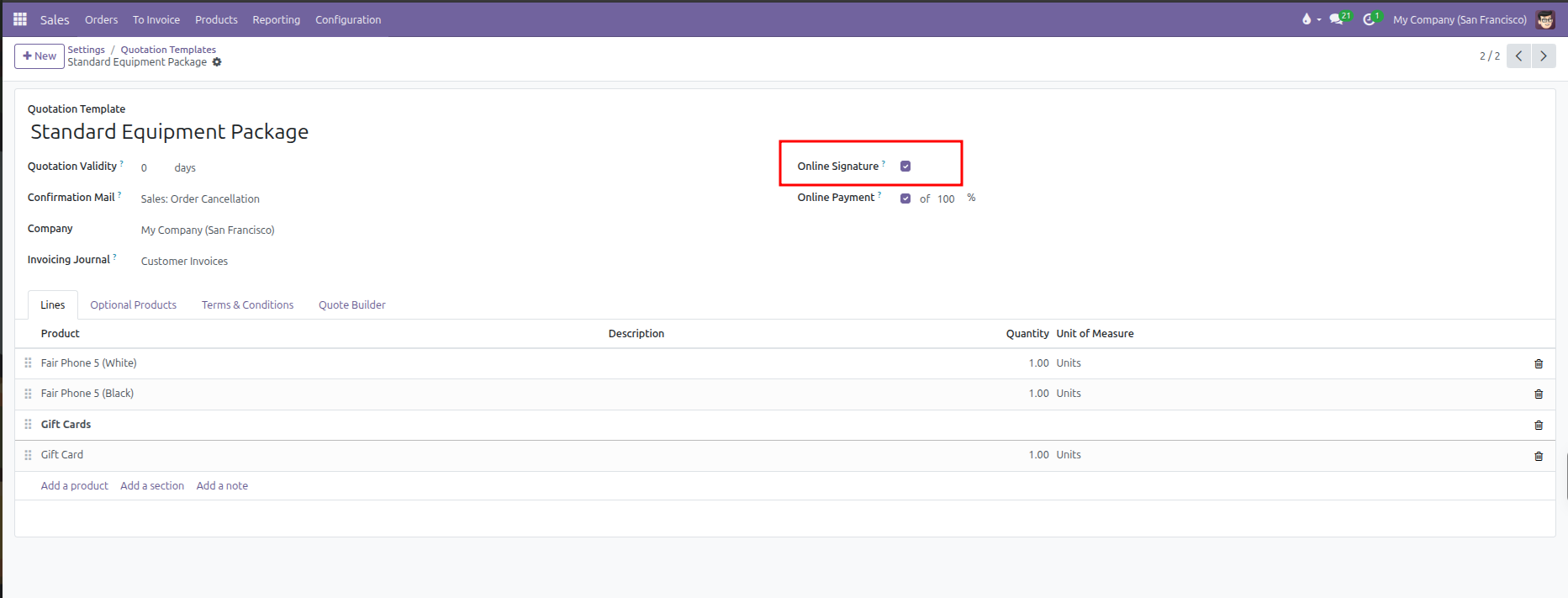
Save the quotation template. When a salesperson applies a template to a draft quotation, CURQ automatically sets the order confirmation requirements and deposit percentage to match the template policy.
5. Configure Confirmation Settings on Individual Quotations
Sales staff can customize or override signature and payment requirements for specific customer negotiations prior to sending the quote:
Navigate to Sales > Orders > Quotations.
Open a draft quotation (such as
S00060).In the lower notebook, click the Other Info tab (highlighted in red).
Under the Sales column on the left side, locate the confirmation controls:
Online signature: Toggle whether this specific customer must sign online (highlighted in red).
Online payment: Toggle whether this customer must submit payment online, and adjust the prepayment percentage if a custom deposit was negotiated.
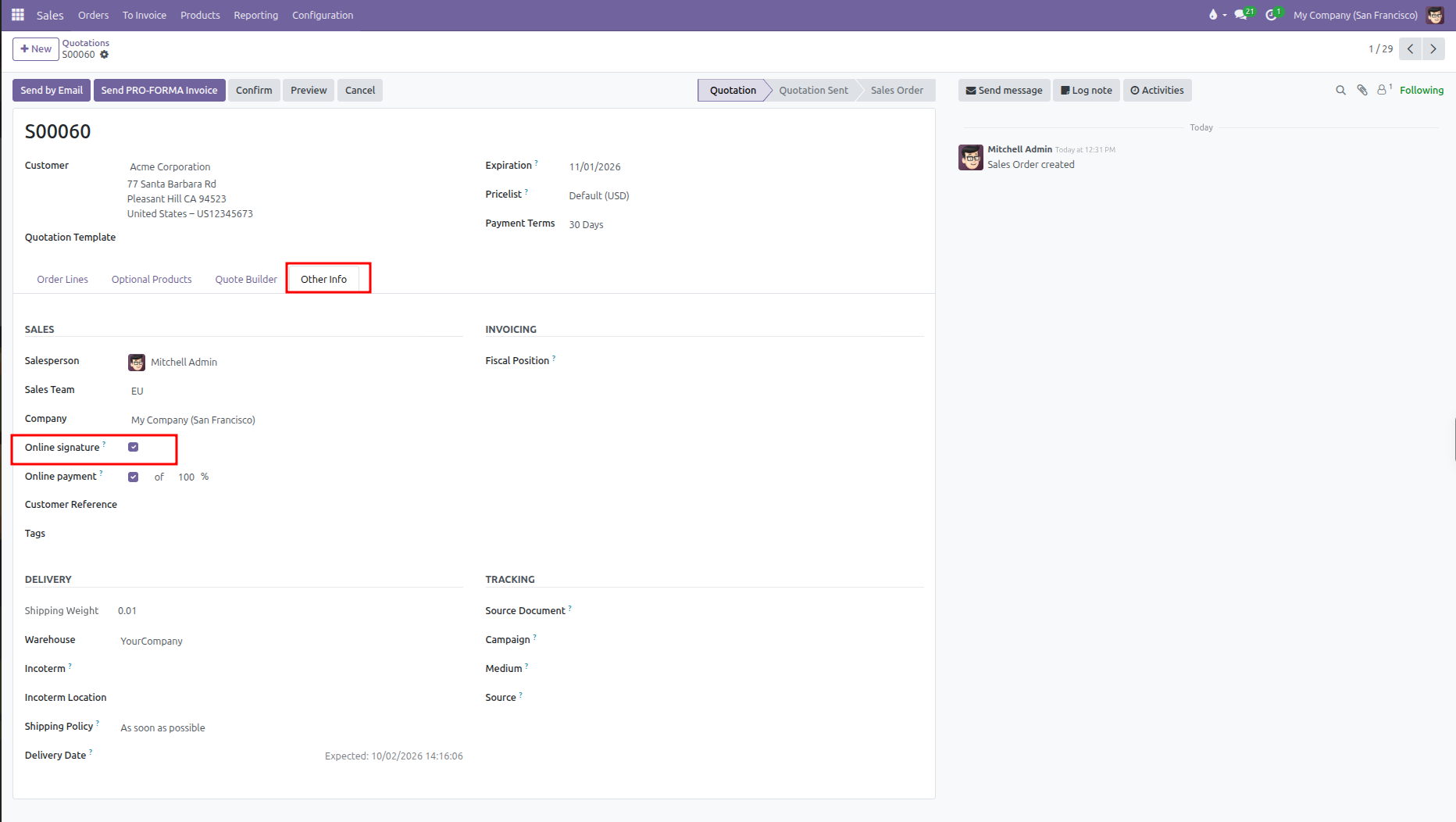
Send the quotation to the customer via Send by Email or click Preview to inspect the customer portal view.
(Note: Once a quotation is confirmed into a Sales Order or cancelled, both the Online signature and Online payment fields lock as read-only to preserve legal and financial audit integrity)
6. The Customer Portal Approval and Payment Workflow
When a customer opens the quotation link received by email, CURQ displays an interactive portal view tailored to the required confirmation mode:
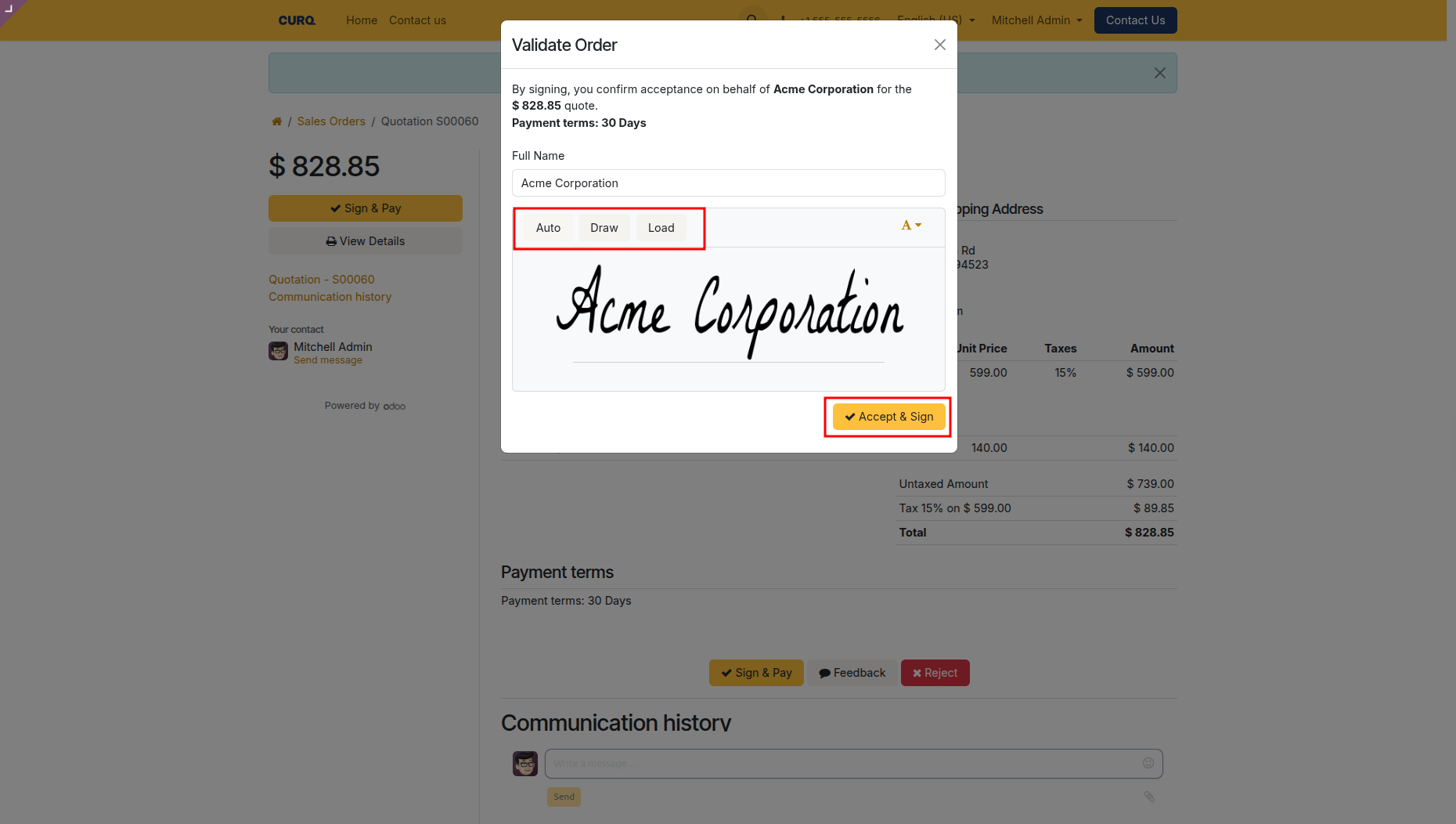
Step 1: Digital Signature Capture
The customer reviews the order lines, unit prices, and financial totals (such as
$ 828.85for quoteS00060).Clicking Sign & Pay (or Accept & Sign) opens the Validate Order modal.
The customer chooses their signing method (highlighted in red):
Auto: Types the customer full name in formal script calligraphy.
Draw: Provides a digital signature pad to sign with a finger, stylus, or mouse.
Load: Uploads a saved signature image file.
The customer confirms their Full Name and clicks Accept & Sign (highlighted in red):
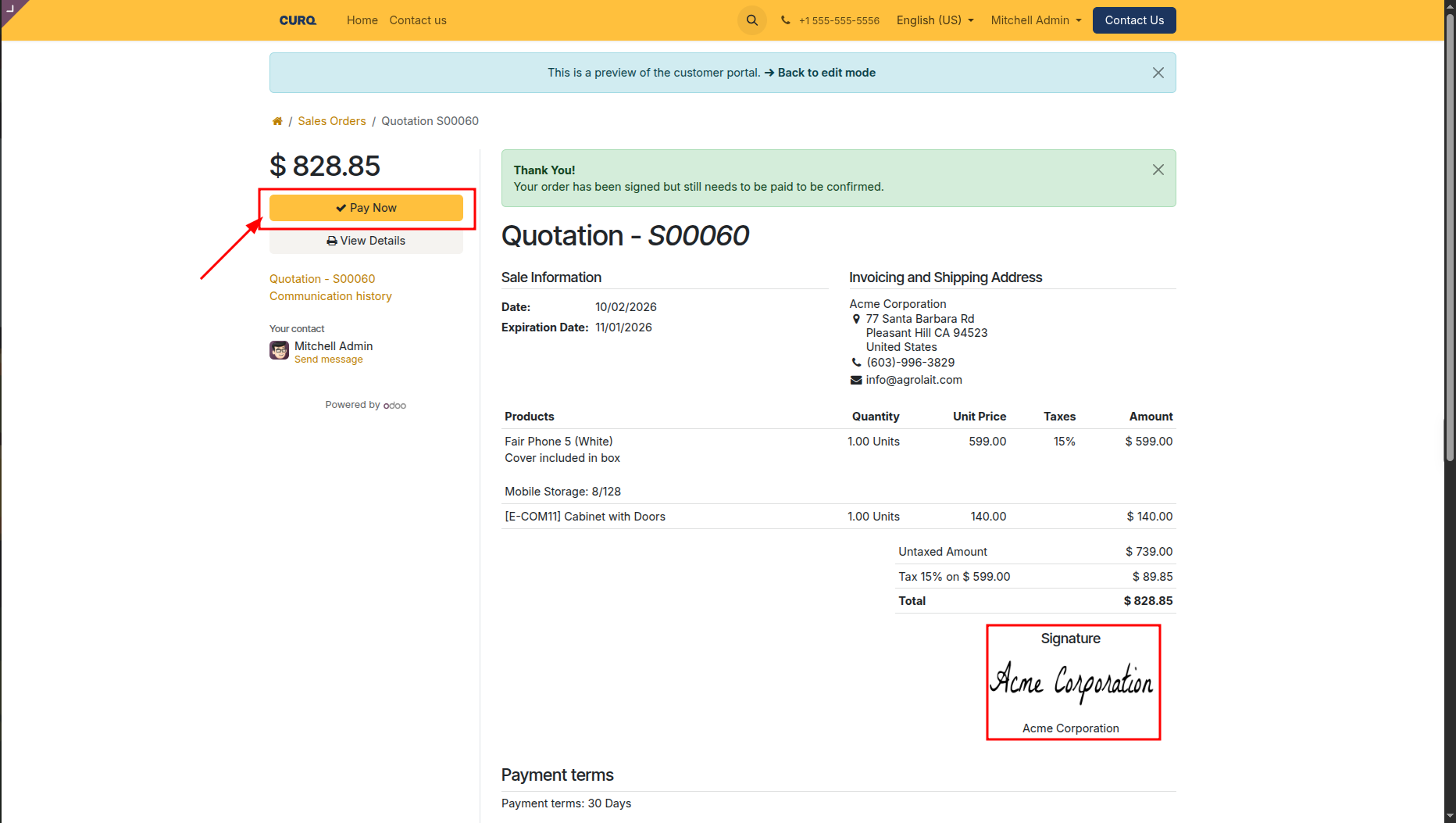
Step 2: Post-Signing Notification and Payment Prompt
Upon submitting their signature, CURQ displays a green status banner: “Thank You! Your order has been signed but still needs to be paid to be confirmed.”
A yellow Pay Now button appears on the left navigation pane (indicated by the red arrow).
The captured digital signature is displayed at the bottom right of the quotation document (highlighted in red):
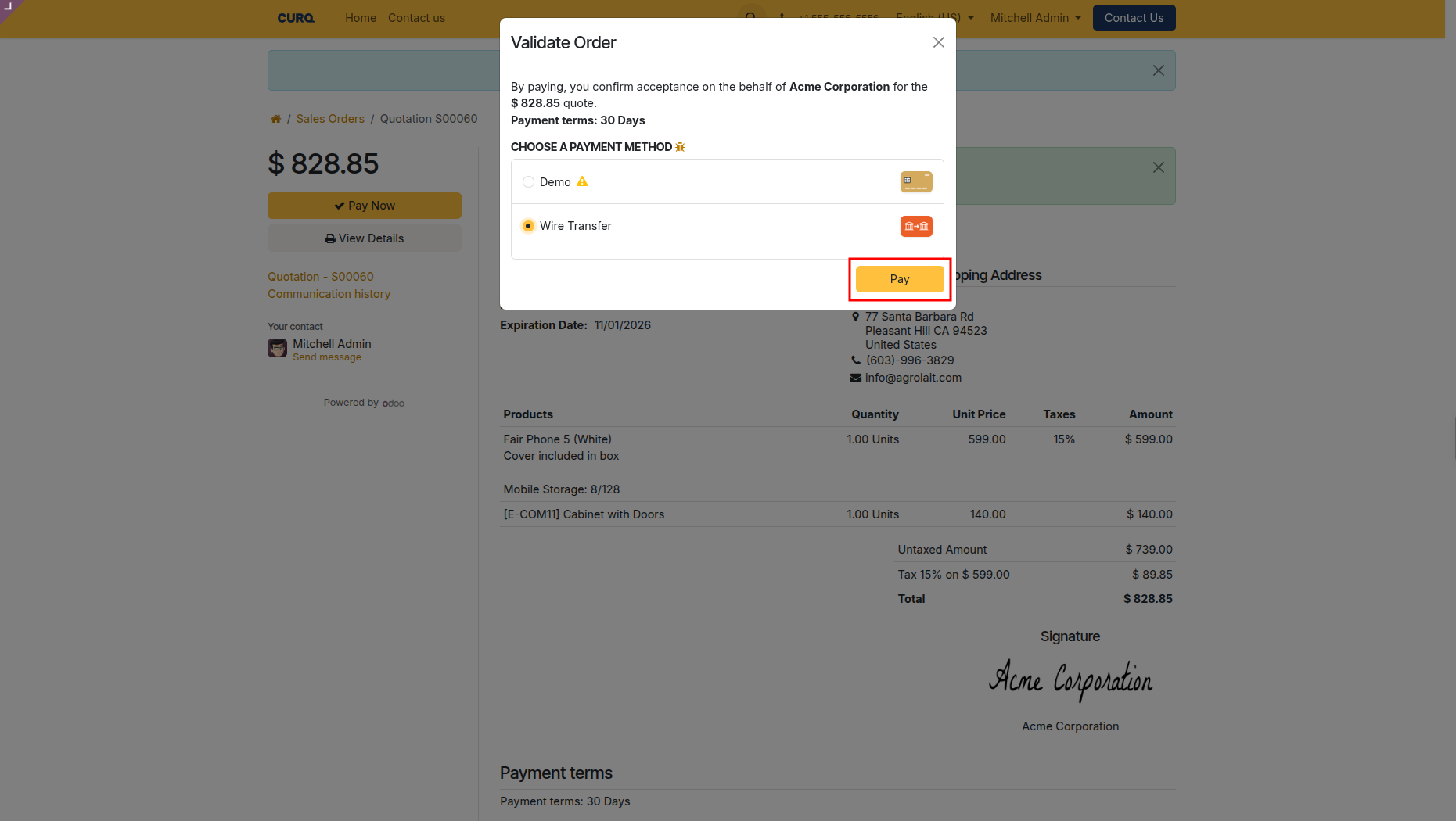
Step 3: Payment Method Selection and Checkout
Clicking Pay Now opens the payment modal.
The modal states: “By paying, you confirm acceptance on behalf of Acme Corporation for the $ 828.85 quote.”
Under CHOOSE A PAYMENT METHOD, the customer selects their preferred provider (such as
Wire TransferorDemo).The customer clicks Pay (highlighted in red):
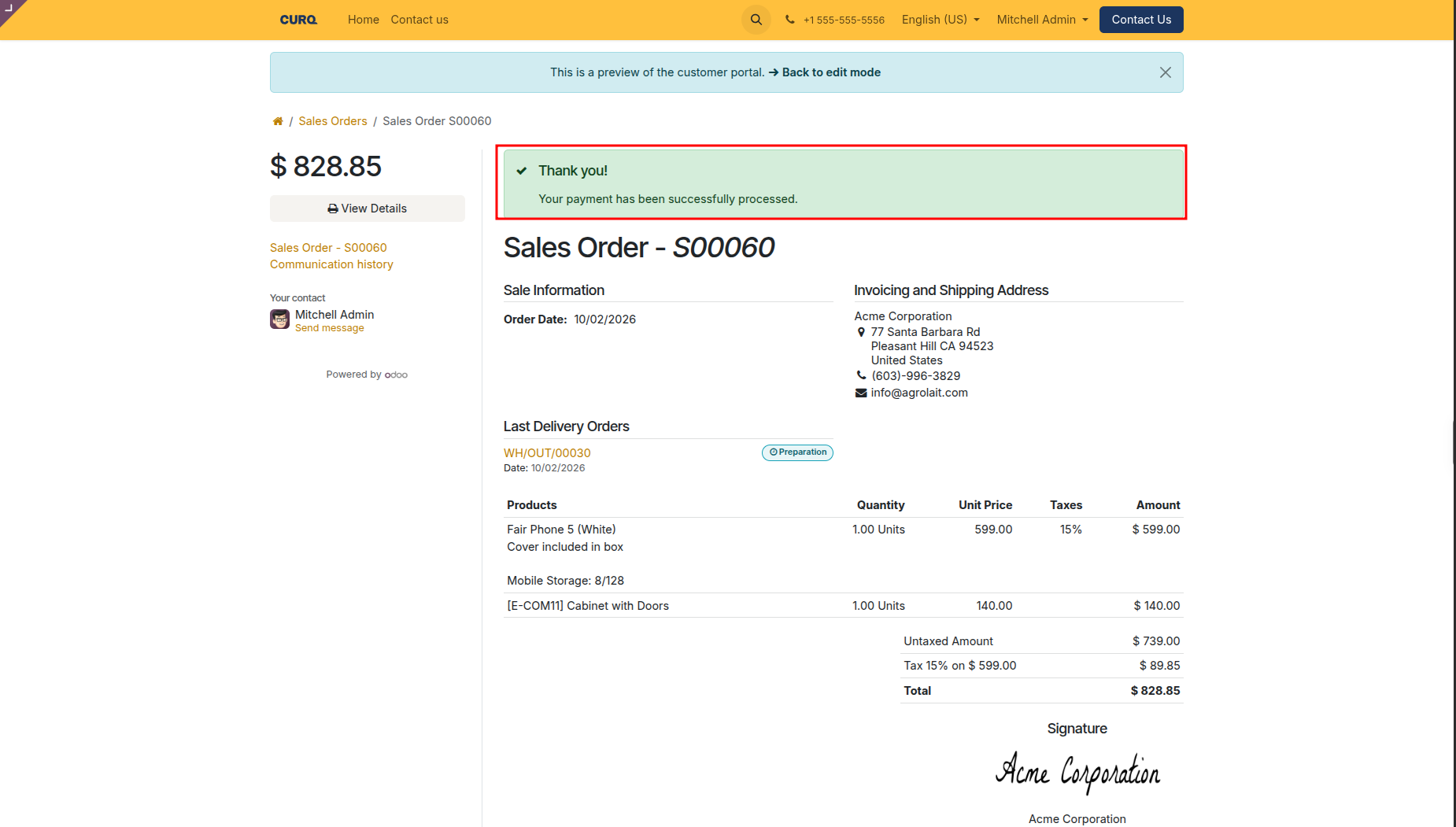
Step 4: Instant Confirmation and Order Progression
Once payment is processed, the portal displays a green success confirmation: “Thank you! Your payment has been successfully processed.” (highlighted in red).
The document title immediately updates from quotation to Sales Order S00060.
Downstream operations trigger automatically, including warehouse delivery orders (such as
WH/OUT/00030In Preparation):
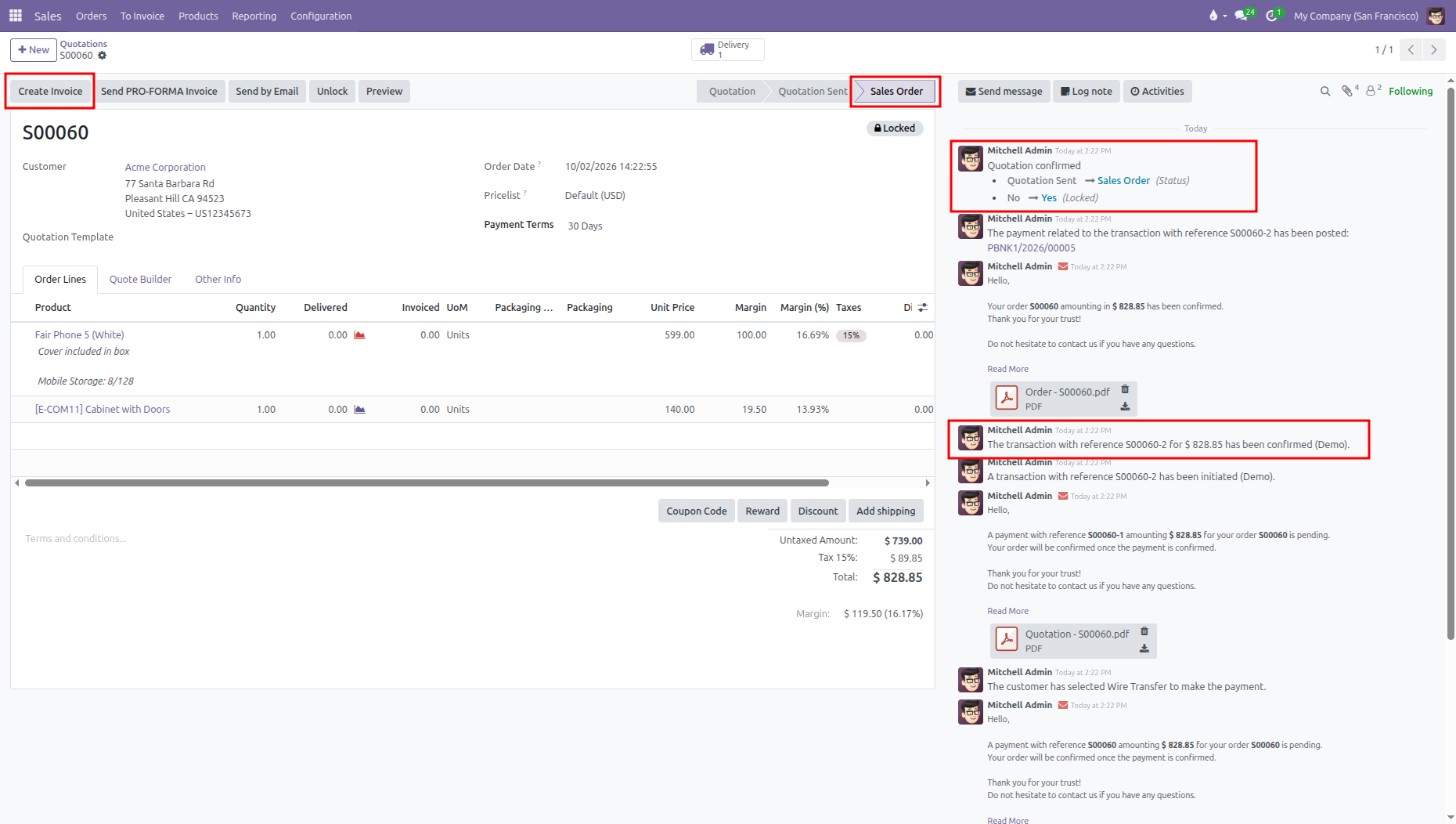
7. Backend Order Confirmation and Financial Audit Trail
When sales staff open the confirmed order in CURQ (such as S00060):
Sales Order Status: Document status advances from Quotation Sent to Sales Order, with the order automatically locked (highlighted in red).
Create Invoice: The top action bar displays the Create Invoice button (highlighted in red).
Chatter Audit Log:
Status transition logged:
Quotation Sent -> Sales Order (Status),No -> Yes (Locked).Transaction confirmation logged:
The transaction with reference S00060-2 for $ 828.85 has been confirmed (Demo)(highlighted in red).Signed contract attached:
Order_S00060.pdfcontaining the customer signature, timestamp, and IP address.
Invoicing Automation Comparison
With Automatic Invoice Disabled: Once payment completes online, CURQ confirms the sales order and requires staff or accounting to click Create Invoice manually.
With Automatic Invoice Enabled: The moment the payment gateway authorizes the online transaction, CURQ immediately creates, validates, and posts the customer invoice automatically without requiring manual action from staff.
Manual Staff Override
If a customer prefers offline confirmation (such as returning a signed paper contract by courier or submitting an offline bank wire):
Sales staff can click Confirm directly on the quotation header.
Clicking Confirm bypasses the online portal requirement and converts the document into a confirmed Sales Order immediately.
8. Confirmation Options Summary Matrix
Configuration Mode |
Customer Portal Button |
Signing Step |
Payment Step |
When Order Converts to Sales Order |
|---|---|---|---|---|
Signature Only |
|
Required (Auto, Draw, or Load) |
None |
Immediately after digital signature is submitted |
Payment Only |
|
None |
Required (Selected Provider) |
Immediately after payment transaction is authorized |
Signature + Payment |
|
Required (Auto, Draw, or Load) |
Required (Deposit or 100%) |
Only after payment transaction succeeds |
Neither Enabled |
|
None |
None |
When sales staff manually click Confirm in the backend |