Configure Bank Link (Ponto)
You can connect your bank account to CURQ to automatically import bank transactions and simplify the reconciliation process.
CURQ uses Ponto to securely connect with your bank and retrieve transaction data. Before you begin, make sure you have an active Ponto account and the required login credentials.
Create a Bank Connection
Go to Invoicing.
Navigate to Configuration → Online Bank Statement Providers.
Click New.
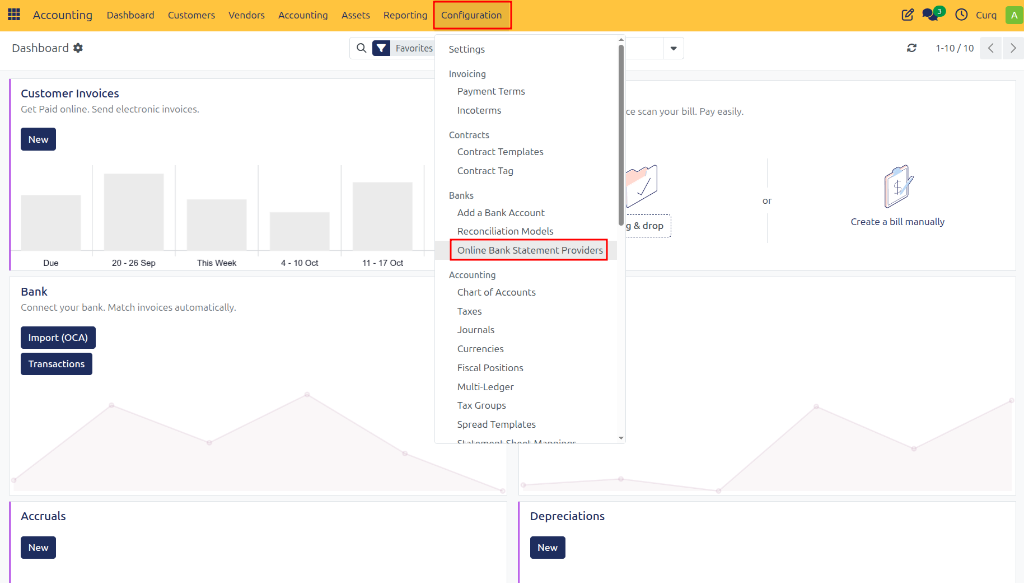
Enter the required information for the bank connection.
Configure the Ponto Connection
When creating the connection:
Select Bank as the journal if you do not yet have a dedicated bank journal.
Select MyPonto.com as the service provider.
Enter the Login and Secret Key from your Ponto account.
Review the remaining settings and adjust them if needed.
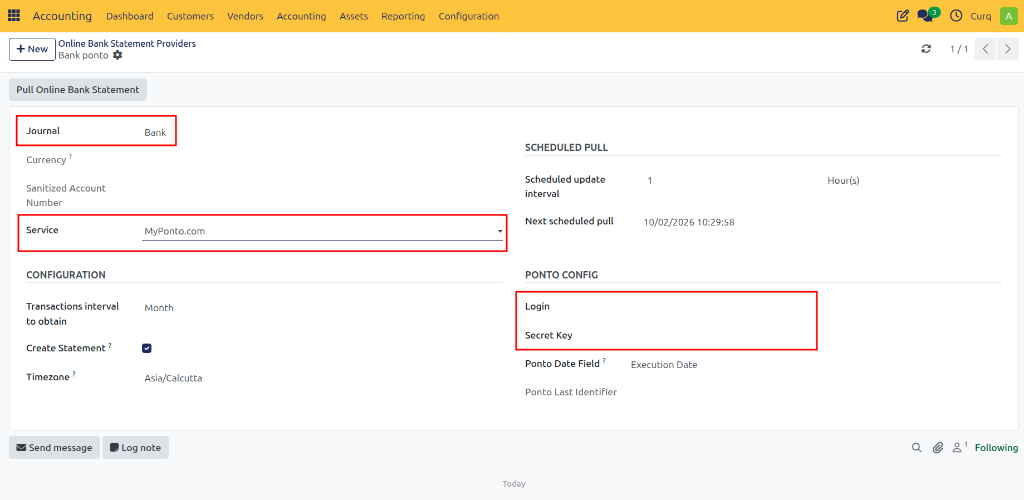
It is recommended to keep the Retrieve Interval at 1 hour or higher to ensure steady performance and avoid API rate limits.
Configure Bank Account Details
After creating the connection, you must configure the account details:
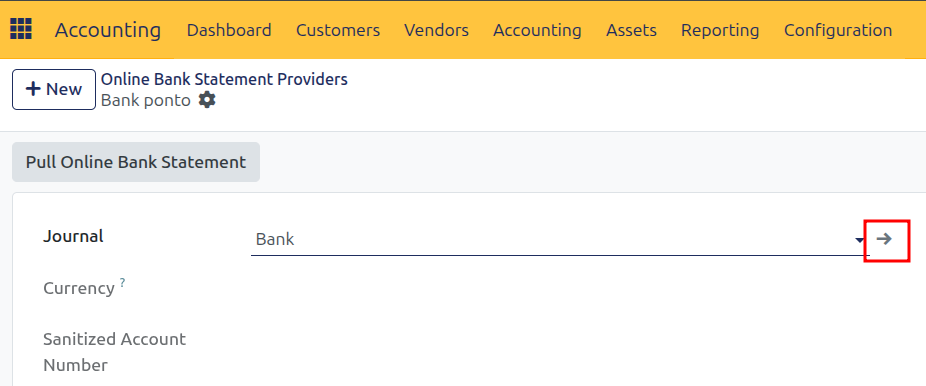
Open the selected Bank Journal.
Enter the bank account number.
Click Create and Edit.
Complete the remaining bank account information.
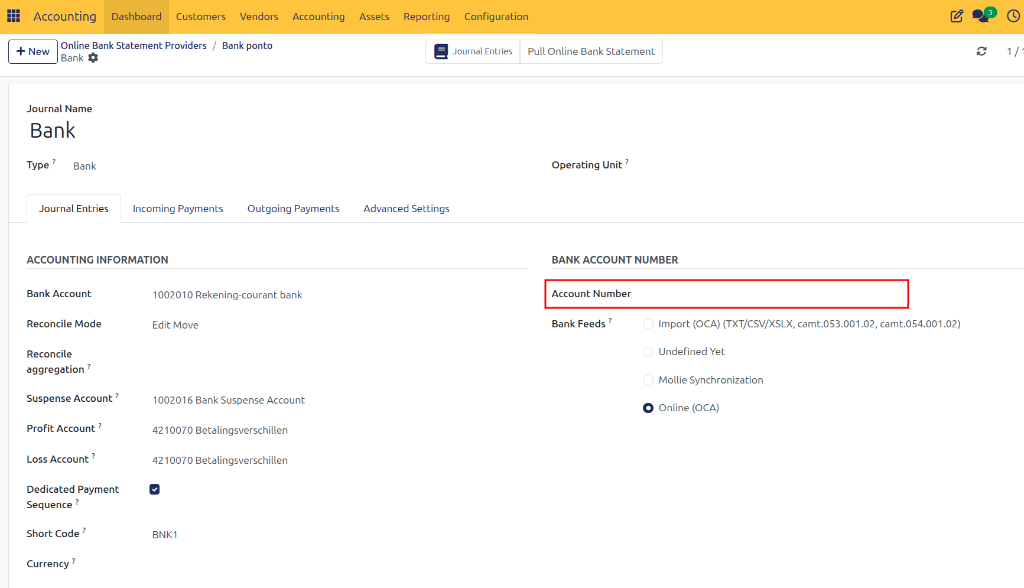
Make sure all bank details are entered accurately to ensure successful and uninterrupted synchronization.
Result
Once the setup is complete, CURQ can automatically retrieve bank transactions from your connected bank account. These transactions can then be reviewed and reconciled seamlessly within the Accounting module.
CURQ automatically saves changes as you make them. There is no need to manually save your configuration.