View All Products
Follow these quick steps to find, browse, and filter all products in your CURQ 18 sales catalog.
1. Open the Products Catalog
Open the Sales app.
In the top navigation bar, click Products.
Choose what you want to browse:
Select Products to view your master product templates.
Select Product Variants to view specific attribute combinations (such as individual colors and sizes).

2. Switch Between Card and List Views
CURQ displays your products in two main layouts:
Kanban Card View: Displays visual product cards with images, sales prices, and current stock levels.
List View: Displays a spreadsheet table showing internal references, product names, sales prices, costs, on-hand quantities, and units of measure.
To switch between views, click the Kanban or List icons located at the top right of the screen:
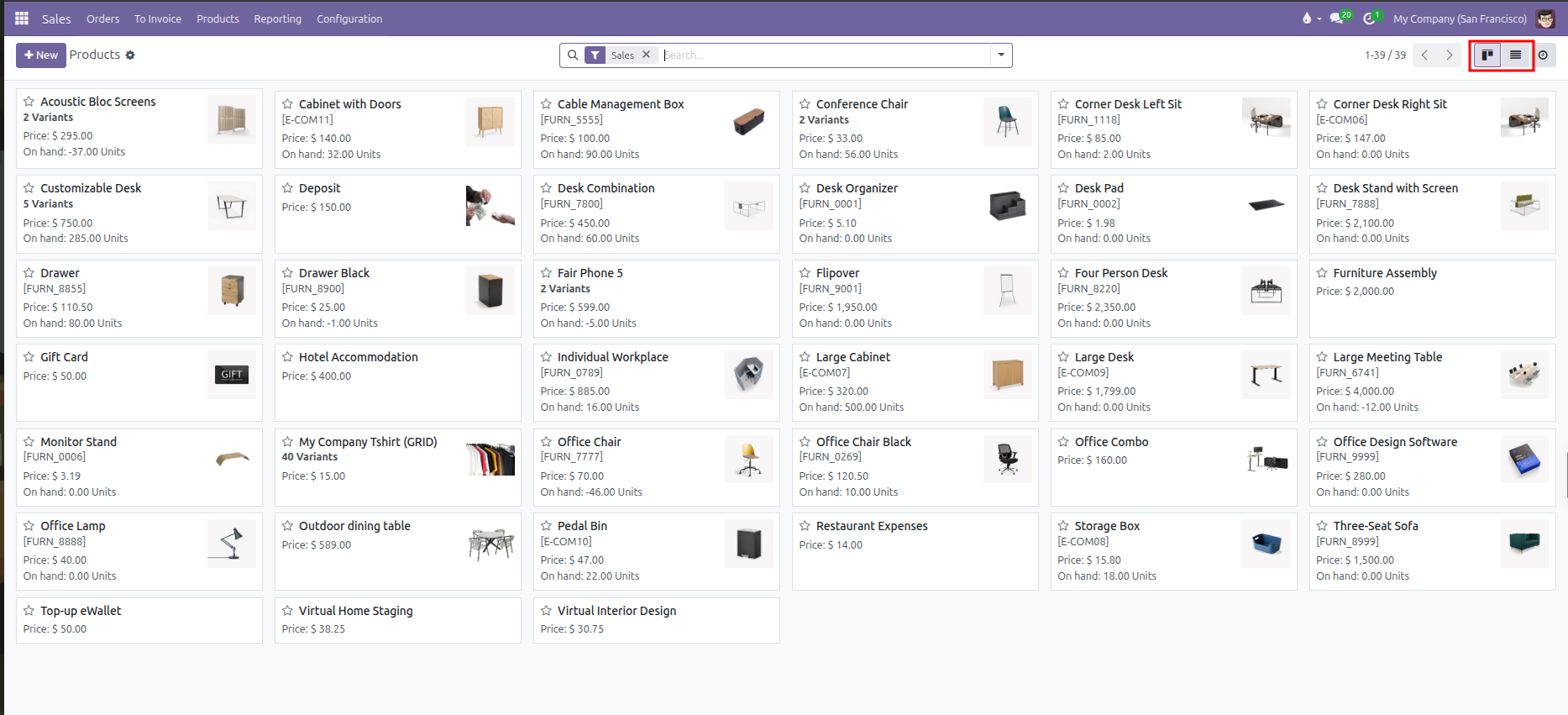
Each product card displays:
Image & Title: Product picture thumbnail and master item name.
Variants Badge: Displays the number of active variations (such as
2 Variantsor5 Variants) if attributes are configured.Internal Reference: The item catalog code or SKU (such as
[FURN_5555]).Price: The standard customer sales price.
On Hand: Current available warehouse stock in inventory units.
3. Search and Filter Products
To find specific products quickly:
Click into the search bar at the top center of the screen to open the search dropdown.
Type a Product Name, Internal Reference (SKU), or Barcode.
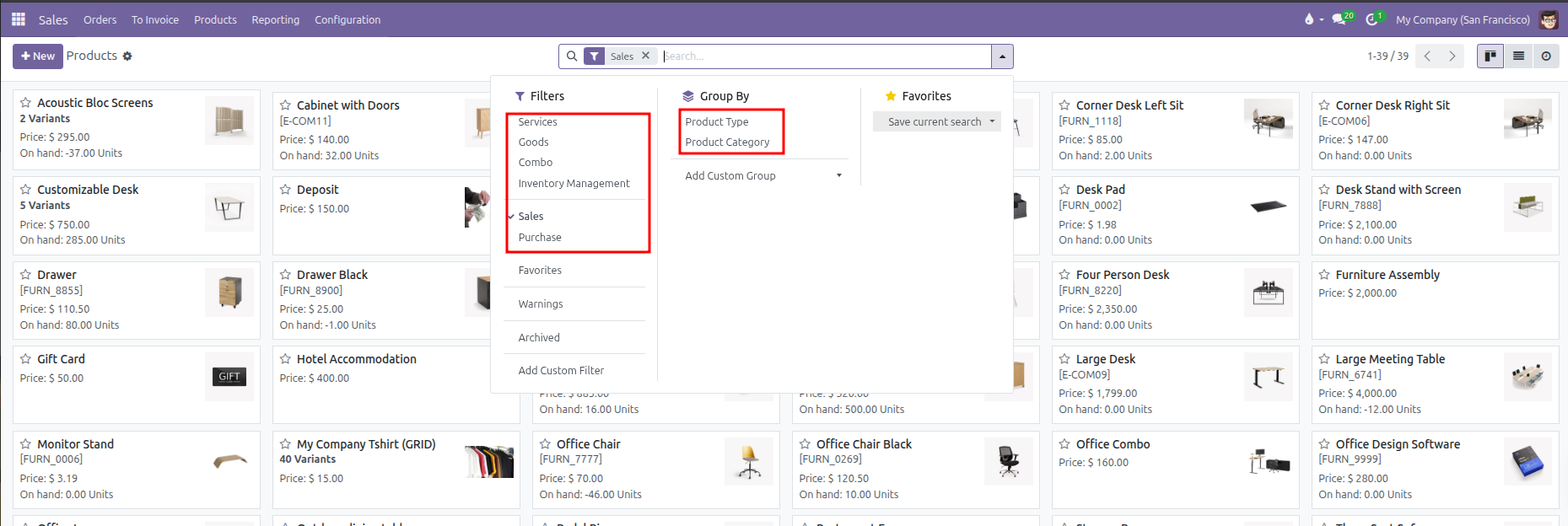
Under Filters, select options to narrow your results:
Sales: Displays active products available for customer sales (active by default).
Services: Filters for intangible offerings, labor, or service contracts.
Goods: Filters for physical stock items and materials.
Combo: Filters for bundled product offerings.
Inventory Management: Filters for items tracked with inventory operations.
Purchase: Filters for products acquired from vendors.
4. Group Products by Category or Type
To organize your product catalog into neat sections:
Click into the search bar at the top center to open the dropdown menu.
Under Group By, choose your preferred grouping:
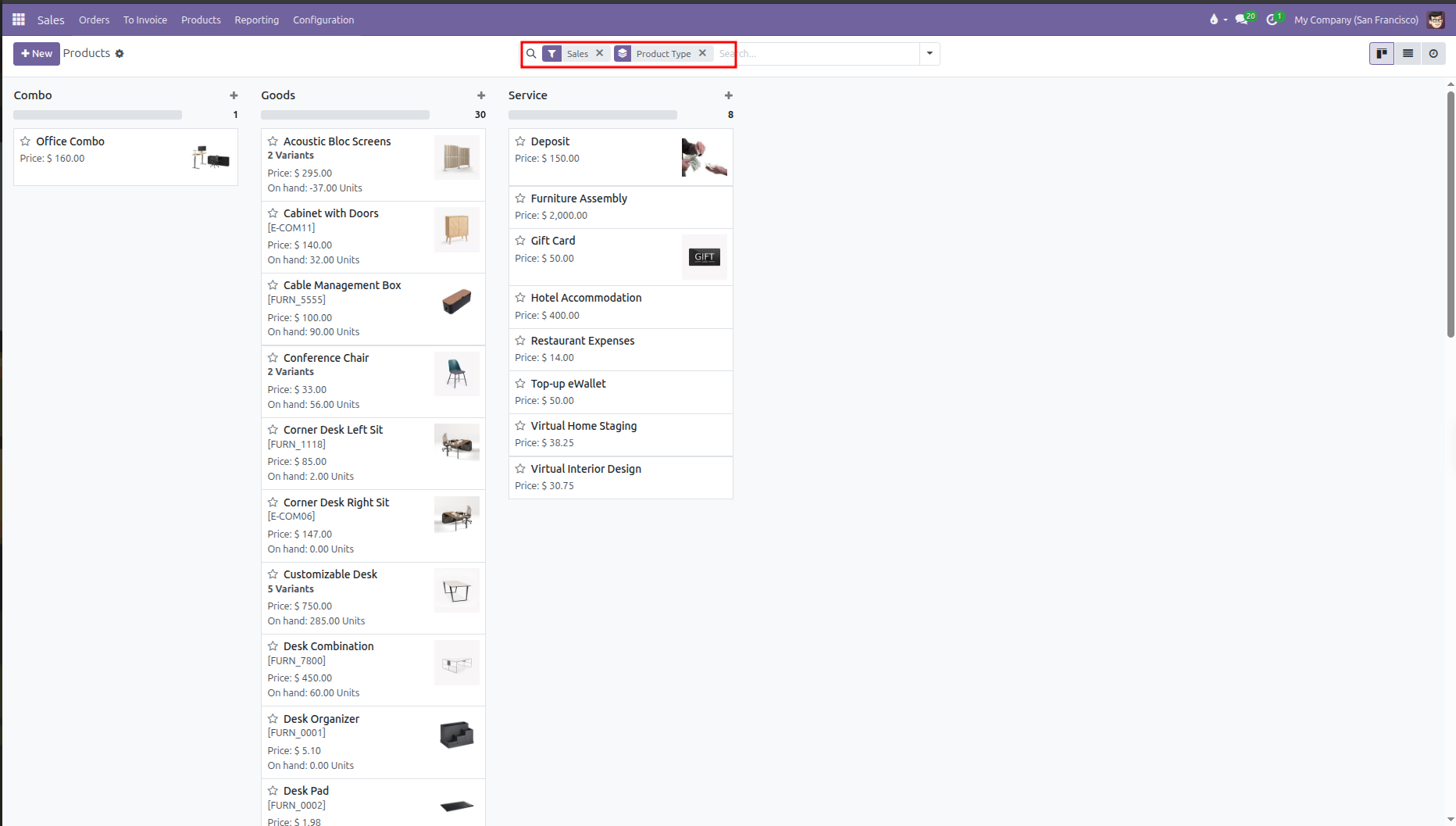
Product Type: Groups items by classification (Combo, Goods, and Service).
Product Category: Groups items by internal catalog category (such as Office Furniture or Electronics).
CURQ organizes the view into distinct columns or collapsible sections:
5. Open and Inspect Product Details
Click on any product card or table row from the list.
Review the product details across the main tabs:
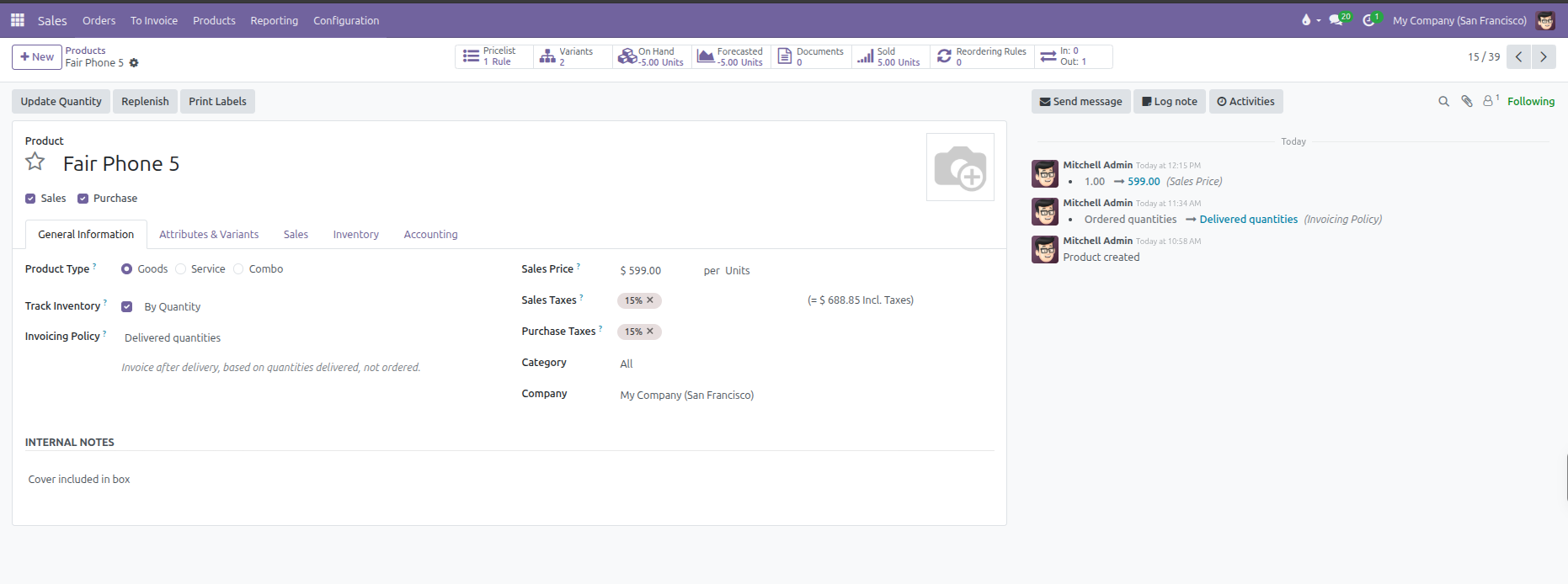
General Information: Check the Sales Price, Customer Taxes, Cost, and Invoicing Policy.
Attributes & Variants: View available variants, attributes, and price extra values.
Sales: View configured optional accessories, quotation descriptions, and packaging.