Open Items Report
Overview
The Open Items report shows all unpaid customer invoices, unpaid vendor bills, and other accounting entries that still have an outstanding balance.
This report helps you:
Monitor outstanding customer payments.
Track unpaid supplier invoices.
Identify overdue balances.
Review receivable and payable accounts.
Support collection and payment follow-up activities.
Open Items only displays entries that are not fully reconciled. Once an invoice or bill is completely paid and reconciled, it is removed from the report.
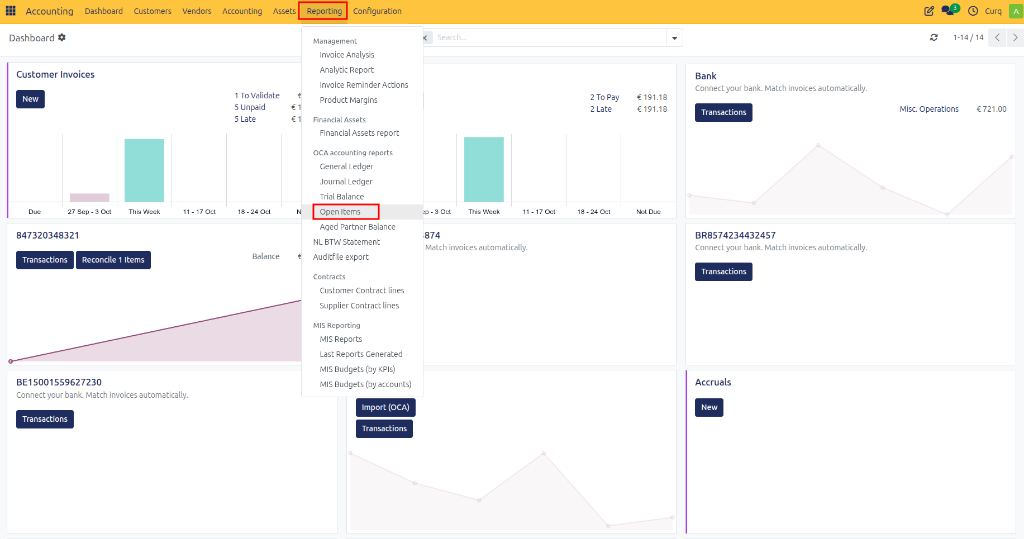
Navigate to: Accounting → Reporting → Open Items
Report Fields
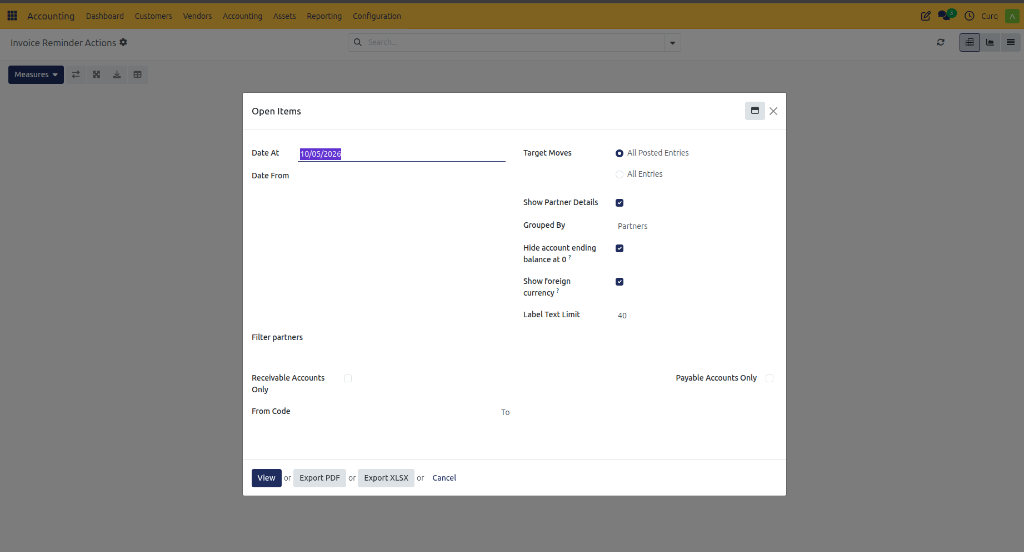
Before generating the report, you can configure several filters to display the required data.
Field |
Description |
|---|---|
Date At |
Shows open items as of the selected date. |
Date From |
Displays only entries created from the selected date onwards. |
Target Moves |
Choose whether to include only posted entries or all entries. |
All Posted Entries |
Shows only validated accounting entries. |
All Entries |
Includes both draft and posted entries. |
Show Partner Details |
Displays open items grouped by customer or vendor. |
Grouped By |
Defines how records are grouped in the report (for example by Partner). |
Hide Account Ending Balance at 0 |
Hides accounts that have no outstanding balance. |
Show Foreign Currency |
Displays amounts in the original transaction currency. |
Label Text Limit |
Limits the number of characters shown for entry descriptions. |
Partner Filters
Field |
Description |
|---|---|
Filter Partners |
Select specific customers or vendors to include in the report. |
Receivable Accounts Only |
Show only customer receivable accounts. |
Payable Accounts Only |
Show only supplier payable accounts. |
Account Filters
Field |
Description |
|---|---|
From Code |
Start of the account code range to include. |
To |
End of the account code range to include. |
Available Actions
Action |
Description |
|---|---|
View |
Displays the report directly on screen. |
Export PDF |
Downloads the report as a PDF document. |
Export XLSX |
Downloads the report as an Excel file for further analysis. |
Cancel |
Closes the report wizard without generating the report. |
Viewing the Report
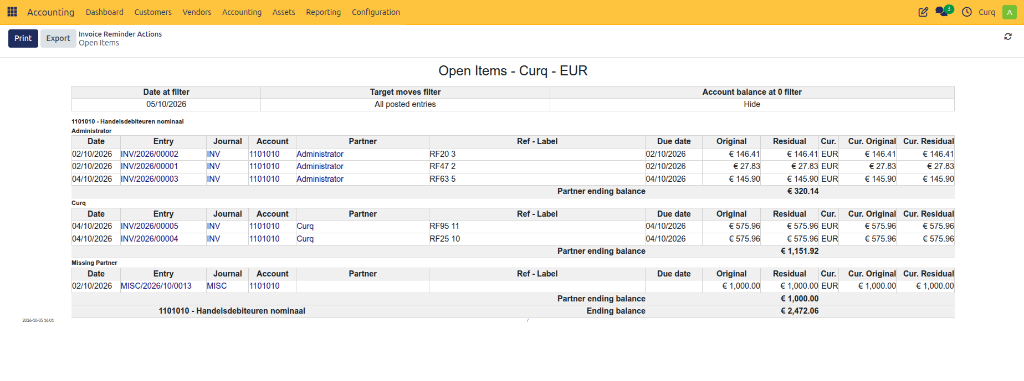
Once generated, the Open Items report provides a clear list of all outstanding balances grouped by your chosen criteria.