Lost Reasons and Deal Tags Configuration
Standardize customer rejection reasons, organize opportunities with color tags, and maintain clean commercial categorization in CURQ 18.
2. Configuring Lost Reasons
When salespeople click Lost on an opportunity, CURQ requires them to pick a reason. Setting up standard reasons prevents vague feedback and establishes actionable trends.
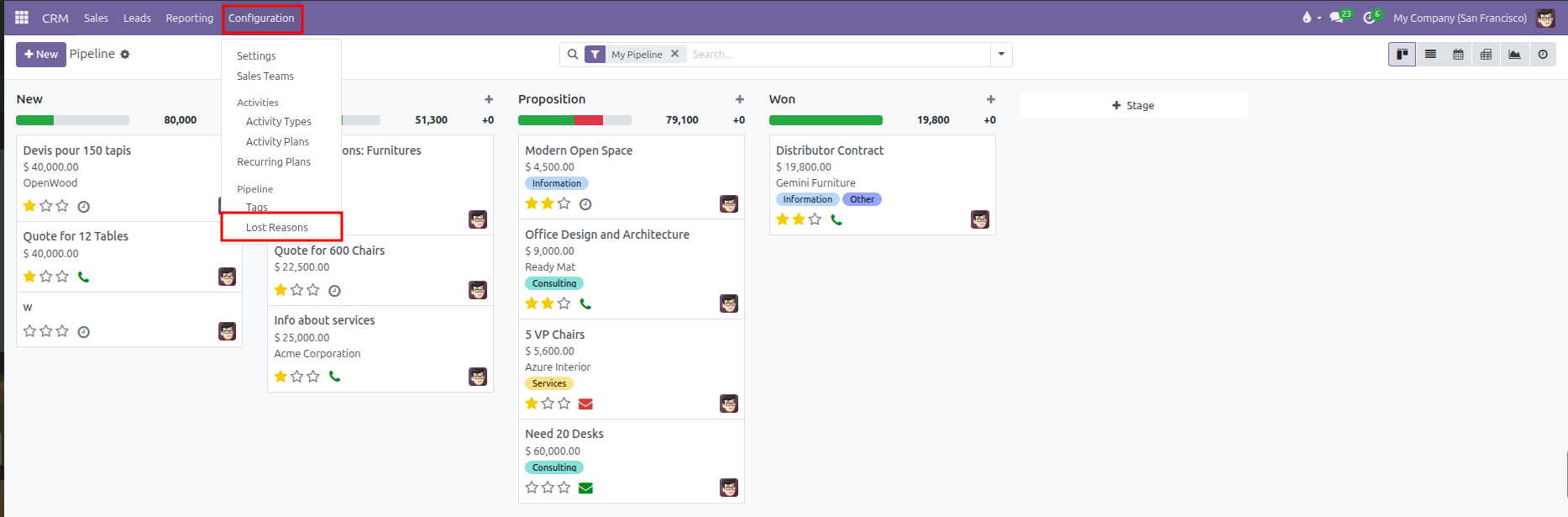
Navigating to Lost Reasons:
Open the CRM application.
In the top navigation bar, click Configuration.
Under the Pipeline section, click Lost Reasons.
Creating and Managing Reasons:
Add a Reason: Click New, type the reason name (such as
Competitor Selected,Budget Cancelled,Timeline Postponed, orTechnical Incompatibility), and save.Archive an Outdated Reason: If a reason is no longer applicable, open the record, click the gear actions icon, and select Archive. Archiving preserves historical data on past deals while removing the option from the active dropdown list.

3. Configuring Lead and Opportunity Tags
Tags provide lightweight labels visible directly on Kanban deal cards and inside form views.
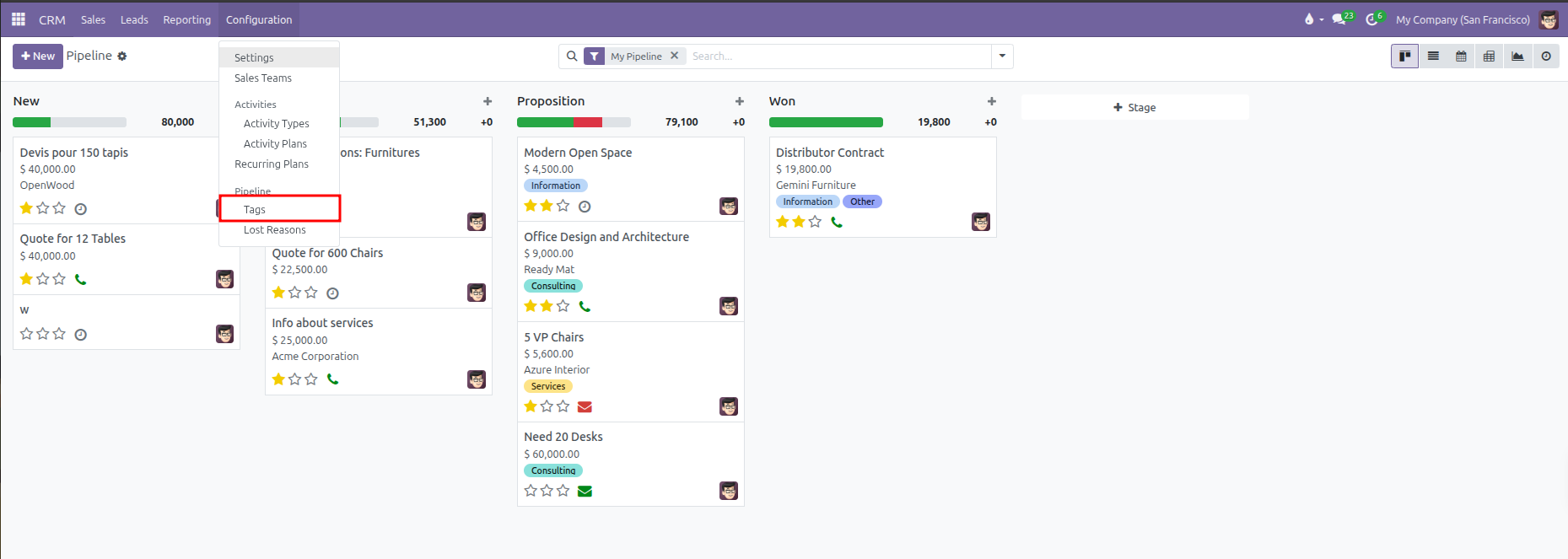
Navigating to Tags:
Open the CRM application.
In the top navigation bar, click Configuration.
Under the Pipeline section, click Tags.
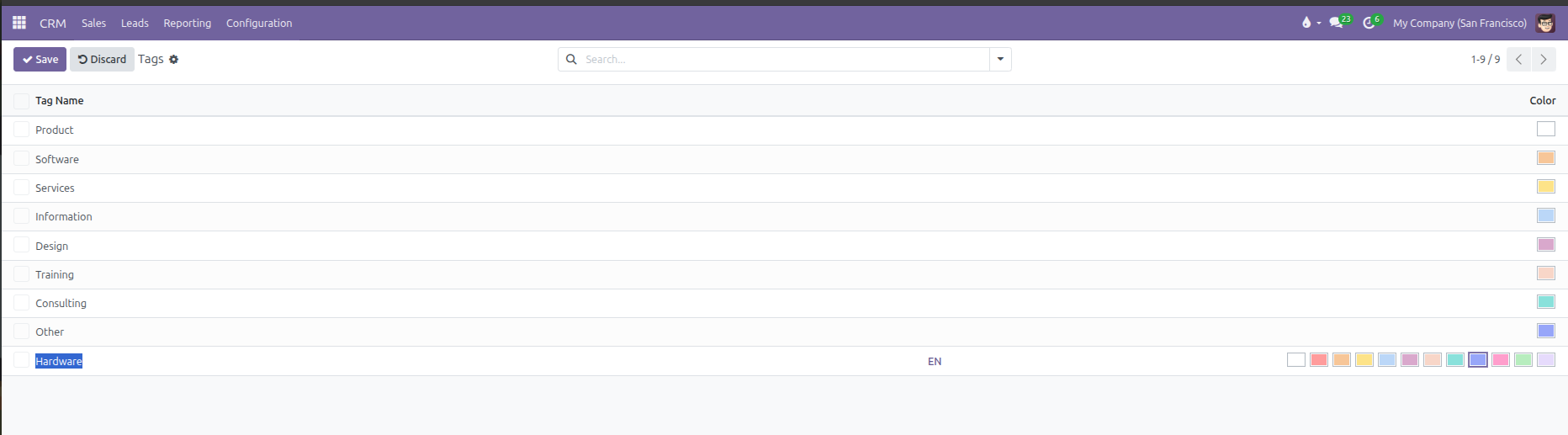
Creating a New Tag:
Click New at the top of the list to open an inline row.
In the Tag Name field, enter a concise label (such as
Hardware,Enterprise,Urgent, orConsulting).Select a Color from the color palette boxes. Each color corresponds to a distinctive visual badge on the Kanban board.
Click Save.